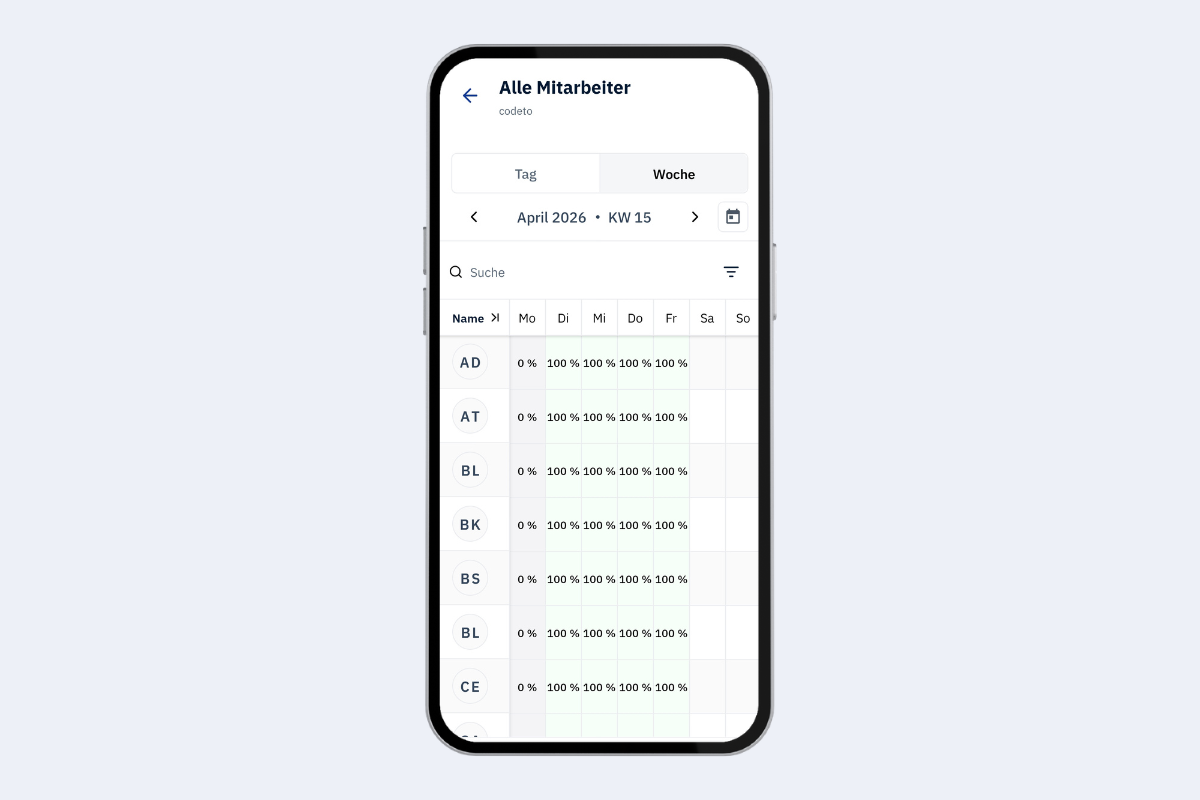
All Employees
The "All Employees" view shows an overview of all employees in the company with their bookings. A day view and a week view are available.
Day View
In the day view, all employees are listed one below the other. The timeline can be scrolled horizontally to the right to see the entire day. Scroll vertically through the list of employees.
The following functions are available:
- Tap date – opens a date picker to select a specific date
- Left/right arrows – shifts the view one day forward or back
- Calendar icon (to the right of the date) – jumps directly to today
- Search – search for a specific employee
- Filter – select any filter you have created in the web application or that has been shared with you. Filters can only be created in the web application.
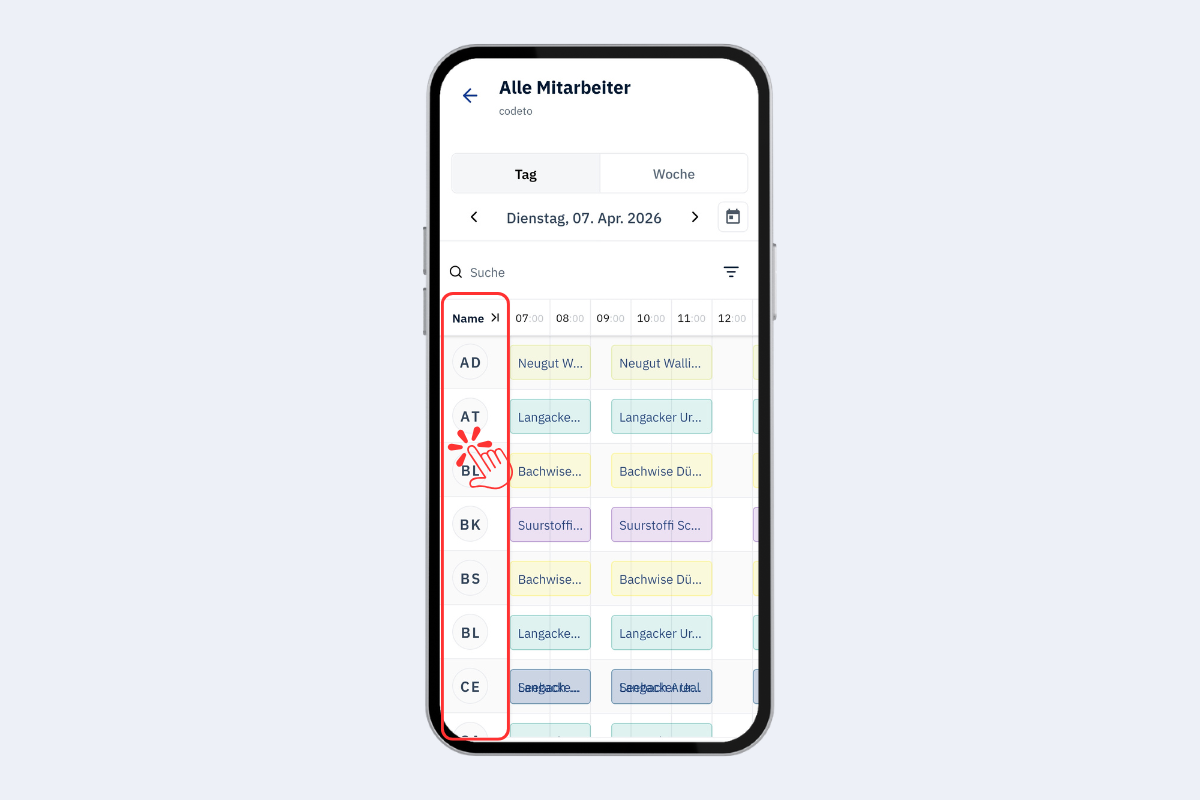
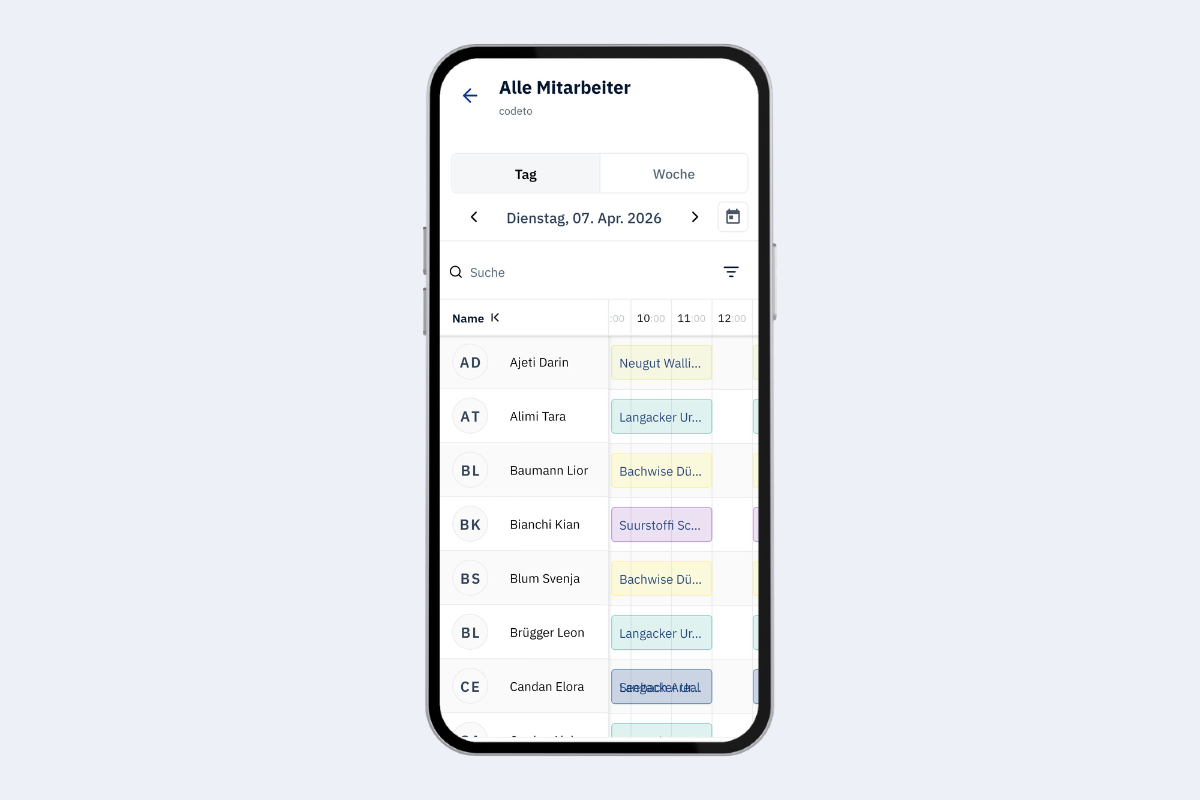
Expand and Collapse Names
Tapping the initials of an employee on the left side expands the full names to the right. Tapping again collapses the names.
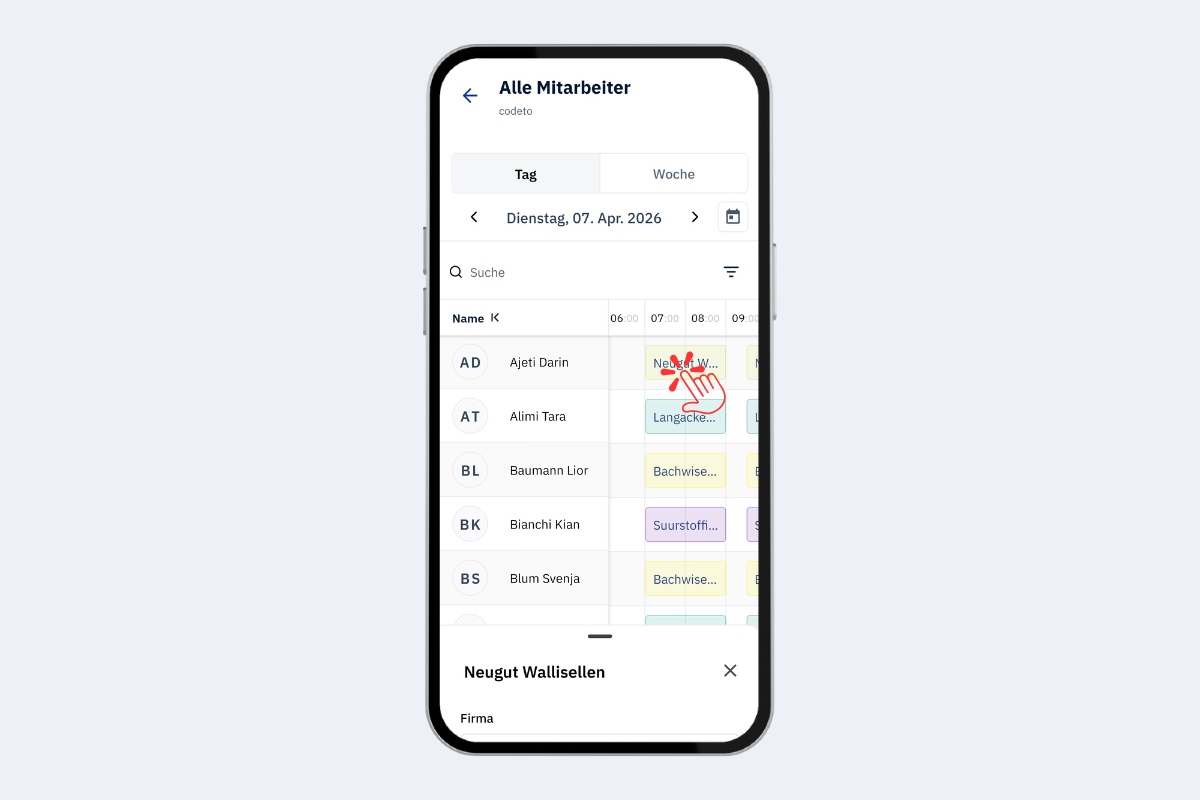
Show Project Details
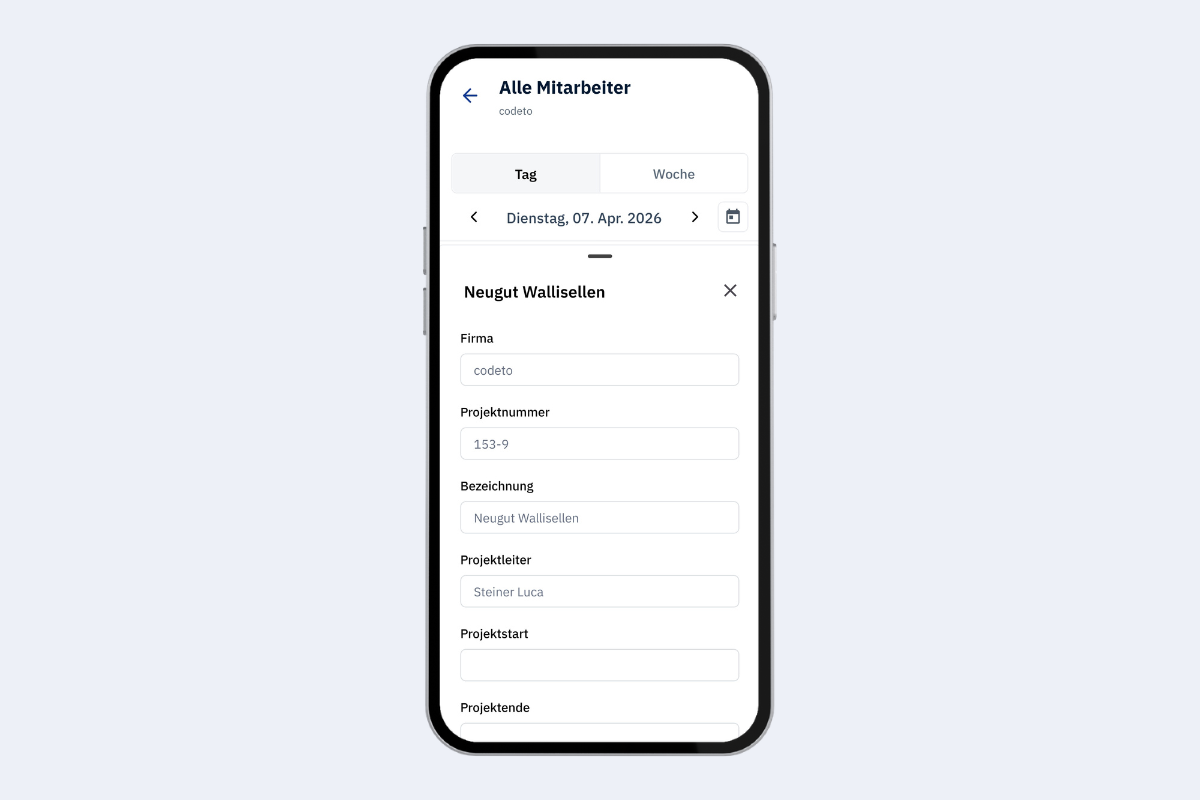
In the overview, project information may be partially cut off. Tapping on a project reveals a detail panel at the bottom of the screen. This panel can be pulled up to view all project information – including details on where exactly the person is assigned.
Week View
In the week view, the workload per employee is displayed as a percentage. The basis is the standard working time: for example, if it is 8 hours and 6 hours are booked, the workload is 75%.
The day and week views are currently not yet linked. Tapping on a day in the week view does not yet jump directly to the day view. To view the details of a specific day, switch manually to the day view, search for the desired person, and select the appropriate date using the date picker.