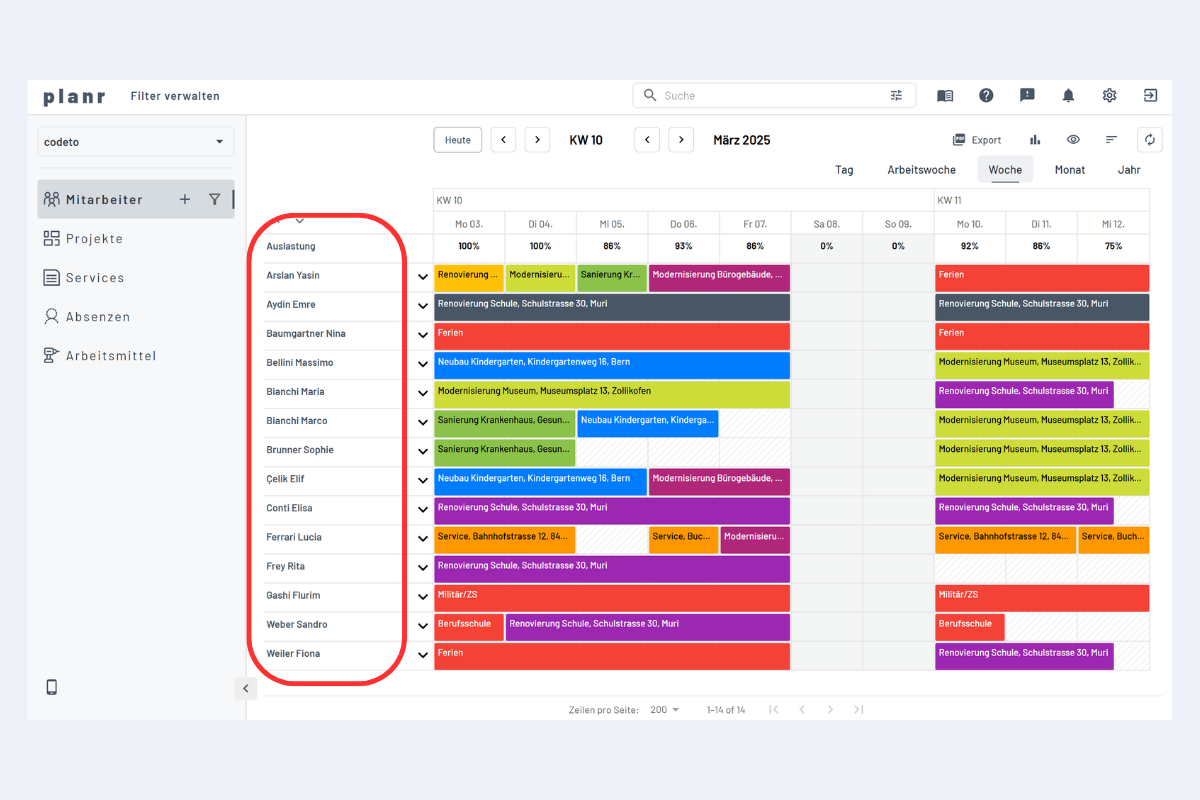
Add a new employee
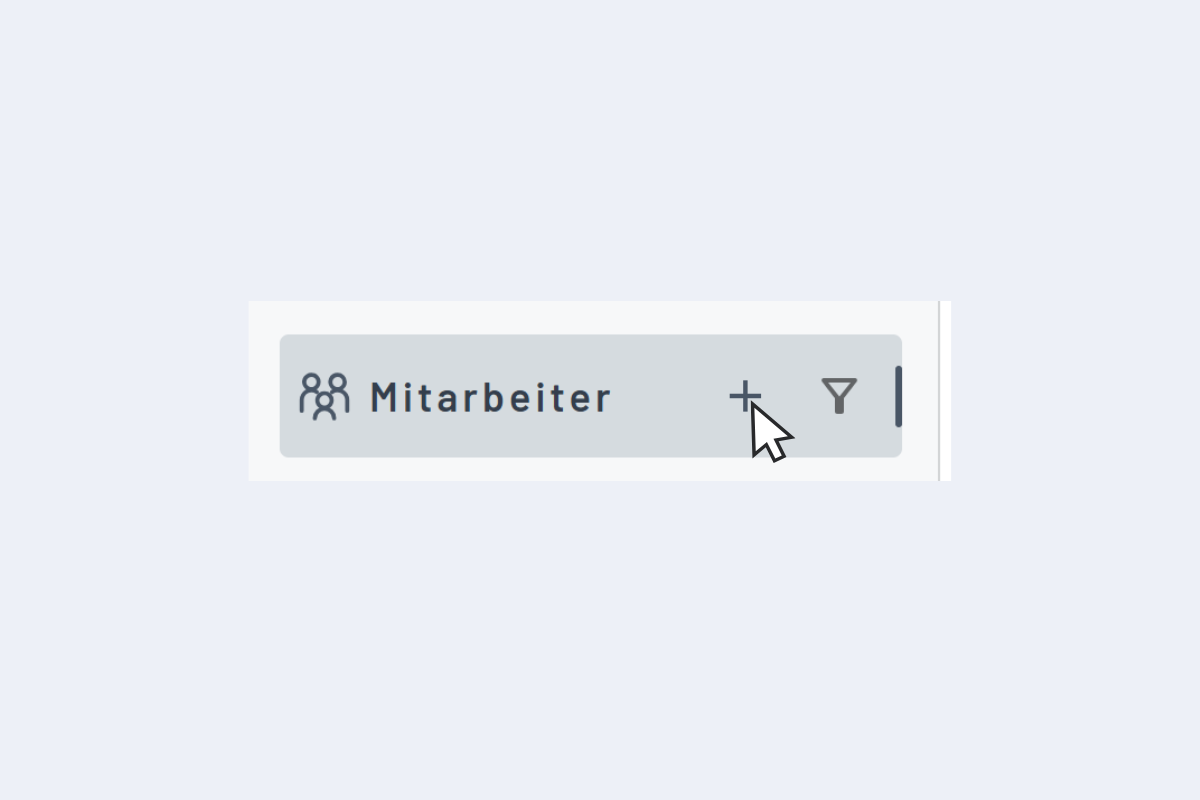
The plus sign opens the window to add a new employee.
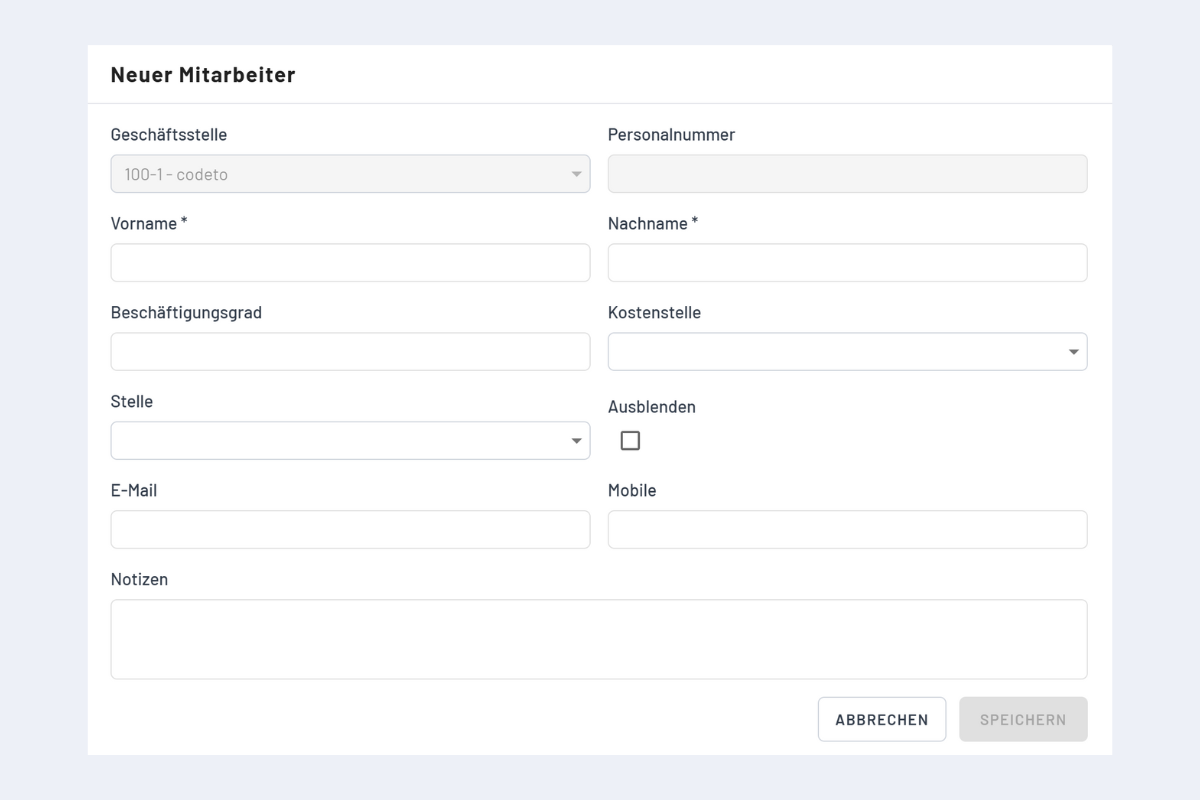
Fields
- Branch office: set automatically or imported via interface (Enterprise only).
- Personnel number: assigned automatically or imported via interface (Enterprise only).
- First and last name: mandatory.
- Employment level: 1 to 99 %.
- Cost centre: available only when transferred via interface (Enterprise only).
- Position: role or function: managing director, assembly worker, temporary, site manager, project manager, planner, apprentice, office staff.
- Email, mobile, notes: contact information and optional notes. If a note is stored, an "N" appears after the name in the employee list.
- Hide: the employee no longer appears in the list. Show again under Show and hide.
Employment level currently has no effect on planning
At the moment, the employment level is purely informational and does not automatically reduce bookable capacity. For fixed absence patterns (for example always off on Fridays at 80%), record a recurring absence via Recurring entries. More on this also under Utilization FAQ and special cases.
Overview and editing
Employees are listed alphabetically. Clicking a name in the employee view reopens the same dialog and any data can be edited.