Create a new booking in the Employees view
How a booking is generally created is described in the chapter Create new booking. This page only describes the dialog that opens in the Employees view.
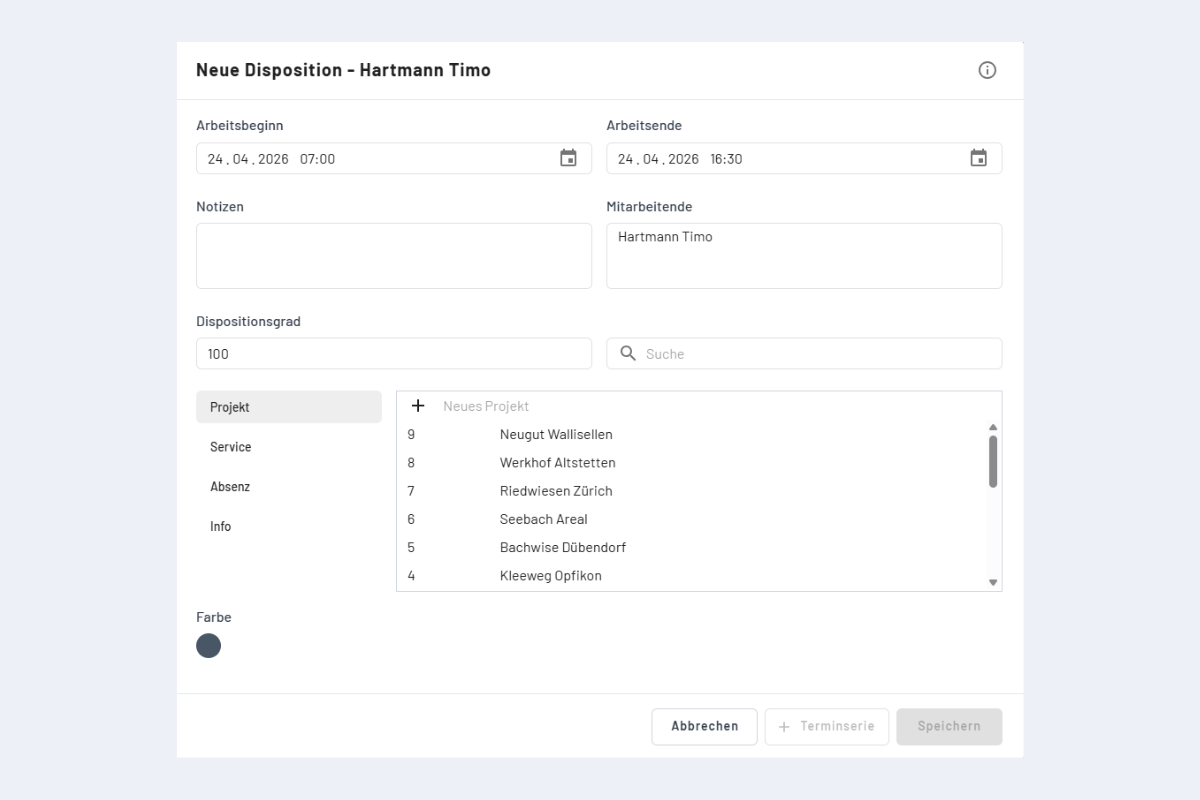
Fields
- Employee: clicking the name opens a multi-select to create the booking for several people at once.
- Category (Project / Service / Absence / Info): the search field finds existing entries. For Project, Service and Info you can create a new entry on the fly via the plus symbol (+) in the dialog, saving the switch to the corresponding view. For a full entry with all fields, new projects and service orders are still best created in their dedicated view. For Absences this shortcut is not available; new absence types are added via the Absences view.
- Info: purely informational bookings that do not block any capacity (e.g. "Smith is working from home"). Other bookings can be created in parallel with Info bookings.
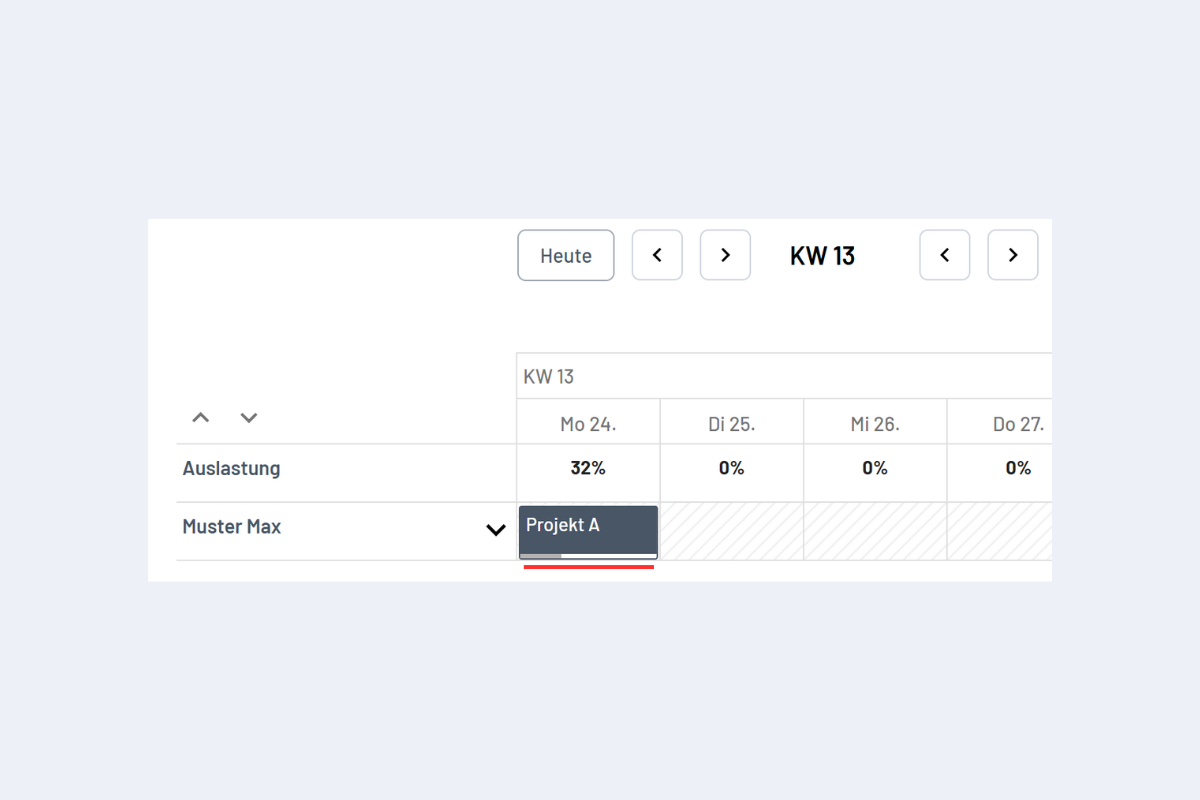
- Disposition rate: 100% by default. Reducing it lets you create several parallel bookings for the same person (e.g. when handling several jobs at once). The sum must not exceed 100% per period; if it is lower, the percentage is shown in the bar at the bottom edge of the booking (see Fig. Disposition rate display).
- Notes: any text; shown to the employee on this booking in the mobile app.
- Colour: customisable per booking.
- Info icon (top right of the dialog): shows the source of the suggested working hours, i.e. which branch office's default working hours are currently being used. Especially relevant for Enterprise customers with several branch offices or companies, so they can see which setting applies in the current context.
Disposition rate display