Add a new service order
The plus sign opens the dialog for adding a new service order.
Fields
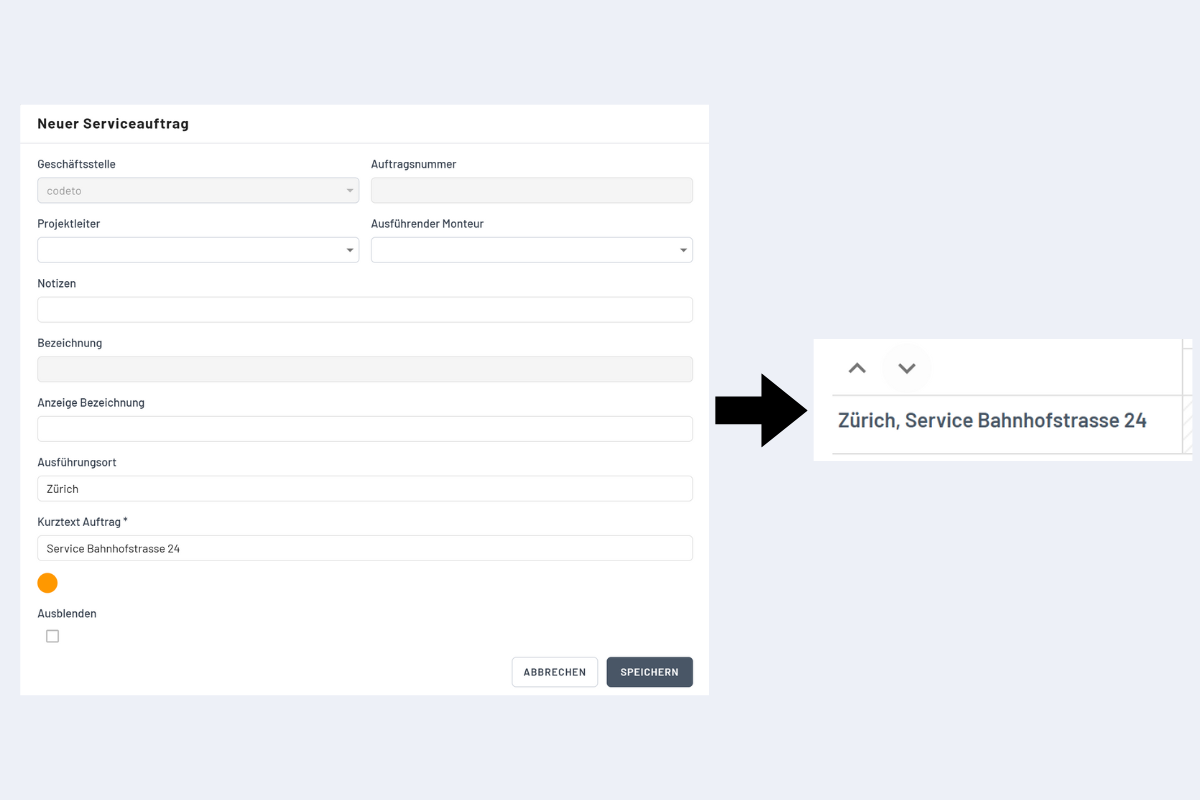
- Branch office: set automatically.
- Order number: created automatically or transferred via interface (Enterprise only).
- Project manager: responsible project manager.
- Performing technician: purely informational. Other employees can still be booked onto the order.
- Name: transferred via interface (Enterprise only).
- Display name: can be left empty; currently has no effect.
- Location: appears first in the service order description.
- Order short text: appears second in the description (mandatory).
- Notes: additional information.
Order notes vs. booking notes
Notes stored on the service order apply to the entire order. They are visible in the order details, including for employees in the mobile app when they open the order details.
Notes entered in the booking dialog apply only to that individual booking and do not appear in the order notes. See Create a booking in the Service view for more.