Vacancies
Vacancies are provisional bookings used in rough planning: they reserve capacity before it is clear which employees will take on the assignment. This keeps utilization realistic, and the vacancies are later replaced with specific employees.
Create a vacancy
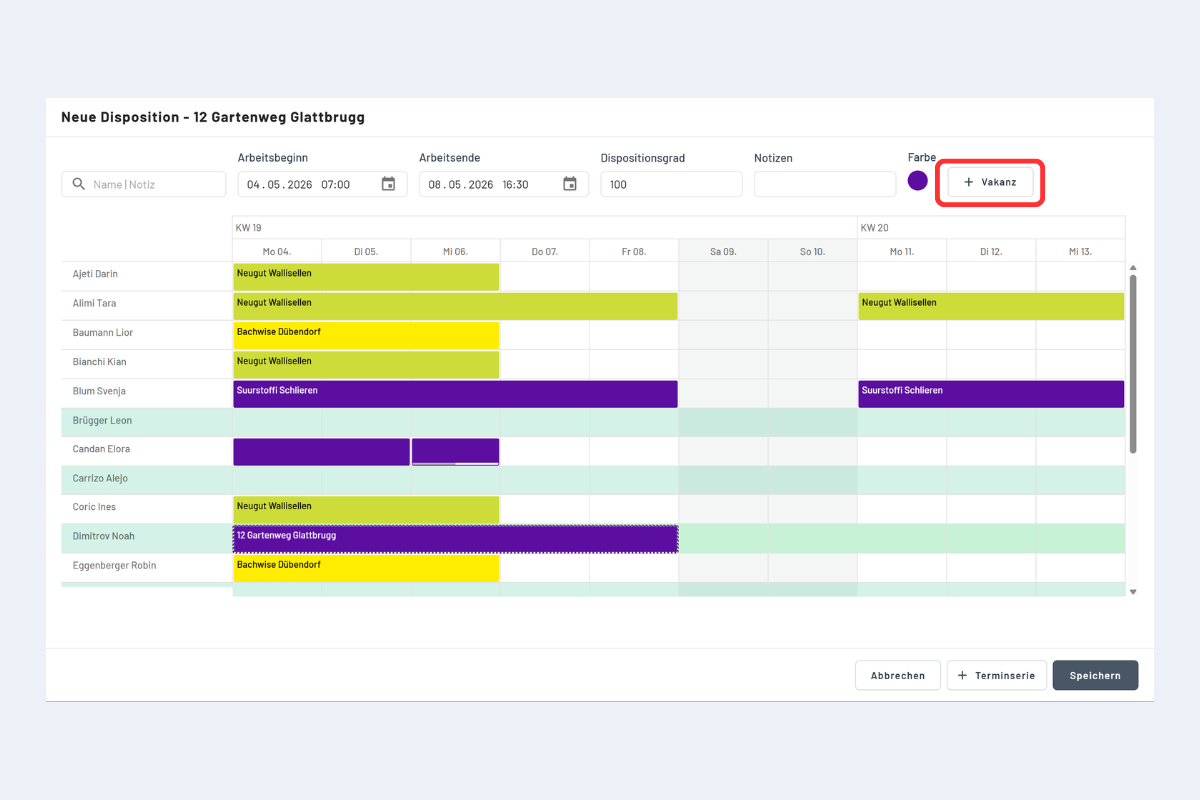
A new booking in the Service view is created as usual (Create a booking in the Service view). In the booking dialog, instead of selecting an employee, click the Vacancy button (red border).
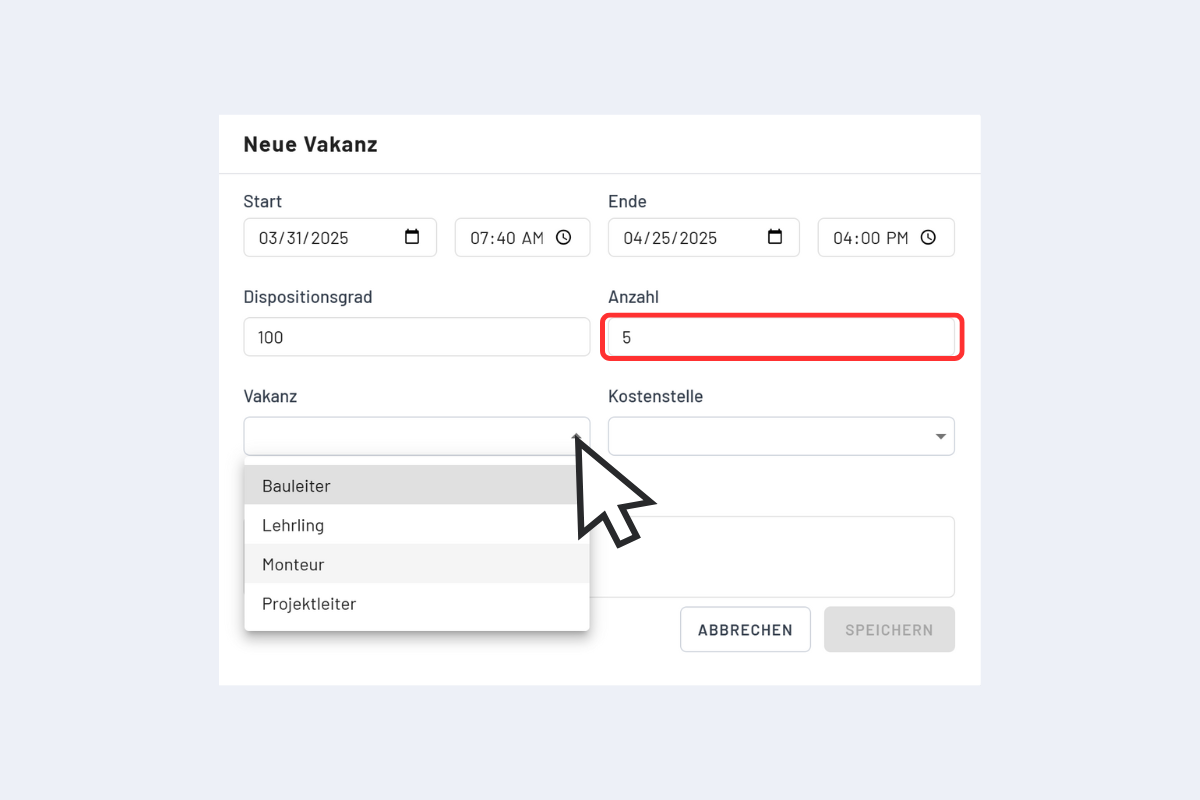
In the next dialog, select the number and employee category.
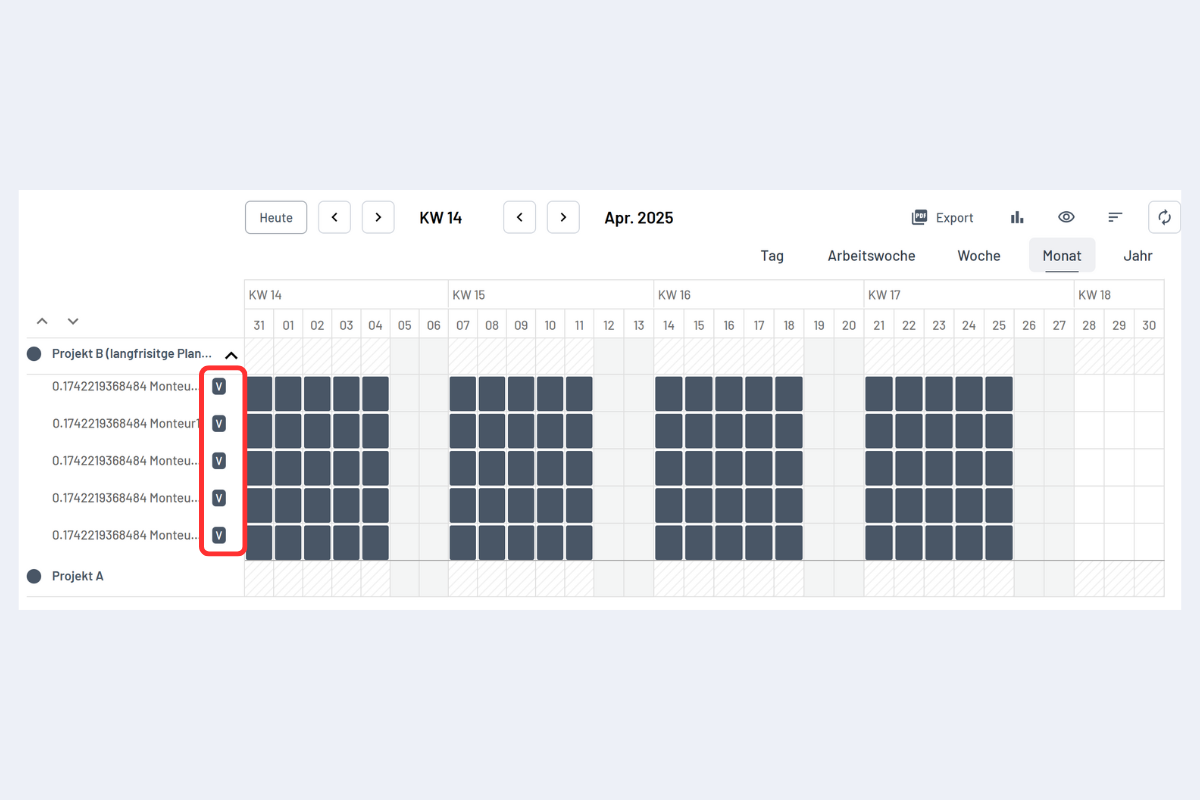
Vacancies are marked with a "V" and also appear in the Employees view as separate entries.
Assign an employee to a vacancy
A vacancy can only ever be assigned to a single employee, never to several at once.
-
Hold the ALT key and drag a blue rectangle with the mouse over the vacancies you want.
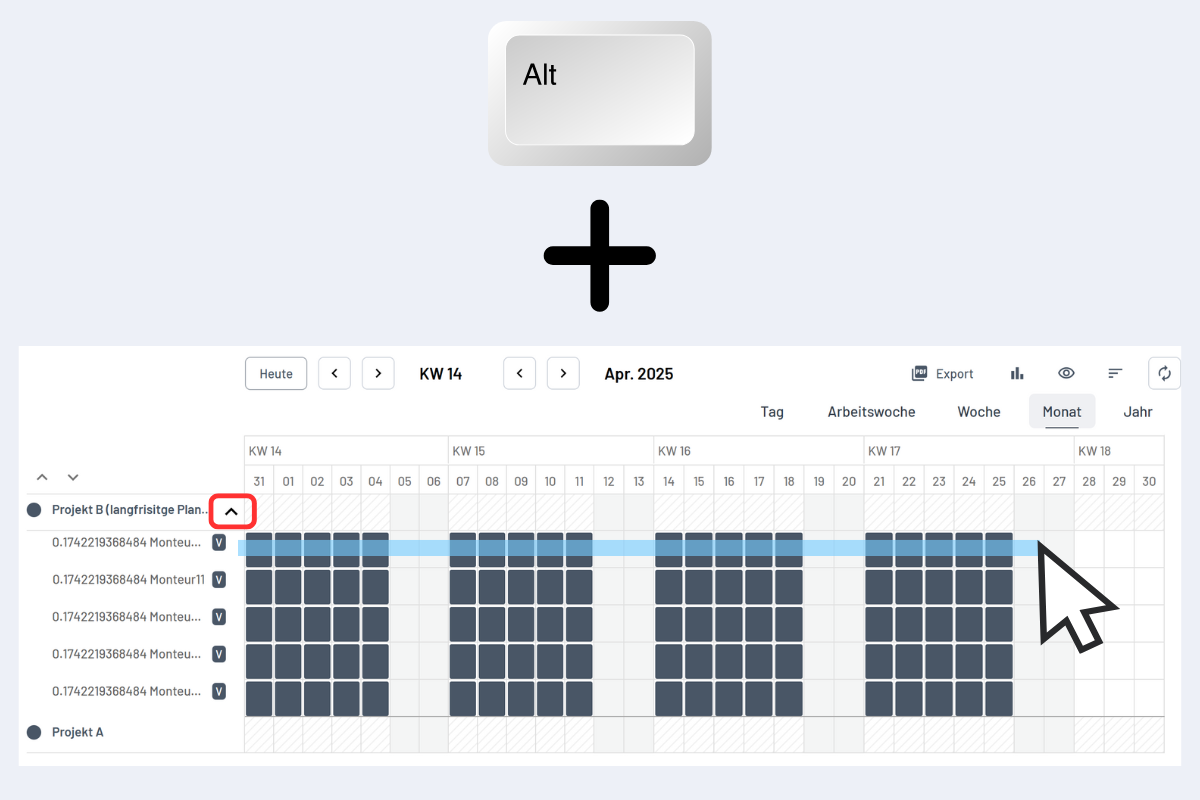
Vacancy assignment -
Click on Edit bookings.
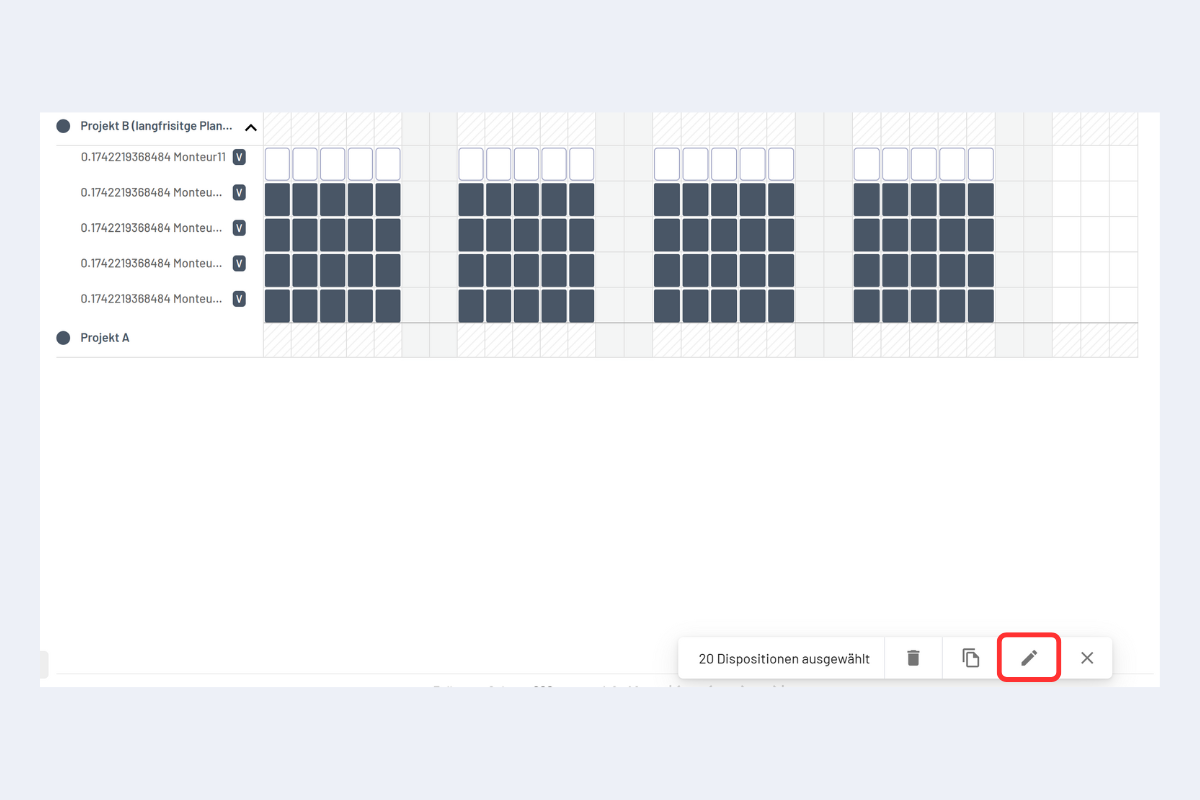
Edit all bookings -
In the next dialog, select the desired employee.
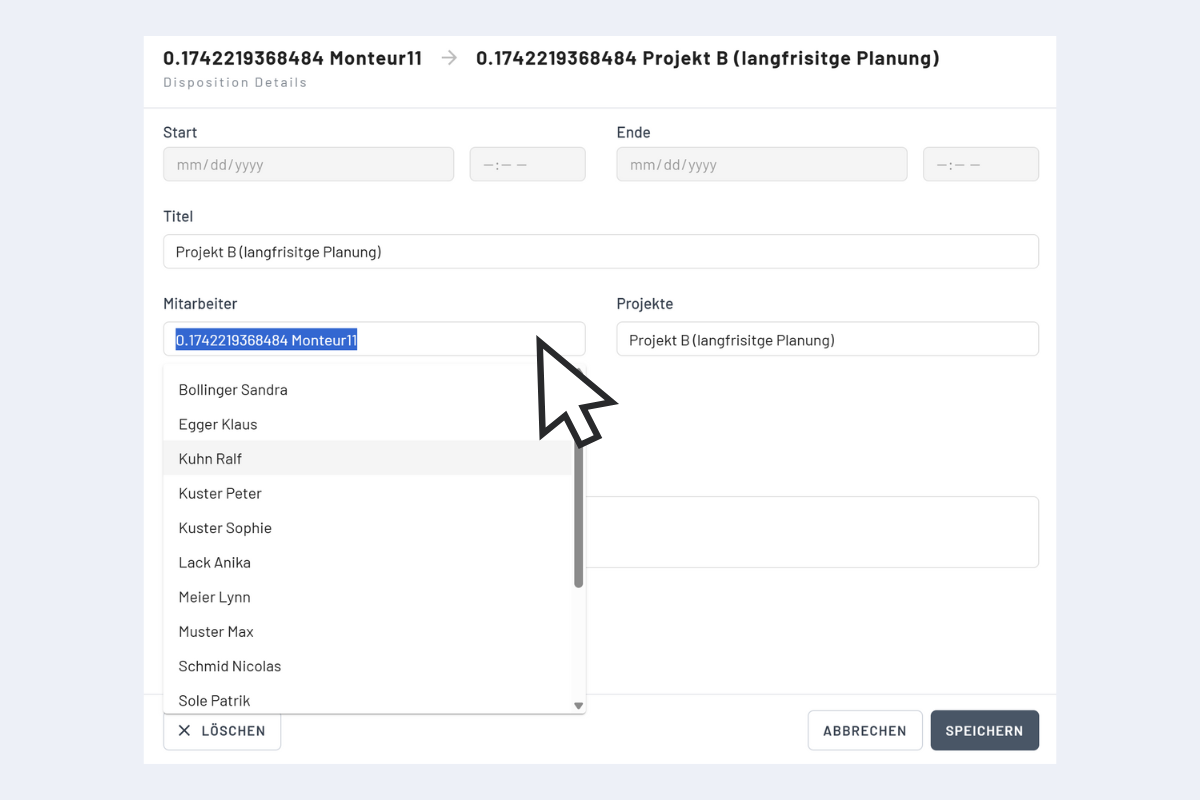
Assign employee to vacancy
After the assignment, the vacancy is deleted and the booking on the service order appears with the employee's name.
Delete vacancies
A vacancy that should not be assigned to an employee but removed without replacement can be deleted directly from the current view. Several vacancy bookings can be removed together in one step.
- Switch to the view in which the vacancy bookings in question are displayed.
- Hold CTRL and click individual vacancy bookings, or hold ALT and drag a rectangle over several vacancy bookings. Details under Select and edit several bookings at once.
- The selection of marked bookings appears at the bottom right with the options to Edit or Delete.
- Choose Delete to remove the marked vacancies together.
Assignment to an employee is not required for this.