Create a booking in the Service view
How a booking is generally created is described in the chapter Create new booking. This page only describes the dialog that opens in the Service view.
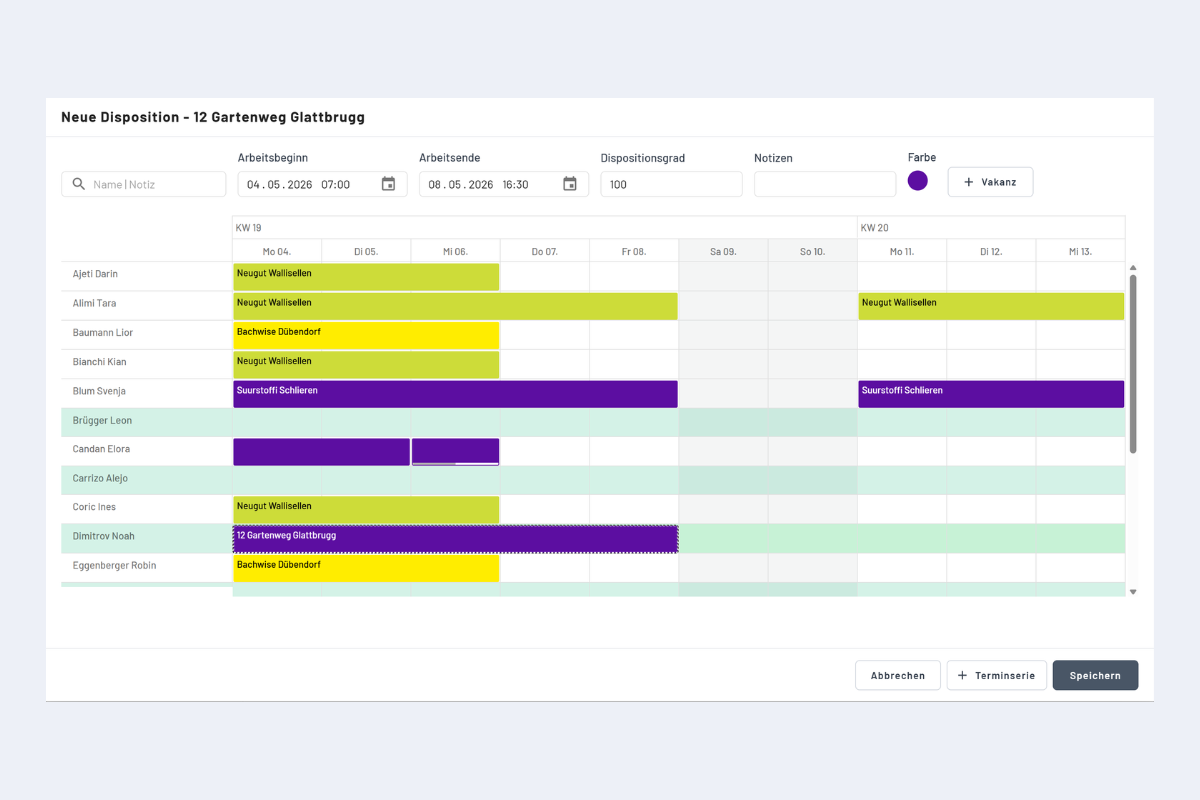
Selecting employees
Employees highlighted in green are available during the selected time range. Clicking the employee or anywhere in their row selects them; the booking appears with a black-and-white border.
Hold the CTRL key to select several employees at the same time.
Disposition rate
100% by default. Reducing it lets you create several parallel bookings for the same person, e.g. when handling several jobs at once. See Create a new booking in the Employees view for details.
Notes
You can store notes in the booking dialog. They are tied solely to this individual booking and do not appear in the order notes, on the employee or on other bookings. For information about the whole service order, store the note directly on the order (see Add a new service order).