Recurring entries
For recurring bookings such as school days for apprentices, recurring entries can be created. Available for Employees, Projects, Service, Absences and Work equipment. Click "Recurring series" to open the dialog.
- "Every 1" = weekly repetition, "Every 2" = every two weeks, and so on.
- An end date is required.
- Maximum duration: 3 years.
On save, all entries are created unless there are conflicts; in that case a double-booking message appears (Double bookings detected).
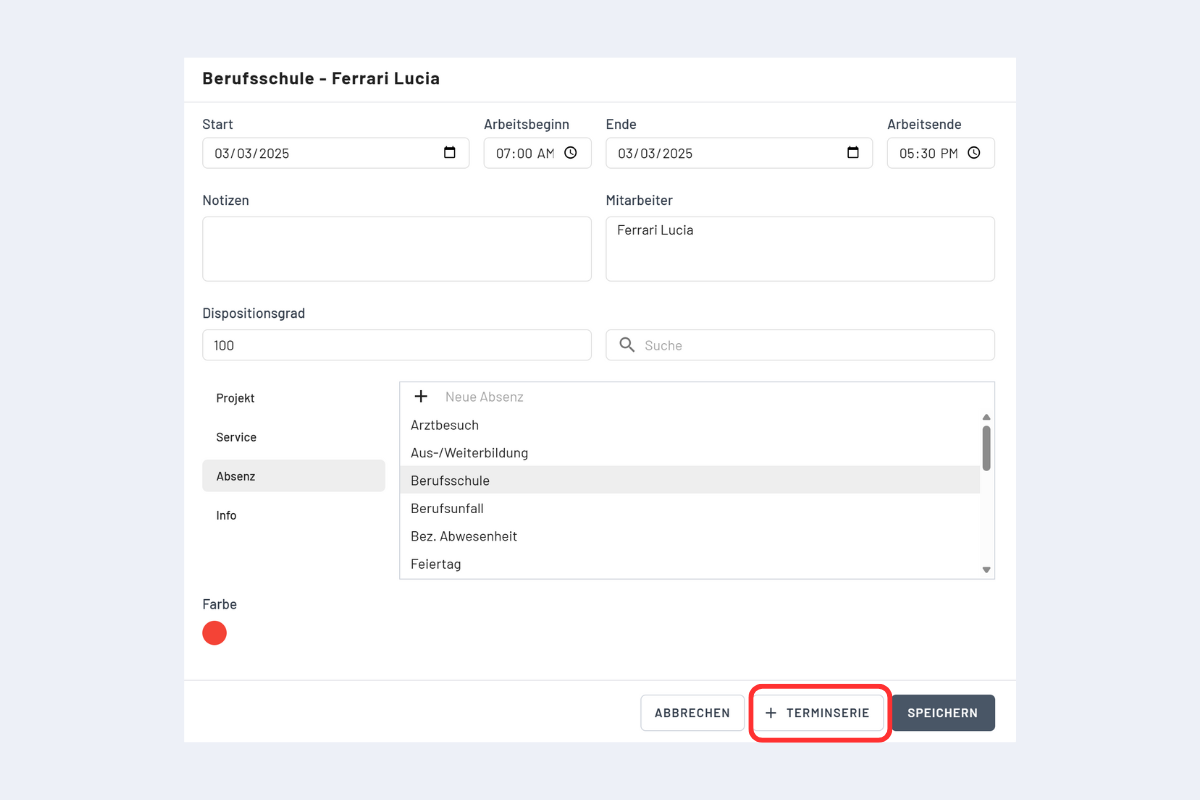
Example: a whole week every 5 weeks
One person is on call for a whole week every five weeks, from Monday to Friday.
- Book the Monday of the first on-call week as a single day.
- Open "Recurring series" and set Every to "5 weeks". In the on row with the weekdays, select only Monday. Set the end date under until.
- Do the same for Tuesday to Friday: book each day separately and select only that weekday in its recurring series.
This results in five recurring series, one per weekday.
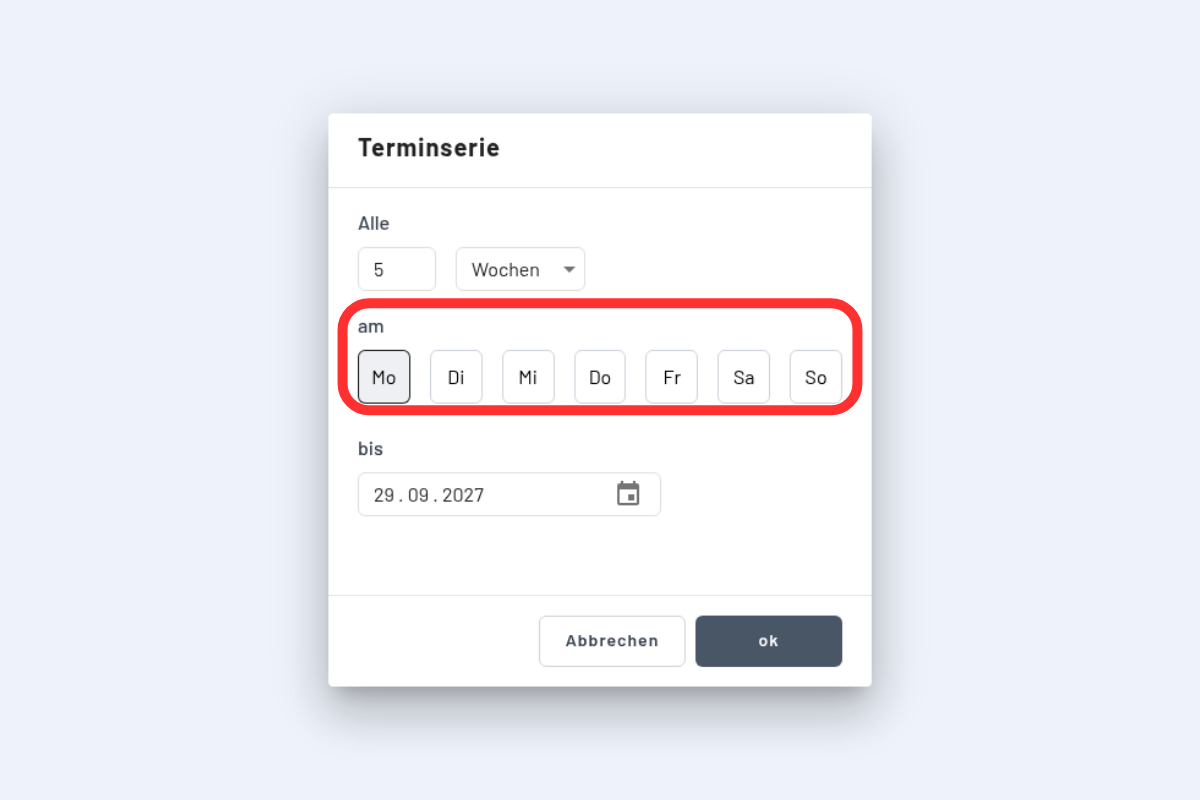
If several weekdays are selected in the on row, the booking is repeated every week, even when Every 5 weeks is set.
Deleting recurring entries
- Open one entry of the series.
- Click the arrow on the Delete button and choose Delete this and all future.
- Confirm.
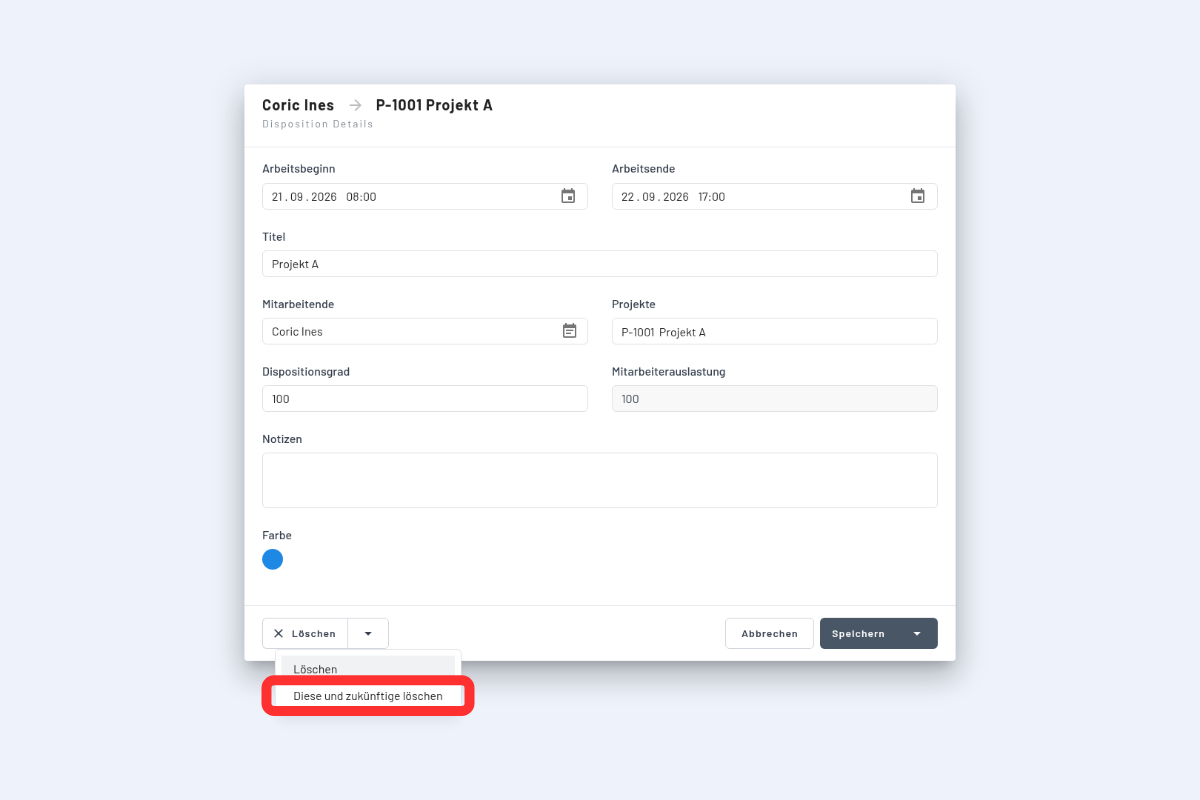
This deletes the opened entry and all following entries of the series. To remove the whole series, open its first entry. Delete on its own only removes the opened entry.
If a week was set up with one series per weekday as in the example above, each series has to be deleted separately.