Access, login and logout
codeto plan runs in the browser (Google Chrome or Microsoft Edge): no installation, automatic updates, usable on desktop, laptop and tablet.
You will receive your login from us. If anything goes wrong: support@codeto.ch.
Login
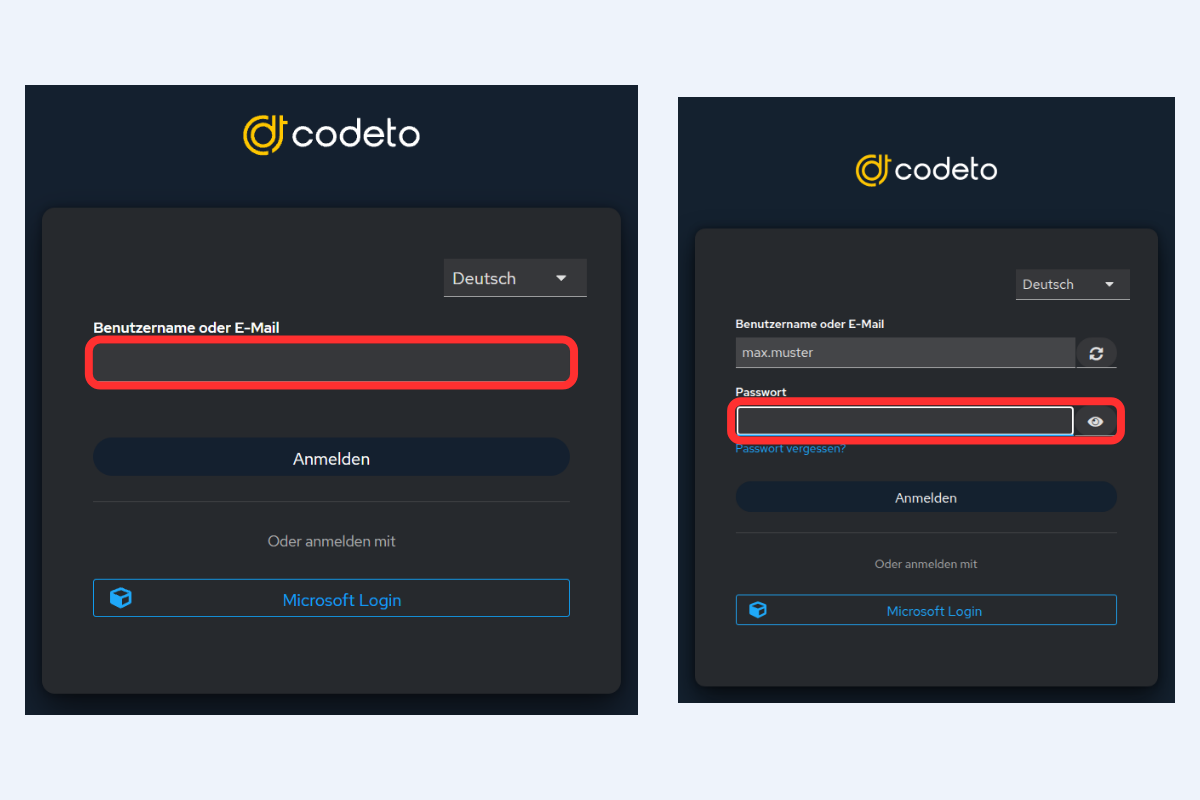
This is how you sign in with username and password:
- Enter your Username or email and click «Sign In».
- Enter your password and click «Sign In» again.
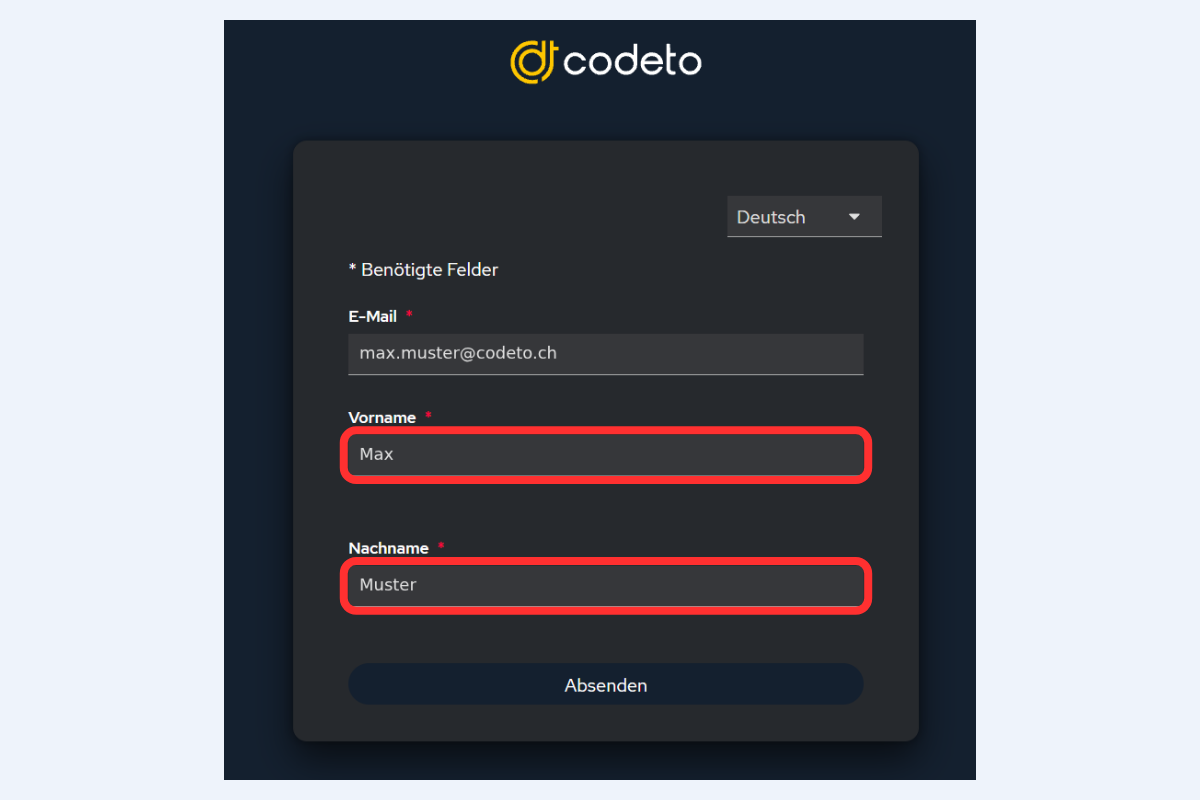
On your first login, codeto may ask once for your first name and last name. The email is already filled in. Fill in both fields and submit the form. The details are saved, so you will not be asked again at your next login.
If you sign in with your Microsoft account, see Signing in with Microsoft (SSO).
To always see the current date when opening, save a generic link (URL ending in aroapp.io) as a favorite — not a link with a fixed date, otherwise the favorite always jumps to that exact date.
Logout
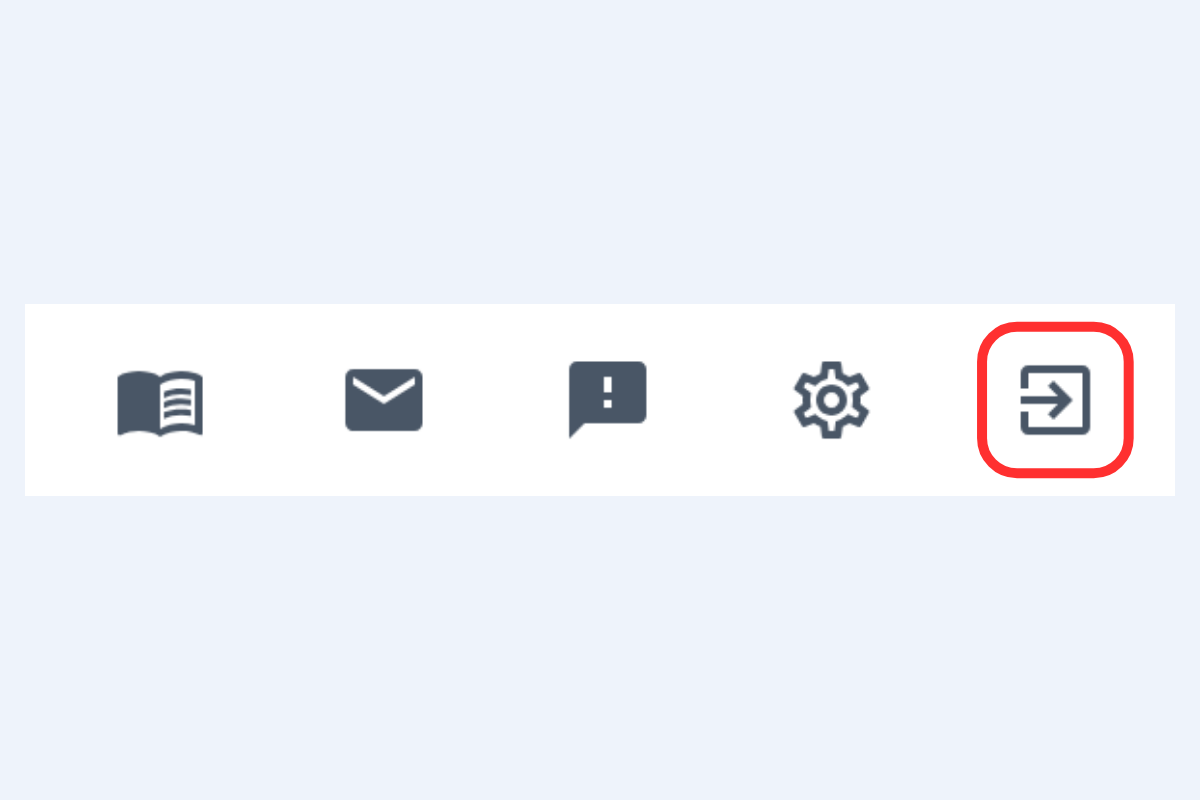
Click the logout icon in the top right.