Fundamentals, display and interpretation
Utilization is always calculated based on the employees currently displayed in the Employees view. A filter that, say, shows only four people produces the utilization of those four; without a filter, the entire workforce is counted. The resulting numbers are identical in the Employees, Projects and Service views.
Prerequisite: working hours are stored in the settings before planning begins. We recommend not entering working hours for weekends unless work is regularly performed then; otherwise the year view will diverge from day / week / month.
If, for example, work is regularly carried out on Saturdays, store working hours for that day too.
Utilization in the first row
In the Employees, Projects and Service views, workforce utilization can be shown directly in the top row. Available in the week, month and year view.
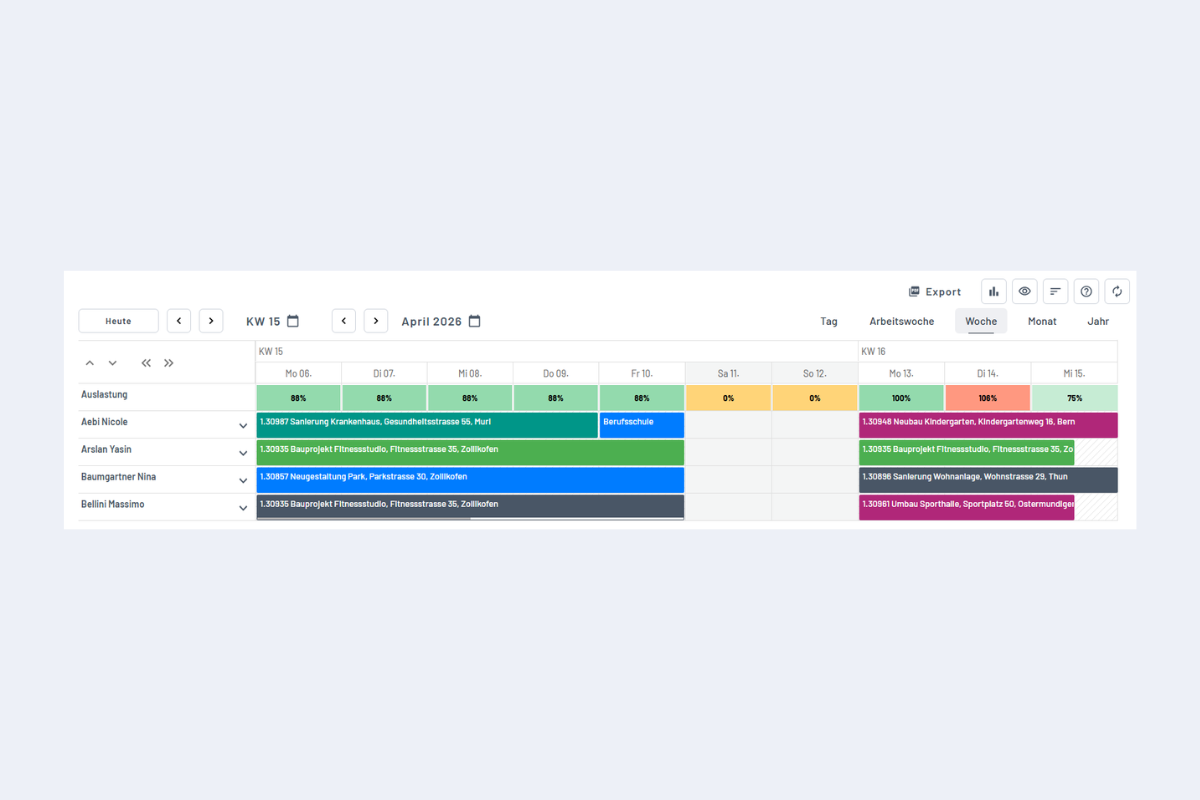
The values are colour-coded and follow the same logic as Utilization per employee: at a glance you can see where utilization is low, on target or over-booked.
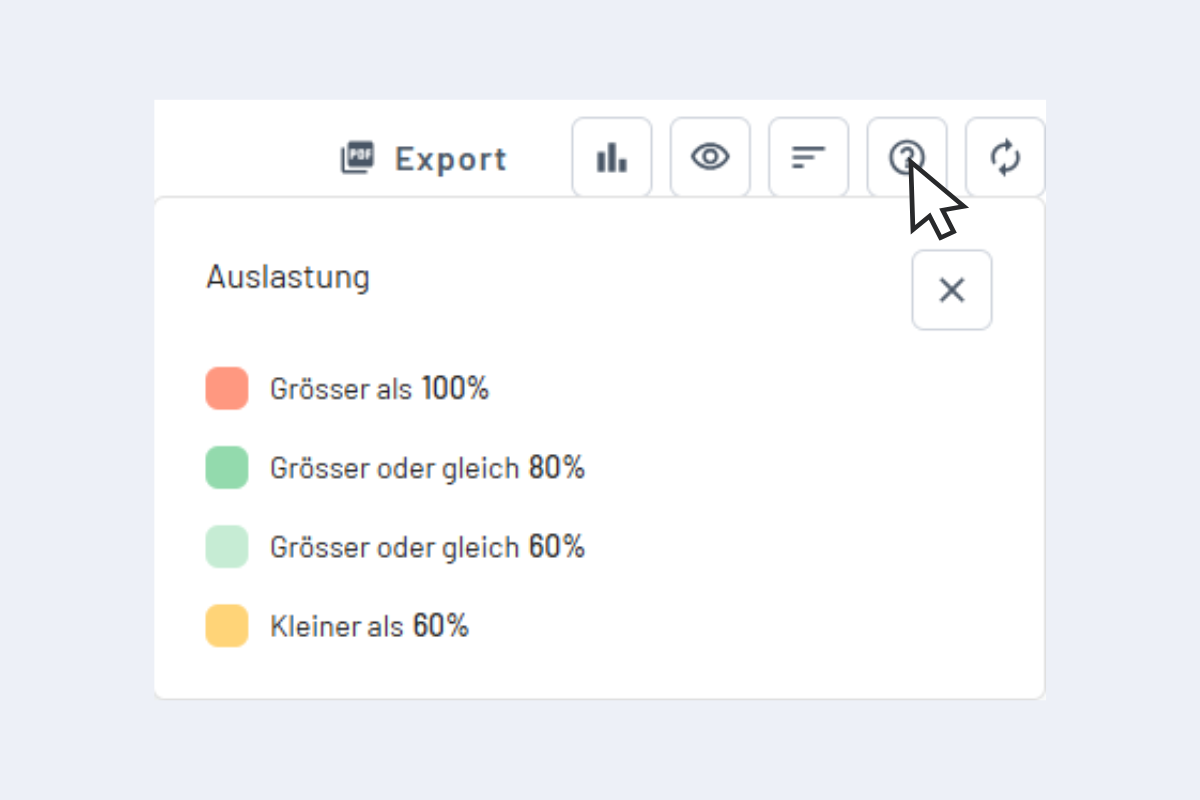
Activating
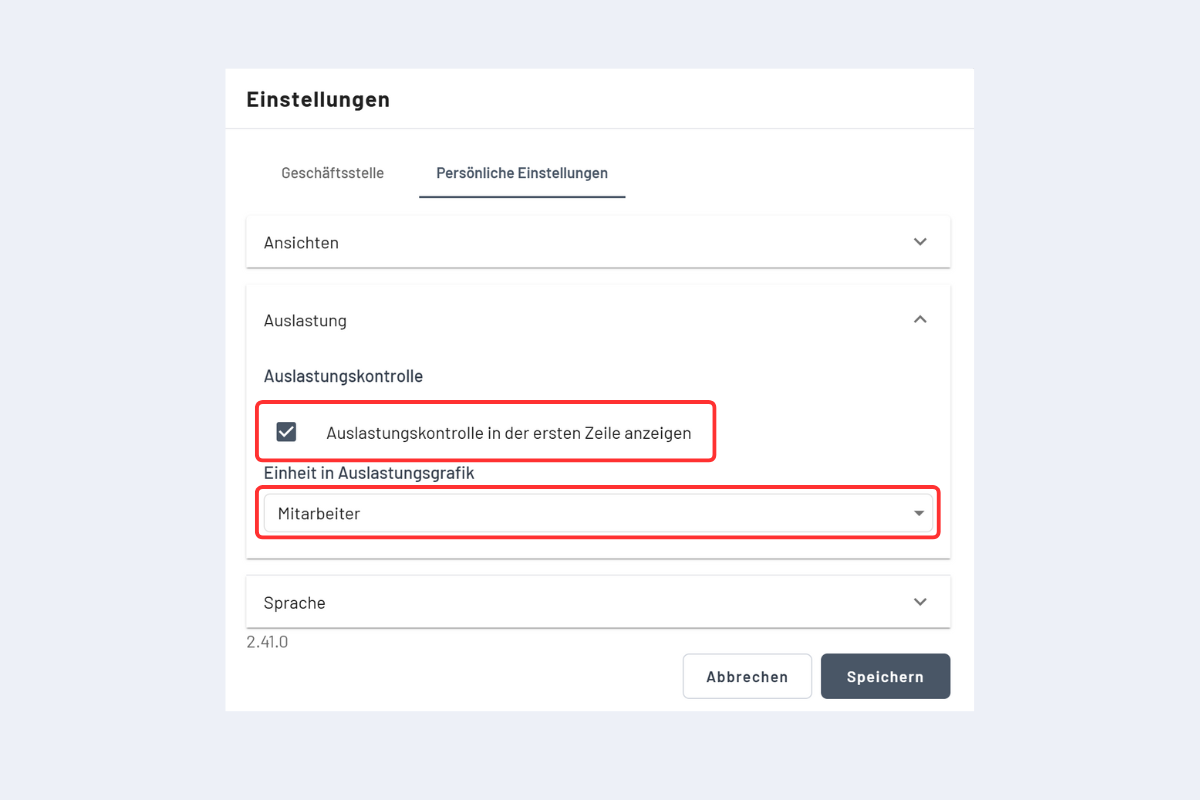
- Click the gear icon at the top right and open the personal settings.
- Activate the option "Utilization in the first row" (or similar).
- Save the setting; utilization then appears in the top row.
- "Also search for hidden objects" must be disabled in search; otherwise the first row stays empty.
- The view must be week, month or year (not day or work week).
- When activating, loading may take slightly longer because utilization is calculated for the chosen period.
Utilization chart
The Utilization chart opens in two ways and provides a detailed insight for the currently selected calendar view (day, week, month, year). Exception: in the Work week view, week utilization is shown.
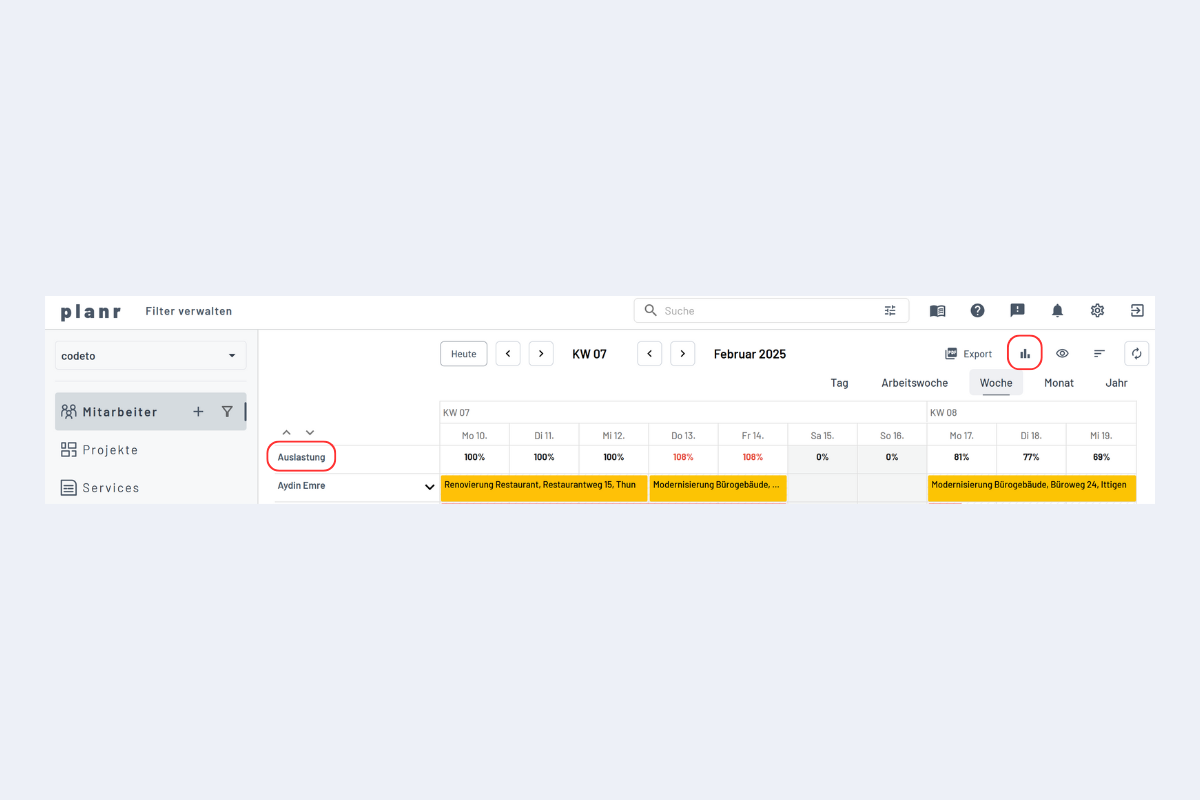
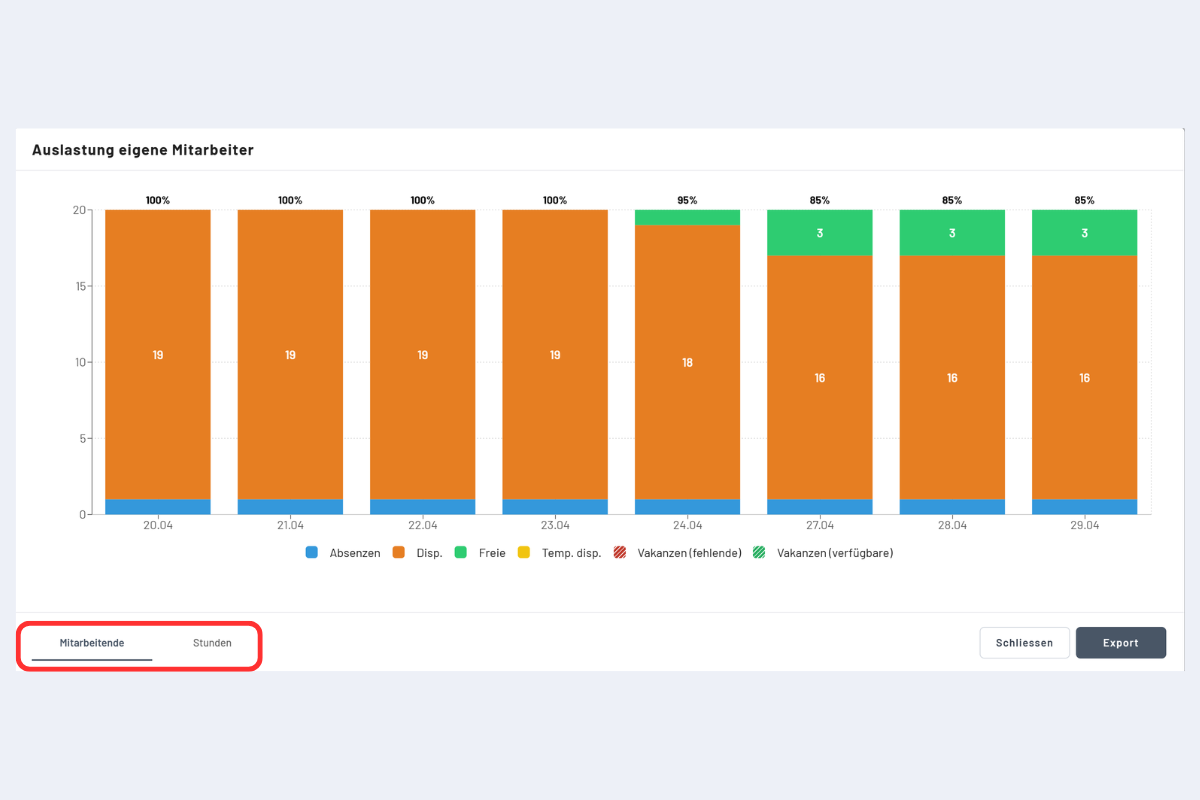
Saturday and Sunday are not shown in the utilization chart, even if there are bookings on those days. This keeps the view clear.
Display in employees or hours
At the bottom of the dialog you switch between employees and hours.
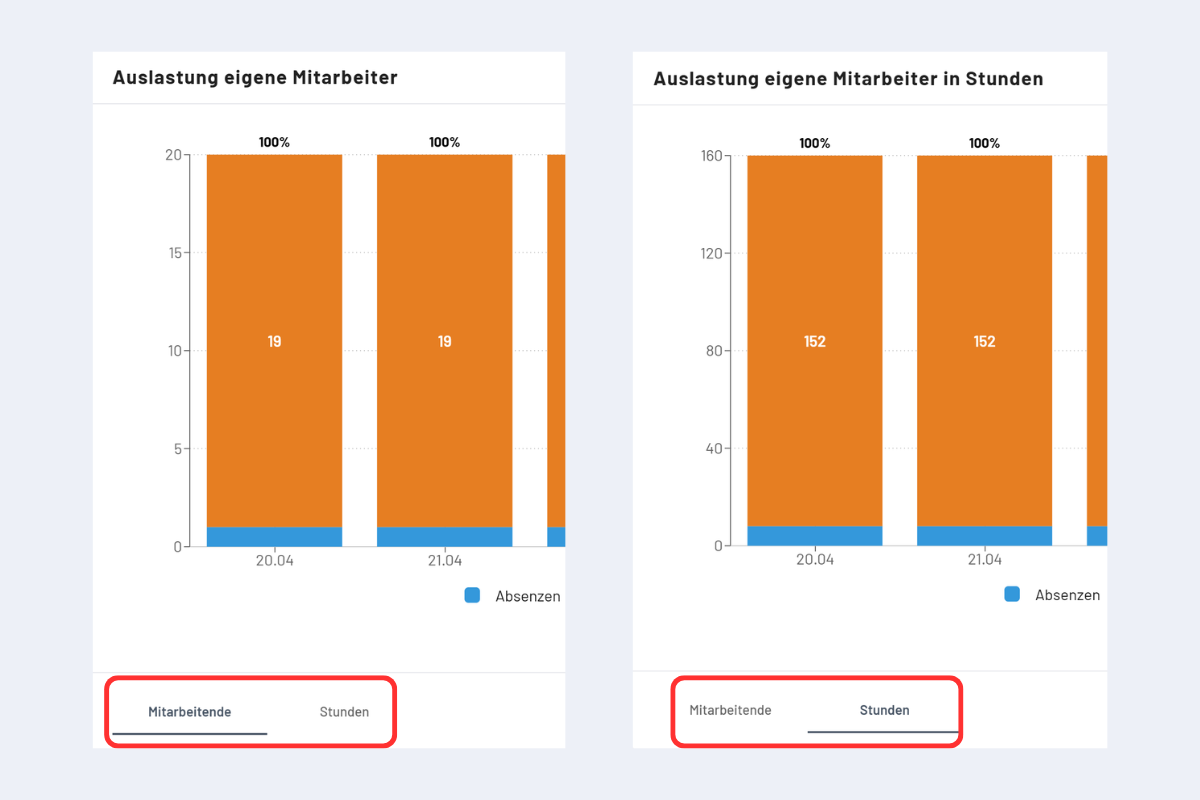
Example values in the image:
- In employees: 19 × scheduled, 1 × absence
- In hours: 152 hours scheduled, 8 hours absence
The calculation is based on the stored working hours. With 8 target hours per day and 20 employees, daily capacity at 100% utilization is 160 hours.
Via "Export" (bottom right) the chart can be downloaded as a PDF.