Share a filter
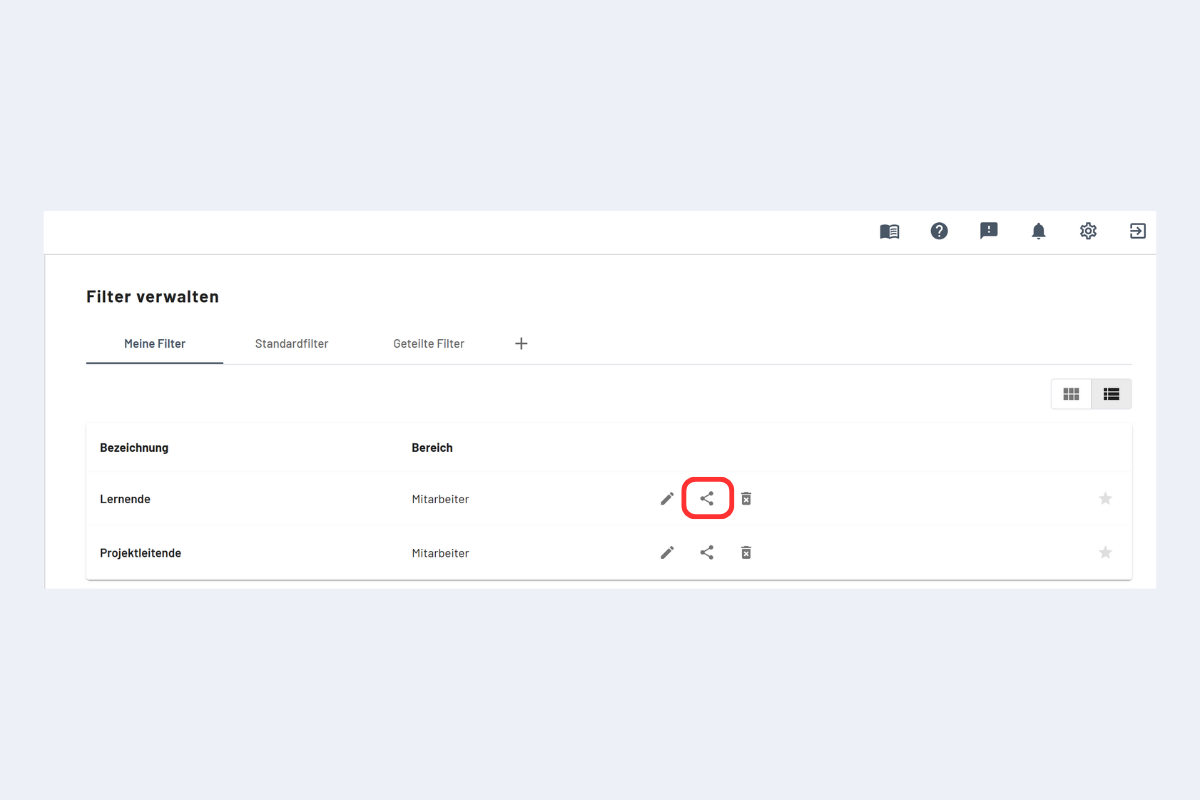
When sharing one of your own filters, two permission levels are available:
- Read and write access
- Read access only
After clicking "Share", the filter appears for the recipient under Filter management → Shared filters.
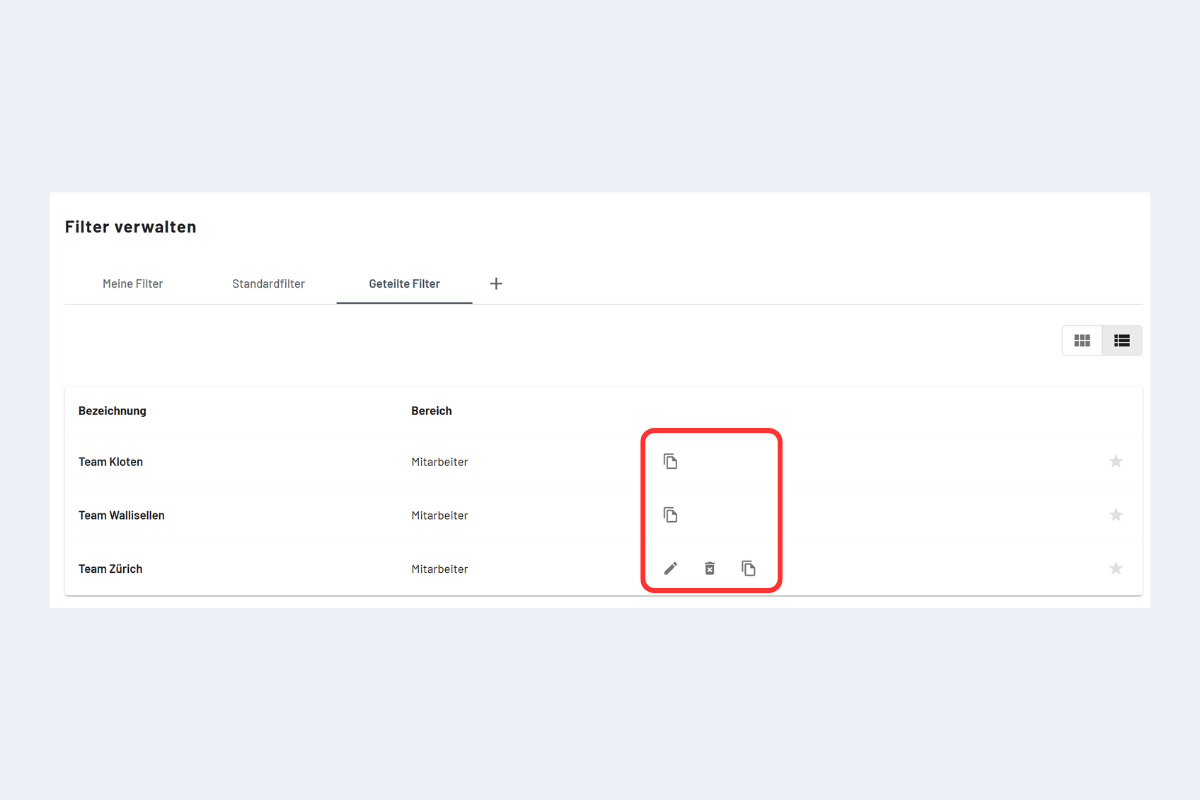
Identify the permission level
- Read access only: only the copy icon is visible.
- Read and write access: Edit and Delete are also available.
Edit or copy
- Write access: directly editable. Note that changes also affect the person sharing.
- Only for yourself: click the copy icon; the copy appears under My filters and can be edited there.
- Read access: not directly editable, only via a copy.
Take over filters from former employees
If filters were shared by a person whose account no longer exists, those filters can still be used. However, direct editing is not possible because the write permissions were lost together with the deleted account. The solution: copy the filter via the Shared filters tab and continue using it under My filters.
Step by step
- In the filter management, open the Shared filters tab.
- Click the copy icon next to the wanted filter (right next to the trash bin).
- The filter then appears in the My filters tab and can be freely edited, renamed and reshared.
Avoid duplicate filters
After copying, the filter is present in both Shared filters and My filters and therefore appears twice in the filter selection. To avoid this, delete the filter from the Shared filters tab once it has been successfully taken over into My filters.
Reshare the taken-over filter directly with the right permissions ("Read and write access" for other planners) so that no one runs into the same issue after a future personnel change.