Public holiday configuration
Record public holidays valid for the company. Holiday management is found in the branch office settings, in the calendar area.
Manage public holidays
- Editing is only possible for future days, today and the past are locked.
- Select several days: hold the CTRL key to mark several dates (e.g. 25.12. to 31.12.).
- Set the selected days as a public holiday. Optionally store a percentage (e.g. 50 % for half days).
- The percentage determines the share of the target time that is automatically booked as a paid public holiday. 100 % corresponds to the full target time, 50 % to half the target time.
- Public holidays with 0 % or without a percentage are only displayed visually and do not trigger an automatic hours booking.
- Bridge days work the same as public holidays and have no target working time. They are not displayed specifically and do not affect the target hours.
- School holidays are merely a visual highlight and have no effect on the target hours.
Public holidays with 0 % or without a stored percentage are visually marked in the calendar, but do not create an automatic hours booking. They are suitable for unpaid public holidays: employees and supervisors see the marked day, but the target time is not automatically filled with public holiday hours.
Public holidays must be re-entered every year, there is no automatic import. Maintain them early so that the target hours are correct.
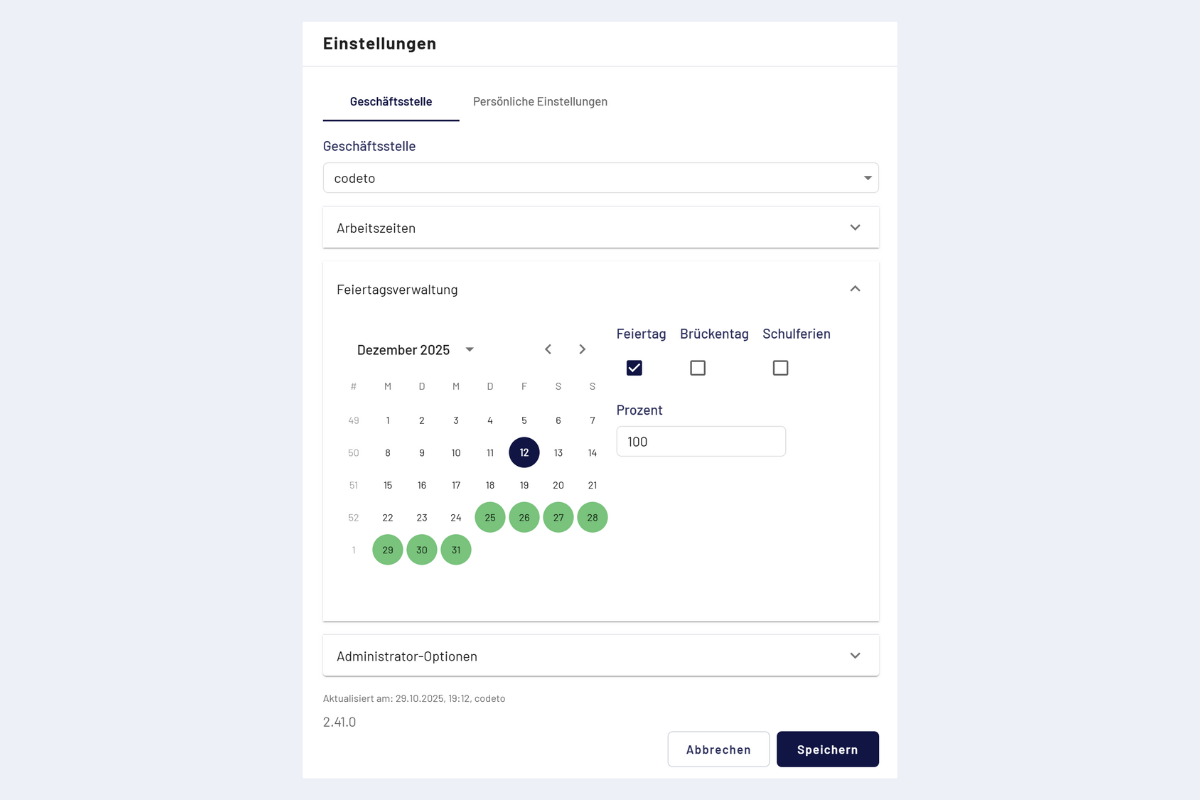
Public holiday management, calendar view
Display
Public holidays are clearly highlighted in the calendar. In the example, Thursday 25 December and Friday 26 December are marked. On paid public holidays codeto report automatically books the hours according to the stored percentage. With 8 target hours and a public holiday at 50 %, 4 hours are entered automatically. Public holidays with 0 % or without a percentage are only displayed visually; no working or absence time is entered automatically.
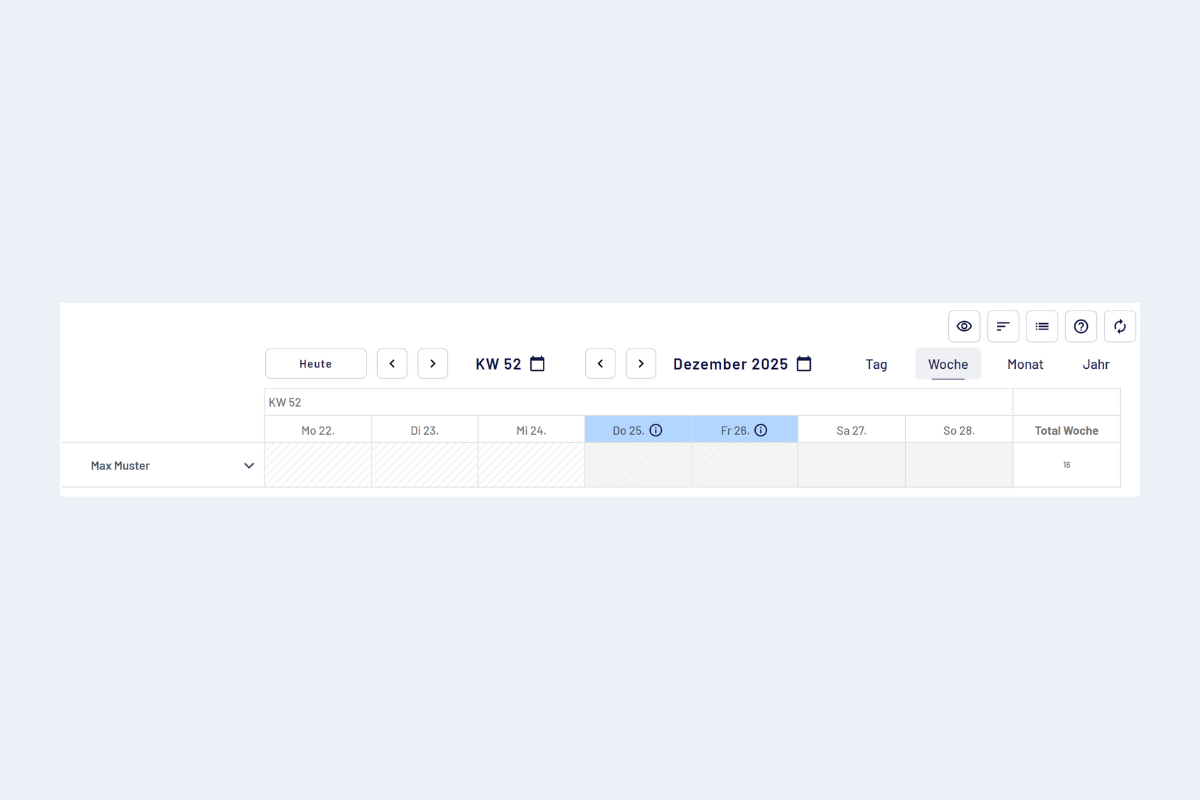
Public holidays, visualisation in the calendar
Both are displayed in the interface because they are taken from codeto plan. Within codeto report they have no effect.
Administrator option
In the branch office settings there is the expandable administrator option with the start date. The setting was configured by codeto during setup and is normally no longer editable.