Approval structure
The approval structure is the review and release path that every report goes through. It is usually set up by the admin, management or superuser.
Open the approval
In the quick access, click "Approval". Three tabs open:
- Assign employees: Which employee belongs to which approval structure?
- Manage structures: Which stages does the structure have (e.g. Project manager check, Project manager, Supervisor check, Supervisor)?
- Manage deputies: Time-limited deputies. Details under Deputy.
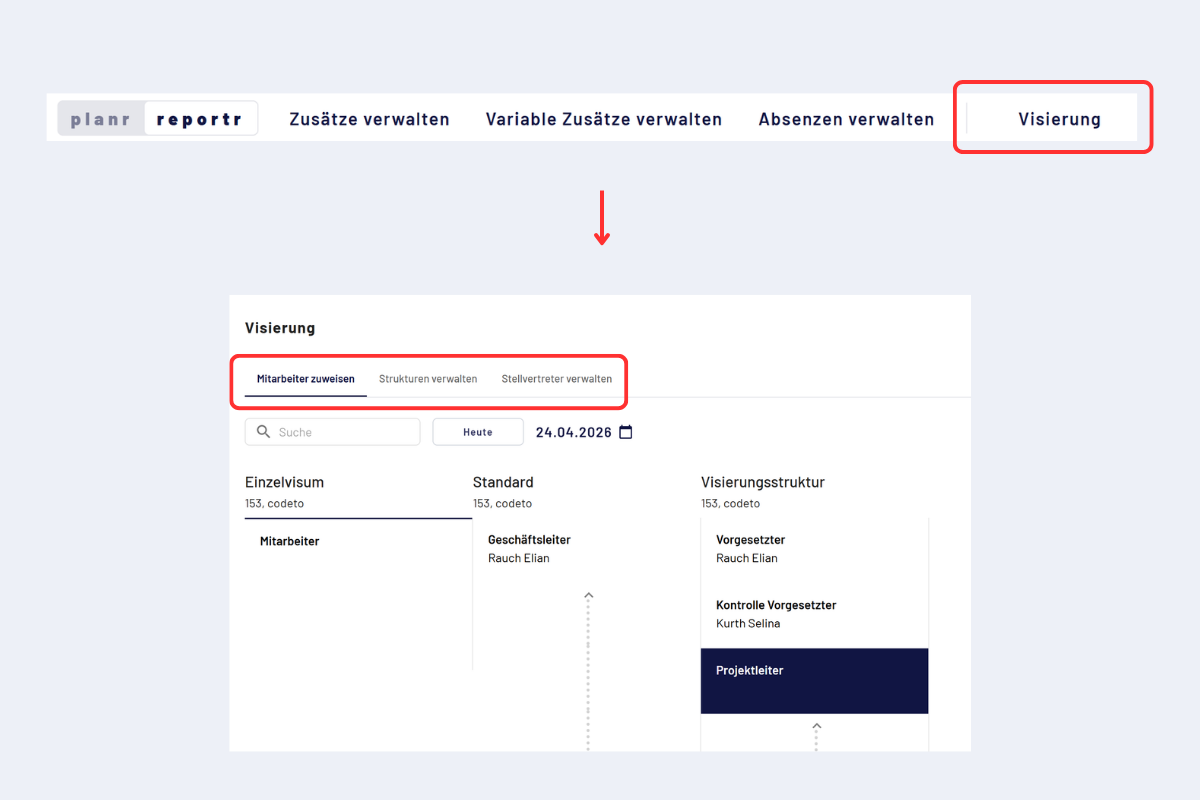
Open approval settings
Initial setup (one-time). The following steps are usually only required for the initial configuration or for fundamental changes. In daily use it is generally enough to assign new employees in step 3.
We usually carry out the initial setup together with you or via support. If you do it on your own and feel unsure, please get in touch immediately. The approval structure is the foundation of the entire report flow and the setup is error-prone. Once configured correctly, however, it runs stably.
Structure and assignments work with validity periods. Today and the past are locked, editing is only possible from a future date onwards. Earlier states remain historically traceable.
Procedure
- Define managing director (one-time).
- Manage structures: create one or more approval structures with the appropriate stages.
- Assign employees: assign people to the structure and to the individual stages.
1. Define managing director
One-time during setup or when the managing director changes.
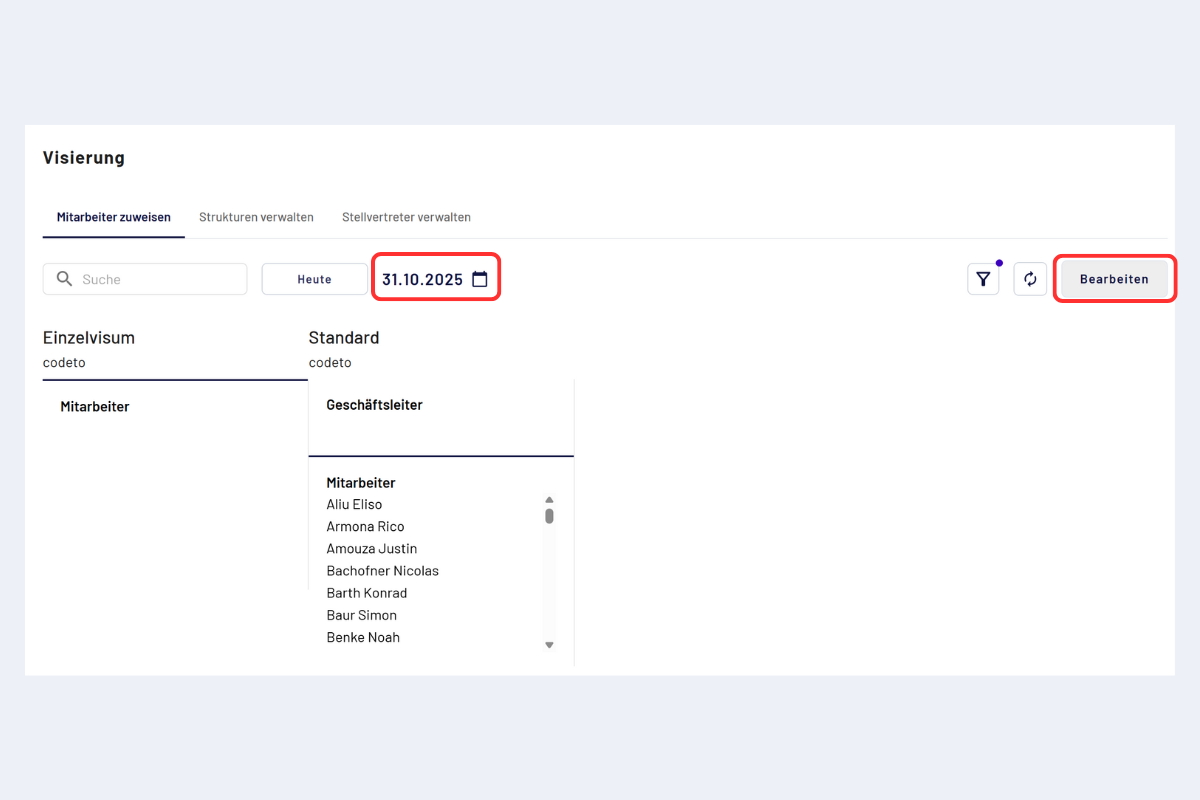
- Open the "Assign employees" tab and set the date to at least tomorrow.
- At the top, the "Managing director" area appears, and below it the list of all employees.
- Click "Edit".
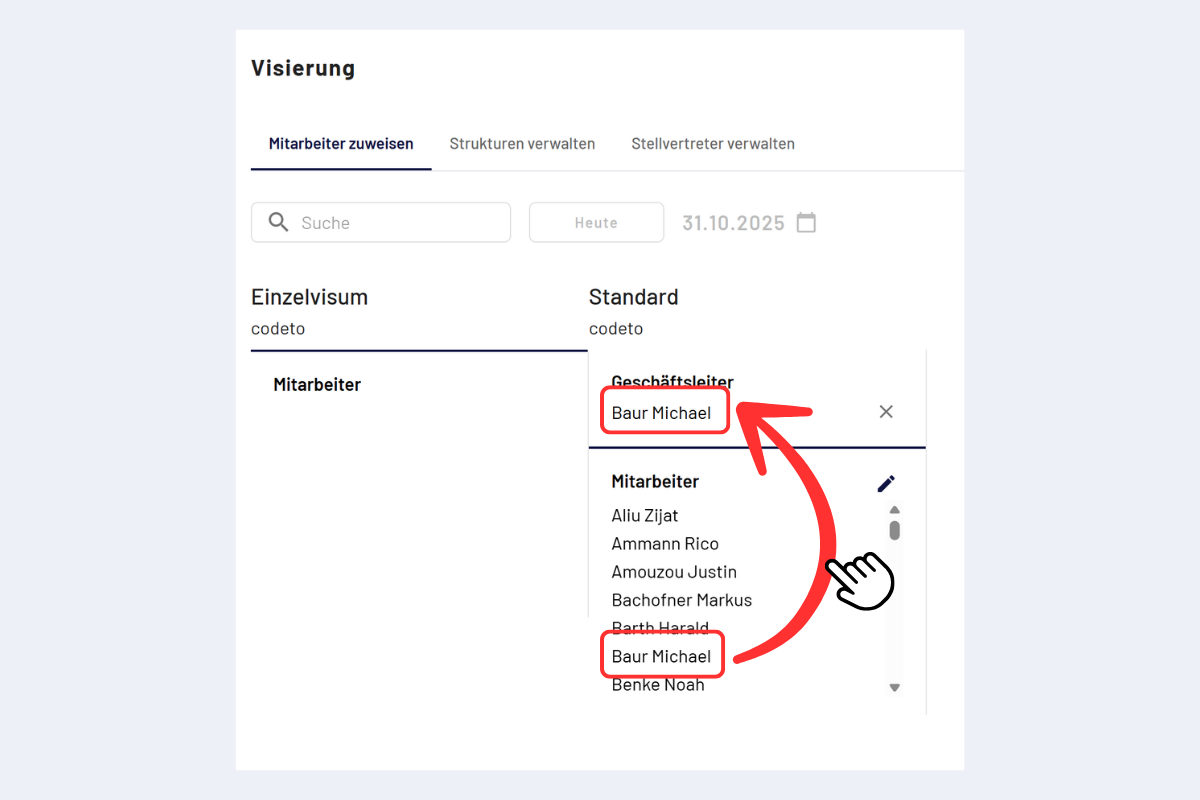
- Drag the right person from the employee list into the "Managing director" area.
- Save.
2. Manage structures
The default structure covers the direct path Employee to Managing director. For more intermediate stages, e.g. Project manager, Project manager check or Supervisor check (often the secretariat), an additional structure must be created.
Switch to the "Manage structures" tab, set the date to a future date and click "Edit".
- Click "Add".
- Give the structure a name (e.g. "Approval structure assembly").
- Activate stages with checkmarks:
- Project manager check: often the site foreman or the person responsible on site. If this role is missing, leave the checkmark out.
- Project manager: the project manager assigned to the project in the system or via ERP.
- Supervisor check: often the secretariat.
- Supervisors: usually the final instance, e.g. management or HR.
- Save.
Project manager and Project manager check are each enabled or disabled for all approval structures within the same group company. Changing a checkbox for one department also changes the other structures. A separate setting per department is currently not possible, even with a newly created structure.
With a separate setting per department, the same project manager would receive reports for the same project for approval from some departments but not others. To keep the approval path clear, the company-wide setting is currently fixed.
Each change creates a new valid state. Existing earlier configurations remain valid for their respective periods.
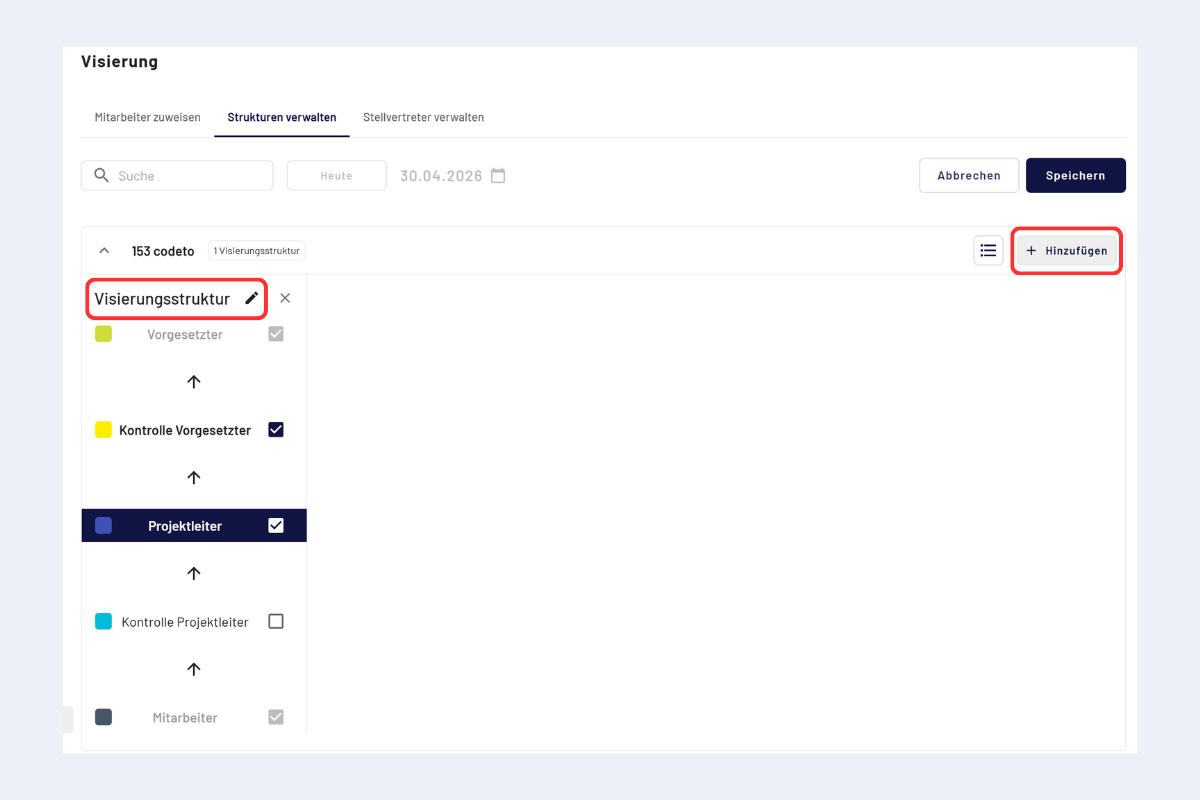
The colors next to the stages are not just decoration: reports in the approval process get the same color as the stage they currently sit on. This way you can see at a glance where in the approval structure a report is hanging.
A default color is set per stage. Master and admins can adjust it here in "Manage structures" individually per structure, other roles see the colors only as read-only.
3. Assign employees
Back to the "Assign employees" tab, set the date in the future and click "Edit".
- On the left, select the employees from the pool.
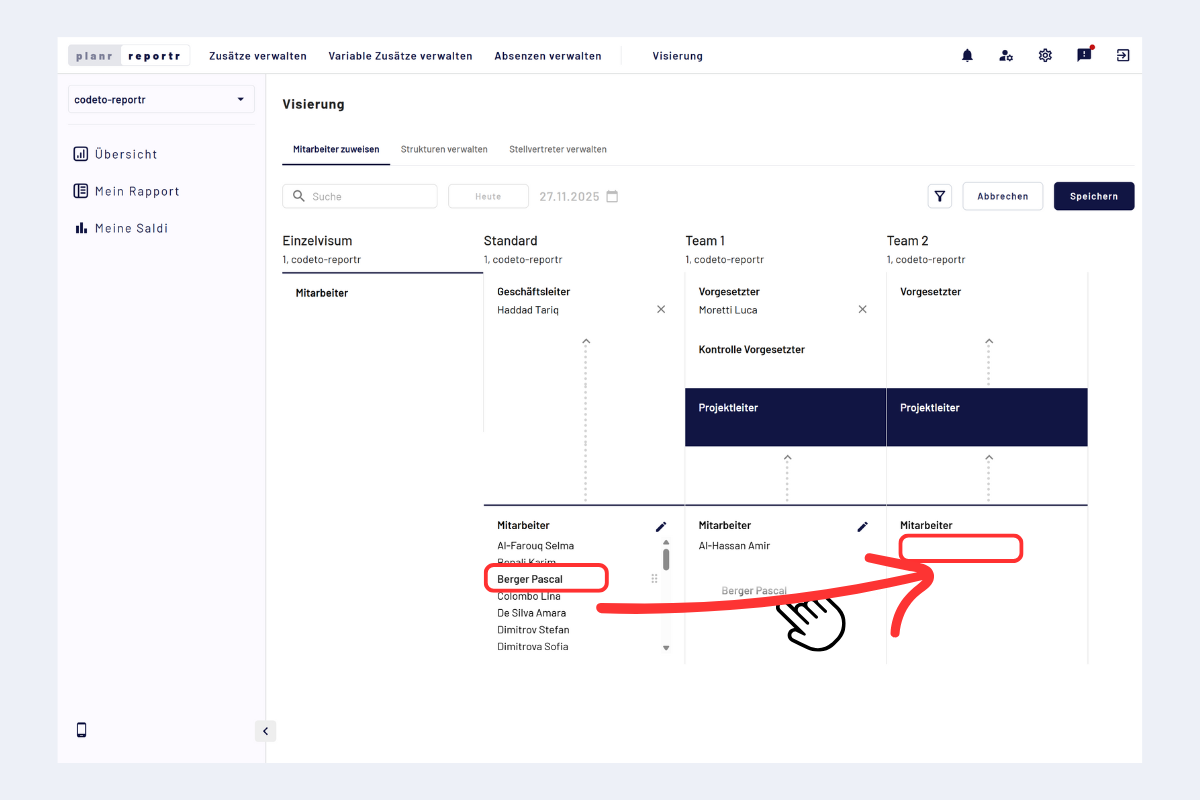
- Drag the people into the desired approval structure on the right.
- For each used stage, set the responsible person (Project manager check, Supervisor check, Supervisors).
- Save.
All reports of these employees will, from the chosen date, run through the defined structure. For later changes, create a new future state.
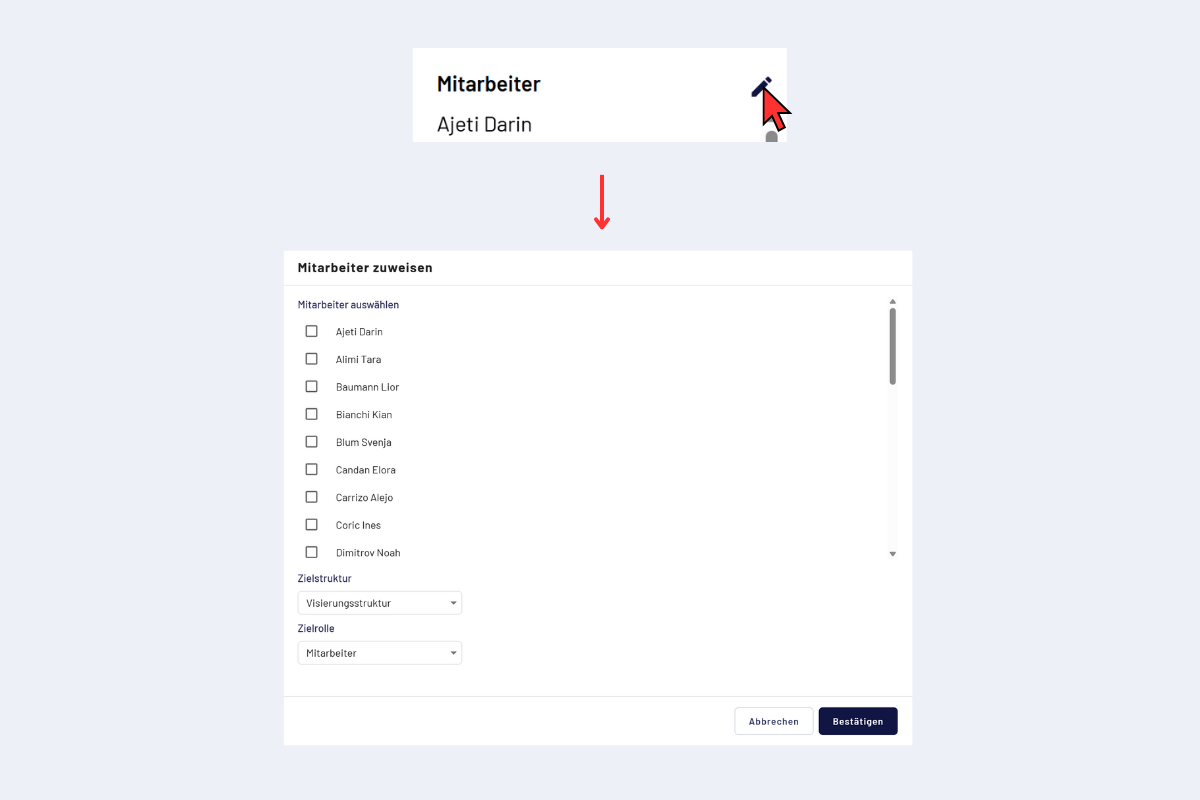
For a large number of people, the edit symbol (pencil) is faster: choose the target structure and role and mark the employees directly in the list.
Newly joining employees automatically land in the default structure. Which steps are required so that they can report correctly is described under New employee, what to do?.
Multiple teams or departments
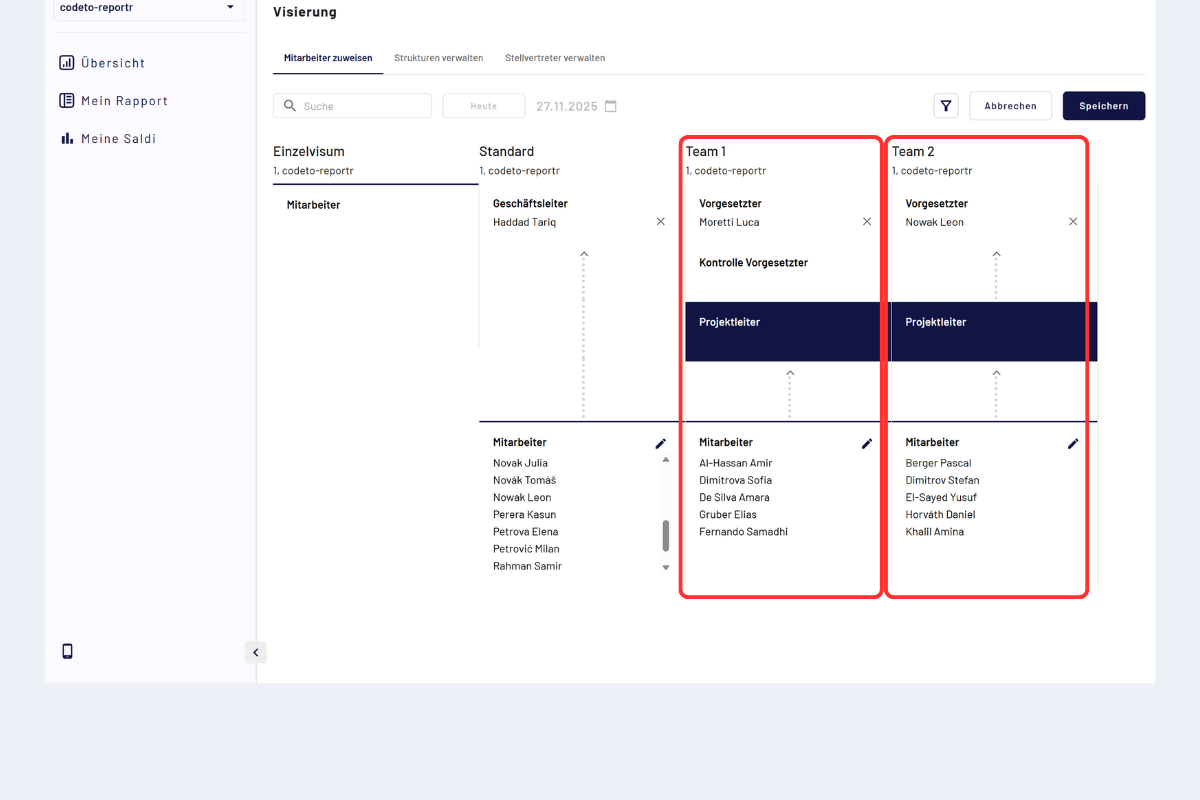
For different teams or departments, run through the steps "Manage structures" and "Assign employees" multiple times. Create a separate structure per team and assign the matching employees.
With several companies, you can also set people from a different company as deputies. The deputy is not limited to your own company.
In addition, super users, masters and admins can set up deputies not only for themselves, but also for other people. More on this under Deputy.