Absence management
In the absence management area you define the absence types employees can choose from when reporting.
Tabs: Active absences and Templates
As with the additions, there are two tabs:
- Active absences: absence types active in a company. For firms with a single company, this tab is sufficient.
- Templates: central catalog for firms with several companies. Define once and transfer to individual companies or all of them.
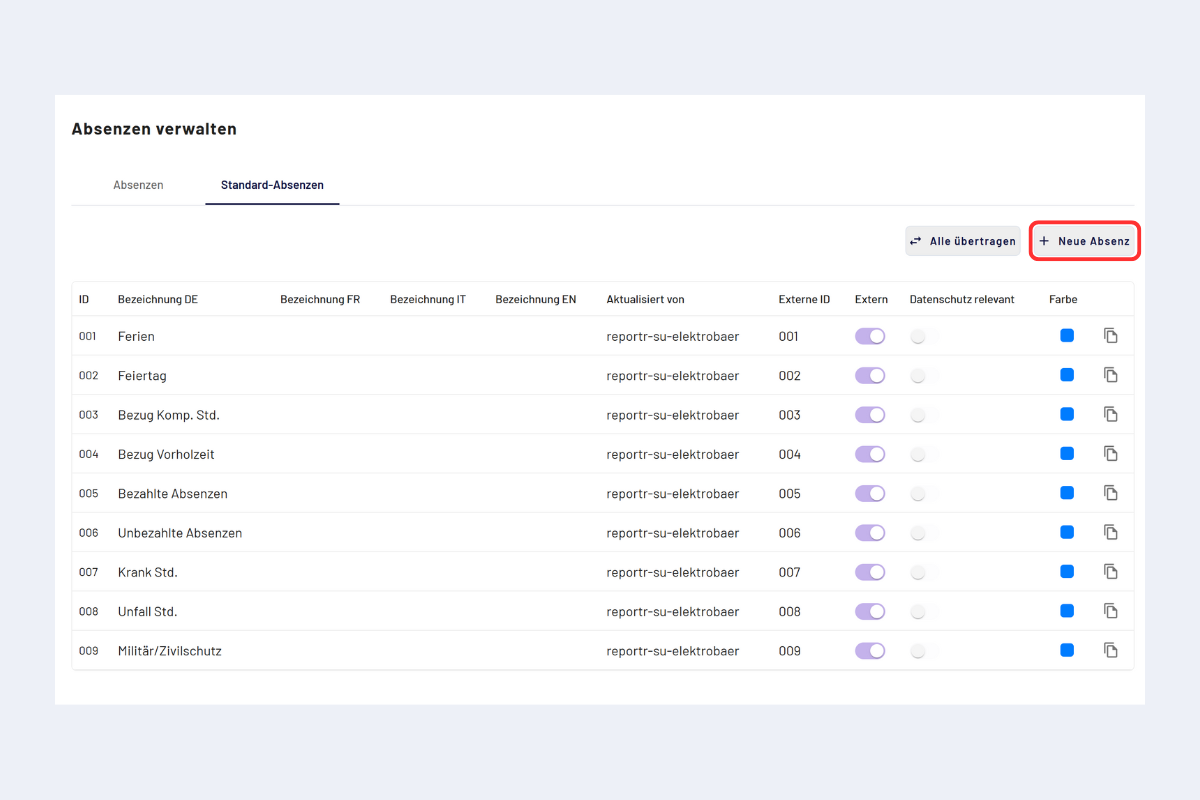
Absence management, "Active absences" and "Templates" tabs
An entry under "Templates" is initially just a catalog entry. It only takes effect once it is present in the target company under the "Active absences" tab, either created there directly or copied from the templates. See Transfer a template.
Create a template
The remaining procedure is identical in both tabs:
- In "Templates", click "New template"; in "Active absences", click "New absence".
- Fill in the input form and save.
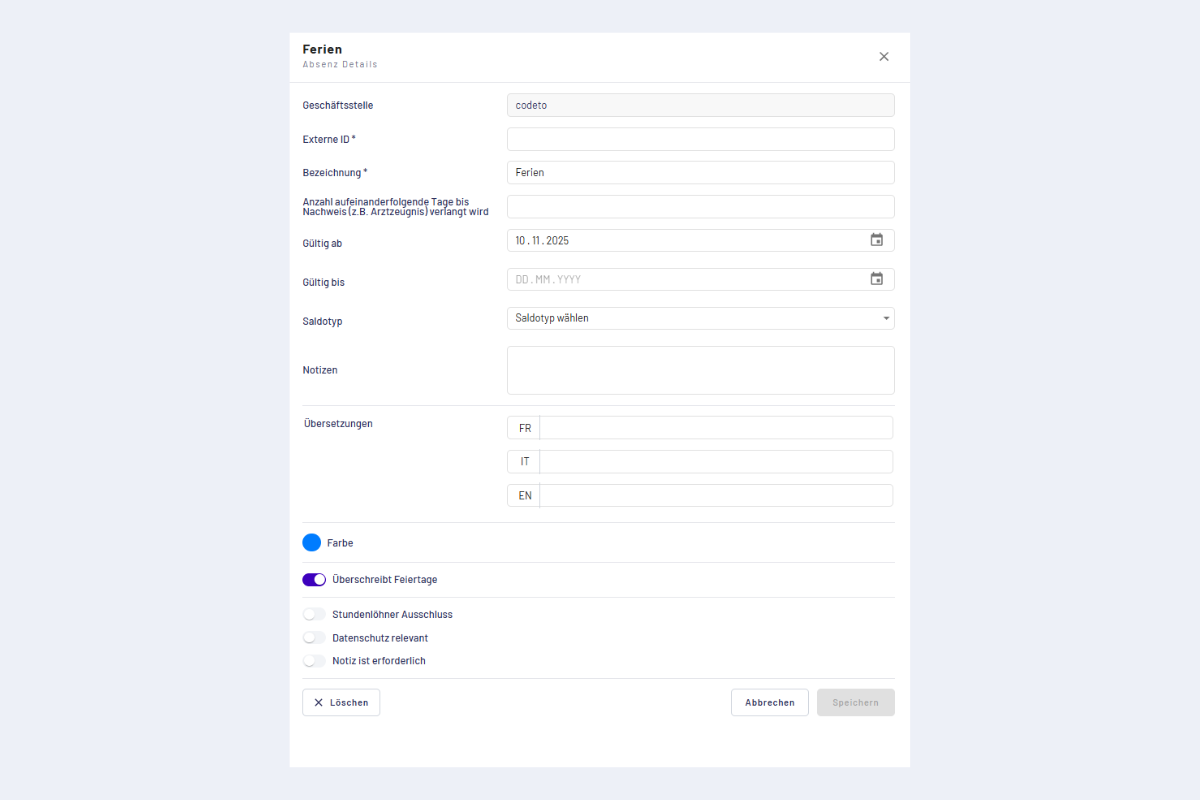
Template, input form
Fields in the input form
Mandatory fields:
- ID: unique key. Used for assignment and exports.
- Label: clear name of the absence, visible to users.
Optional fields:
- Number of consecutive days until proof is required: from this number of consecutive days, a warning appears at the week closure if proof is missing (e.g. attachment forgotten). The warning blocks neither the booking nor the closure.
- Valid from / Valid until: period during which this absence type can be booked. Outside this period, the absence is not selectable.
- Balance type: the balance the absence affects, see Balances. The balance accounts are available for selection:
- No balance type selected: the absence affects neither holiday nor prior-year hours. For overtime it counts like normally reported time.
- Holiday: the hours reported are deducted from holiday.
- Overtime: the absence counts as a draw from overtime. It does not count as reported time; for overtime the day looks like a day without a report. This is typical for the absence used to fill missing expected time automatically at week completion.
- Prior-year hours: the hours reported are deducted from prior-year hours.
- Several absences can affect the same balance, for example two different holiday absences. An absence without a balance type changes neither holiday nor prior-year hours.
- The balance types have the same names as the balance accounts. In the app they are currently still called "Vacation" instead of holiday, "GAV" instead of overtime and "Overtime" instead of prior-year hours.
- Allow negative balance (toggle): when enabled, the absence can be booked even if the corresponding balance is insufficient. The check for sufficient credit no longer applies to this absence type, see Rule checks.
- Notes: internal notes or specifications.
- Translations: language versions for the label and notes.
- Color: representation in overviews and calendars.
- Overrides public holidays (toggle): activate if the absence takes precedence on public holidays. The absence then counts instead of the holiday.
- Hourly worker exclusion (toggle): when activated, this absence is not available for hourly workers.
- Privacy-relevant (toggle): when activated, other people only see the entry "Absence", without the specific type. Example: a doctor's appointment appears to colleagues simply as "Absence", the type "Doctor's appointment" remains hidden.
- Note is required (toggle): when activated, the absence can only be reported with a note. Without a note the report cannot be saved.
Transfer a template
Templates can be transferred to other companies.
- Open "Templates" in the branch office settings.
- Choose "Transfer to all" or "Copy individually".
- In the pop-up, choose the transfer destination (target company) and confirm.
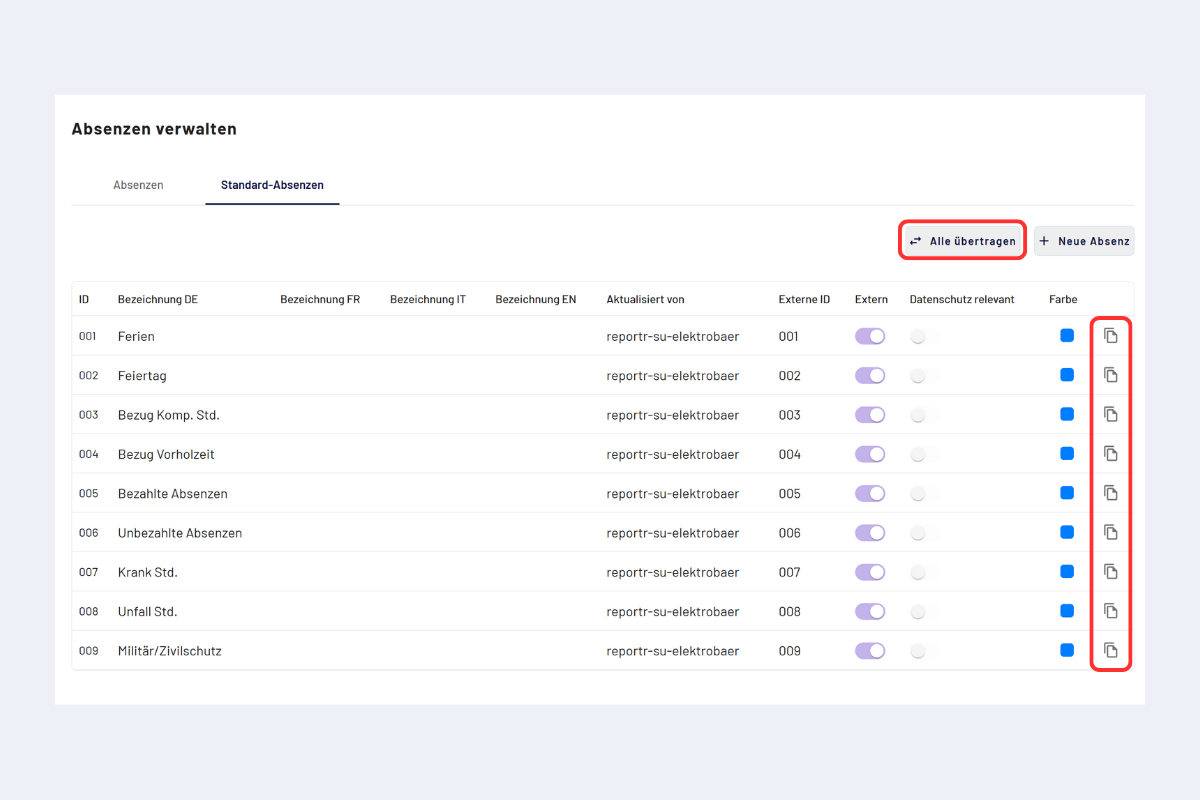
Templates, transfer
As soon as a template has been transferred or an absence has been created directly under the "Active absences" tab, the absence type is available for selection during recording. See also Record absence hours.