Record absence hours
How to record vacation, illness and other absences in the web app.
Views
Reports can be entered in all four views:
| View | Entry by double-click or drag and drop |
|---|---|
| Day view | Hour-based |
| Week and month view | Day-based |
| Year view | Week-based |
Procedure
-
Select the desired day or period.
-
Double-click the time field or mark a period via drag and drop.
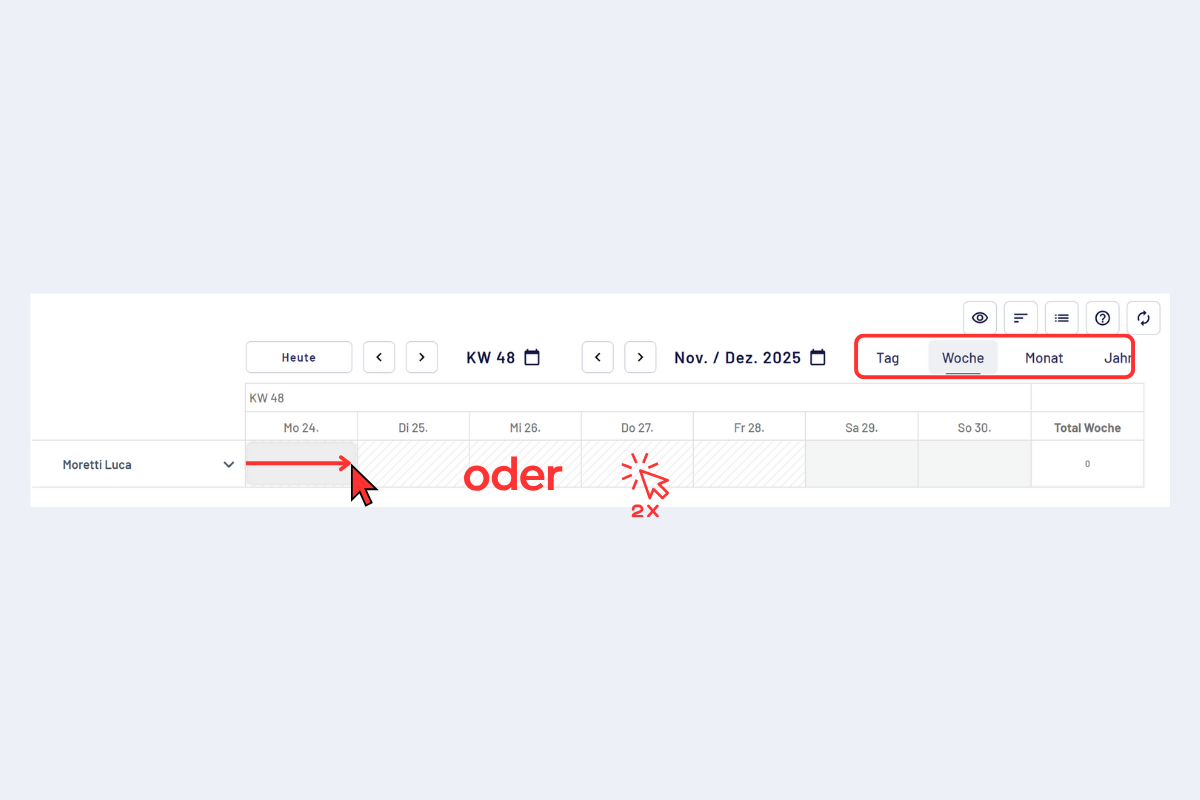
Record absence hours, double-click or mark a period
-
Switch to the "Absence" tab (default is "Projects") and choose the desired absence type, then "Next".
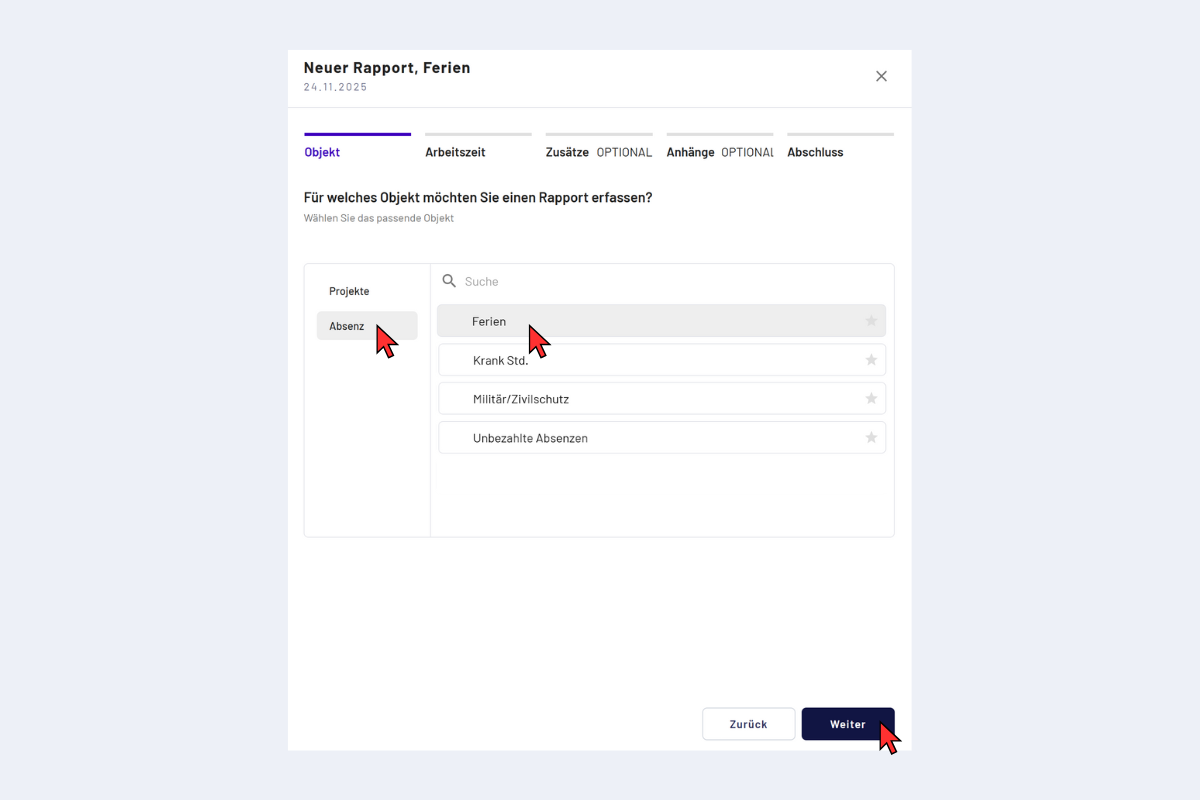
Record absence, choose absence type
FavoritesMark frequently used absences as a favorite, they will appear at the top from then on. Favorites are employee-specific.
-
Enter times (from-to or duration).
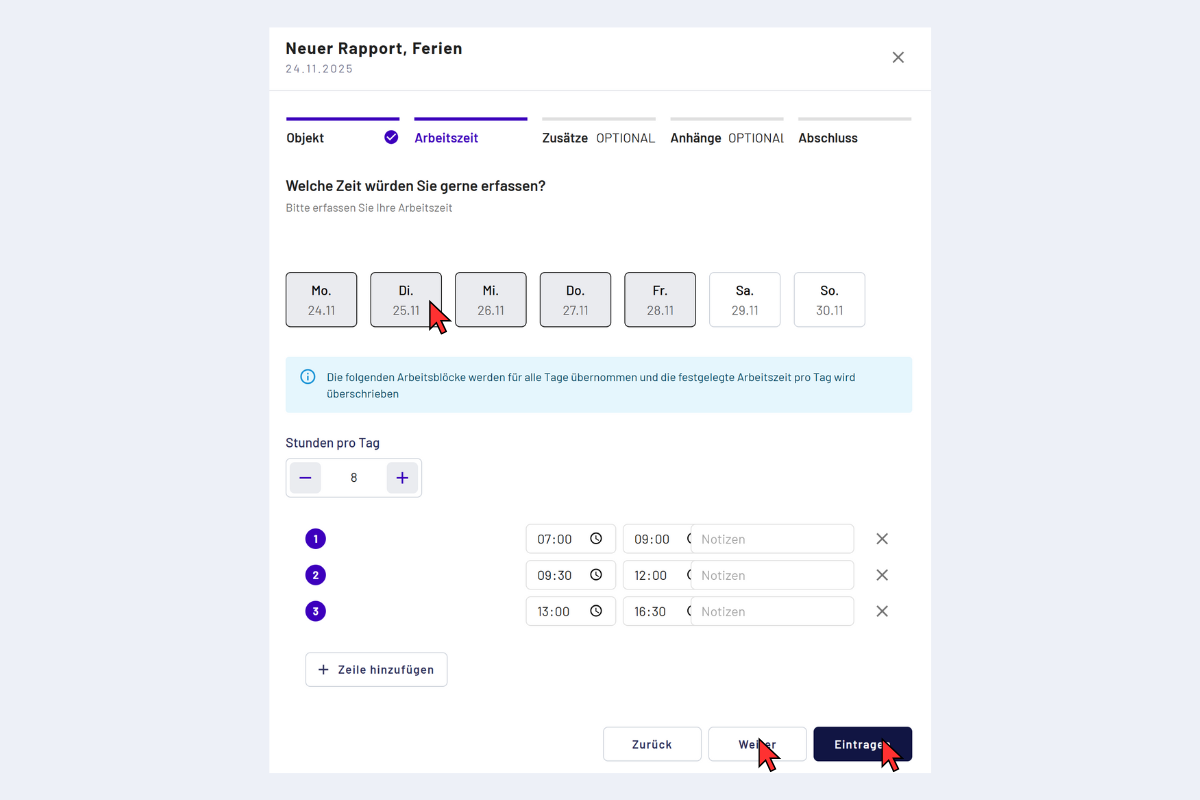
Record absence, enter times
- Book one day or mark several days at once.
- "+" adds time at the end, "-" subtracts at the end. Alternatively, edit the from-to times directly in the rows.
- Any number of rows per day (e.g. for breaks).
- Optional note per time block.
Multi-day absencesFor vacation, mark all days at the start via drag and drop, or select multiple here. The blue information row appears automatically and is normal.
-
Use "Next" to go to the attachment step or "Submit" directly if no attachment is needed.
Add supplements
For absences, no supplements are usually recorded.
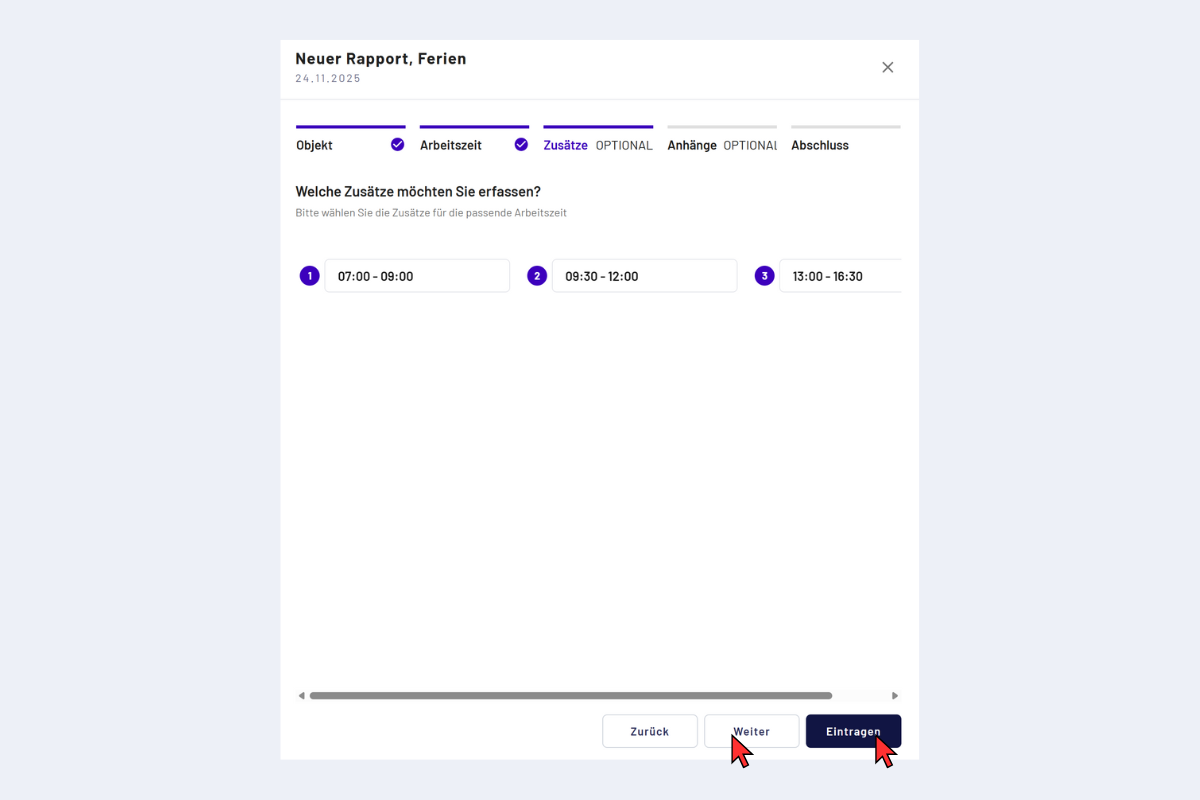
Record absence, supplements
Attachment
In the last step, attach documents or photos (allowed formats: images and PDF).
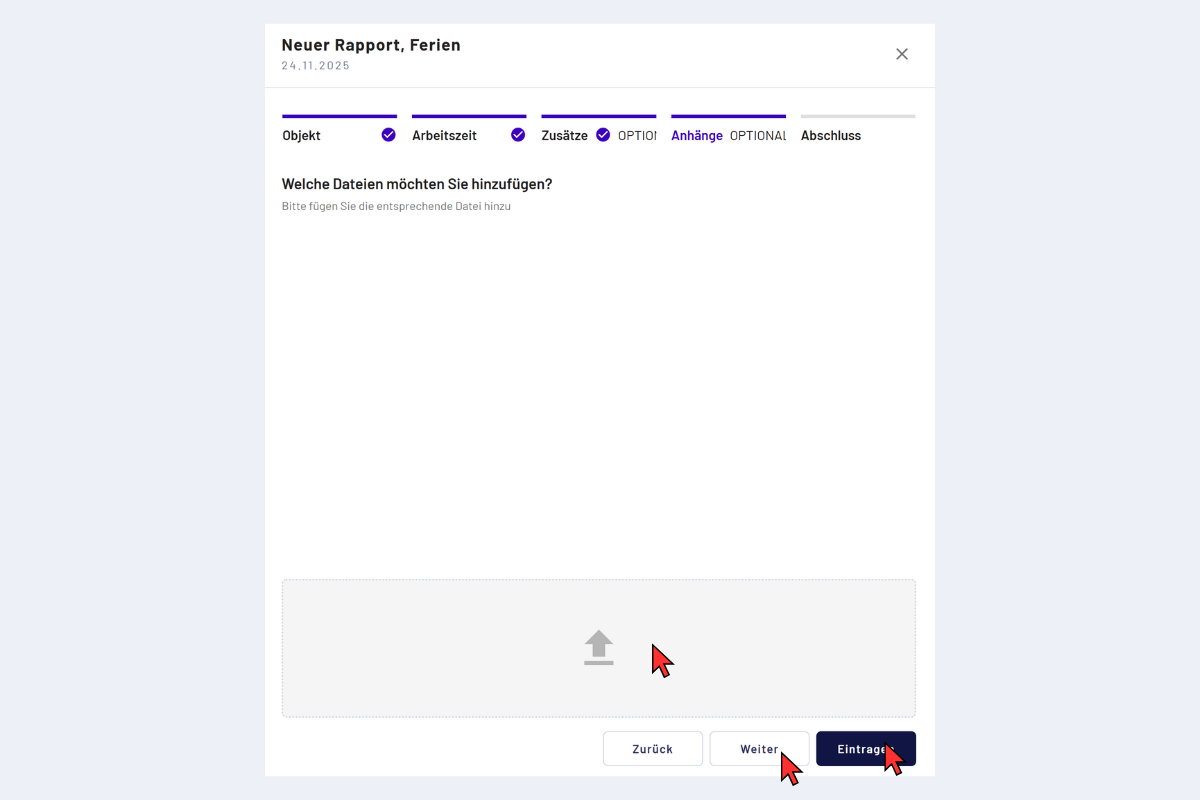
Record absence, add attachment
Absences and balances
Some absences deduct hours from a balance, for example from holiday or prior-year hours. Anyone who wants to take prior-year hours reports the absence intended for this. Which absence affects which balance is set by the admin. If in doubt, ask the admin. See Balances.
Rules and notes
- Maximum absence duration per day: must not exceed the target time.
- Paid public holidays reduce the target time according to the stored percentage.
- For longer absences, documentation may be required, codeto report points this out.