Request an absence
Absences that need a request are requested under "My absences", not in the calendar. At the top of the page you see the balances, for example "Vacation balance", together with the hours currently requested. Below are your own requests, which can be filtered by "Requested", "Approved" and "Rejected".
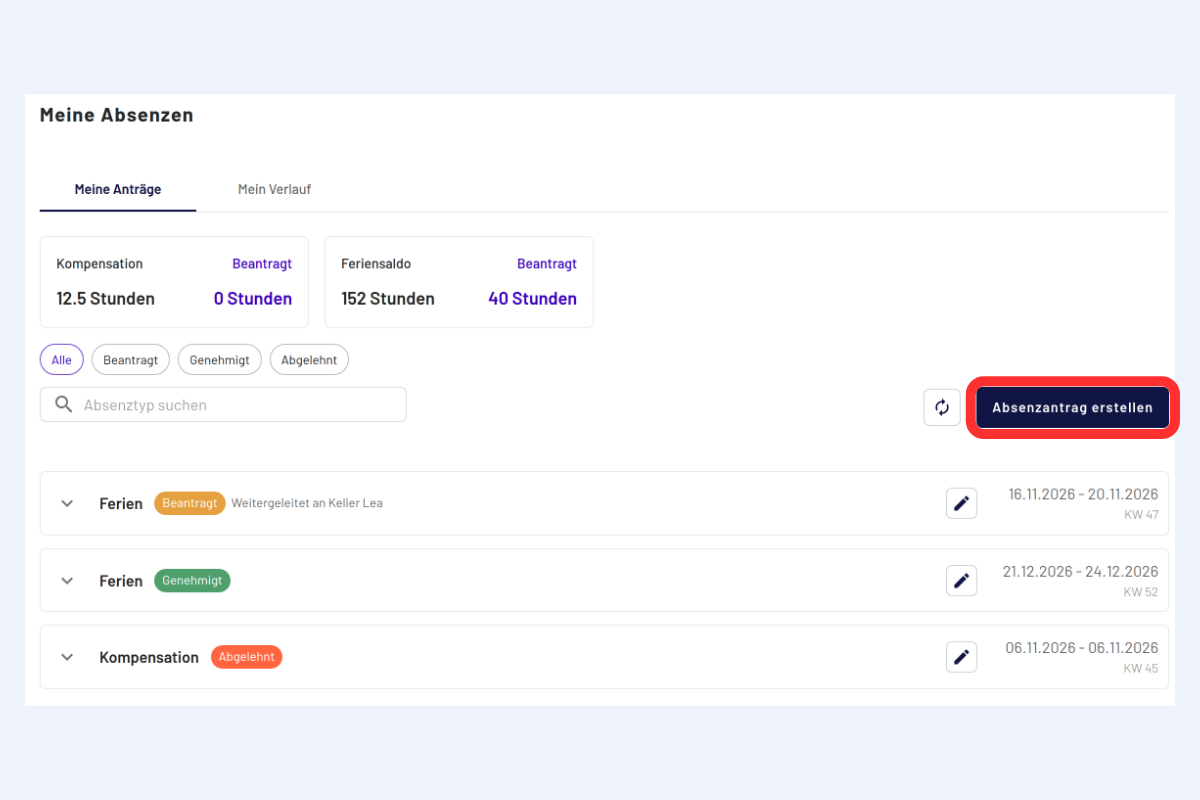
Submit a request
- Open "My absences".
- Select "Create absence request".
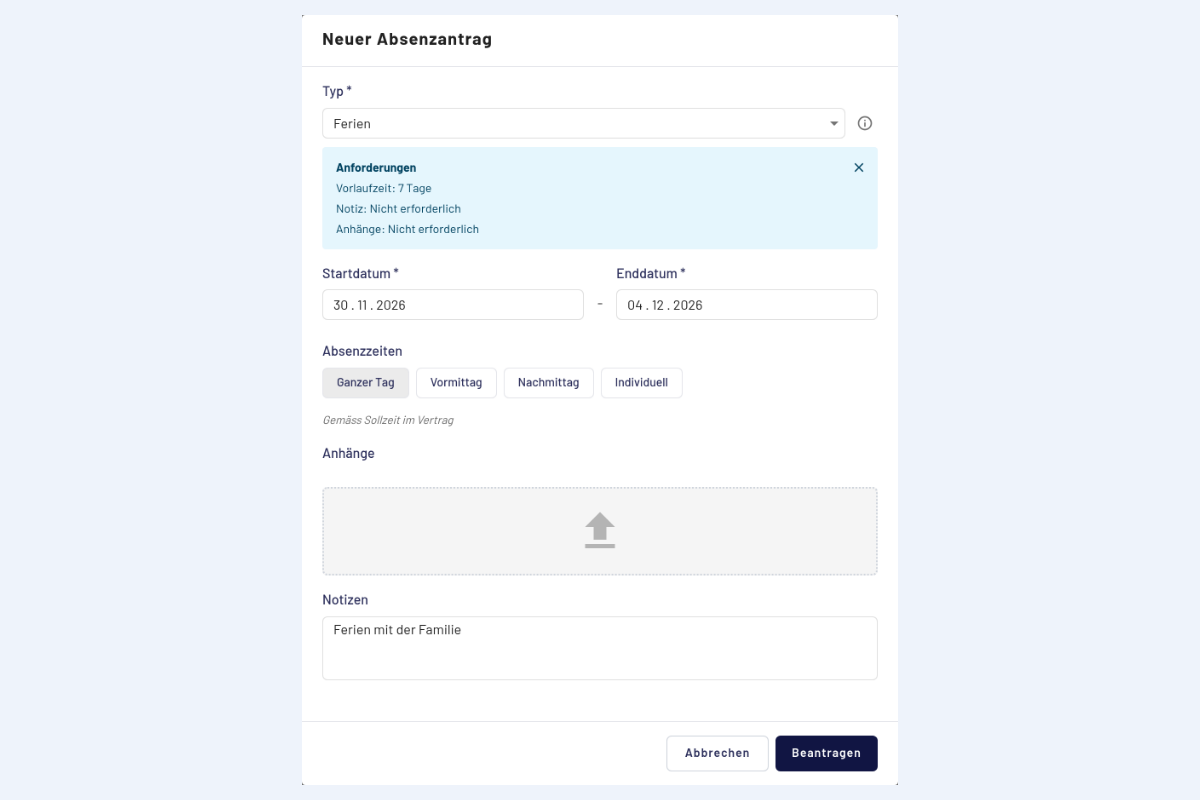
- Choose the absence type under "Type". "Requirements" shows which lead time applies and whether a note or attachment is needed. Only absence types that can be requested are available.
- Choose the "Start date" and "End date".
- Under "Absence hours", set which part of the day is requested, see Full day, half day or individual.
- If required, enter a note under "Notes" or upload a file under "Attachments", for example a medical certificate.
- Submit with "Request".
The request then appears with the status "Requested" in the calendar and in the list of your own requests. An attachment is carried over to the calendar entry.
Full day, half day or individual
| Option | What is requested |
|---|---|
| Full day | The full target time of the day |
| Morning | The first half of the target time, ending at 12:00 |
| Afternoon | The second half of the target time, starting at 13:00 |
| Individual | Your own from-to times. With "Add line" you can enter several time blocks per day. |
The option applies to the whole request. If you need, for example, Monday morning and Tuesday afternoon, submit two requests. How the times are calculated is explained under Questions and special cases.
When a request is not possible
codeto report does not accept a request if
- the lead time is not met,
- reports or another request already exist for the period,
- the balance is insufficient and a negative balance is not allowed for the absence type,
- the period contains no target working time,
- the week is locked,
- the absence is not valid in the selected period.
Request or report directly?
The lead time defines per absence type how many days in advance an absence must be requested. This prevents, for example, holidays from being entered at short notice without the responsible person being able to decide in time. Anything within this period, on the other hand, is reported directly, without a request.
- Request: What counts is the first day. It must lie after the lead time, so at the earliest on the day after. With a lead time of 0 days, a request is therefore possible from tomorrow. A request can never be made for today or past days.
- Report directly: Each day is checked individually. Days within the lead time, today and past days are reported directly in the calendar. Days after the lead time need a request. If you report them in the calendar anyway, you get a hint with a link to "My absences".
Example: The lead time for holidays is 7 days. Holidays from the 8th day onwards are requested, even four weeks in a row. The request must therefore be submitted more than 7 days before the first day of the holidays. Holidays from the 6th to the 9th day can neither be fully reported nor fully requested: the 6th and 7th day are reported directly, the 8th and 9th day need a request.
If a minimal request duration is set for the absence type, for example 2 h, shorter absences per day can also be reported directly in the future. From 2 h on the same day, a request is needed.
Change or cancel a request
- Requested: The request can be changed or cancelled under "My absences". When cancelled, the entry disappears from the calendar.
- Approved: The request has become a report. Changes are made in the calendar, see below.
Change an approved absence
| What | Possible? |
|---|---|
| Delete, entirely or individual days | Yes. This is how an absence is shortened. The balance is credited back. |
| Change hours or extend, within the lead time | Yes, like any other report. |
| Change hours or extend, further in the future | No. A new request is needed for this. To change hours, delete the day and request it again. |
Example: Lead time 7 days, approved holidays in three weeks from Monday to Friday. The Friday can be deleted, the holidays then last until Thursday. If the following week is to be added, a new request is needed.
Changing and cancelling is only possible as long as the week is not completed. Otherwise the week must first be reopened.
After the decision
The employee receives a notification as soon as the request is approved or rejected. Clicking it opens "My absences". Which messages arrive can be set in the notification settings.
- Approved: The request becomes a report, and the balance goes down accordingly.
- Rejected: No report is created, and the balance stays unchanged.
History
"My history" shows past decisions and changes to your own requests: who did what and when. Cancelled requests also remain visible there.