Approve requests
Absence requests are approved via the existing approval structure. Supervisor check and Supervisor are responsible. Project managers do not approve absence requests.
Where pending requests appear
- On the home page under "Absences to approve".
- In the menu under "Employee absences", in the "Employee approvals" view. You can search by person or request there.
Your own requests are under "My absences", as for all employees.
Approve or reject a request
- Expand the request. It shows the type, date range, absence hours, attachments and notes.
- Select "Approve" or "Reject".
- When rejecting, enter a reason for rejection. A request cannot be rejected without a reason.
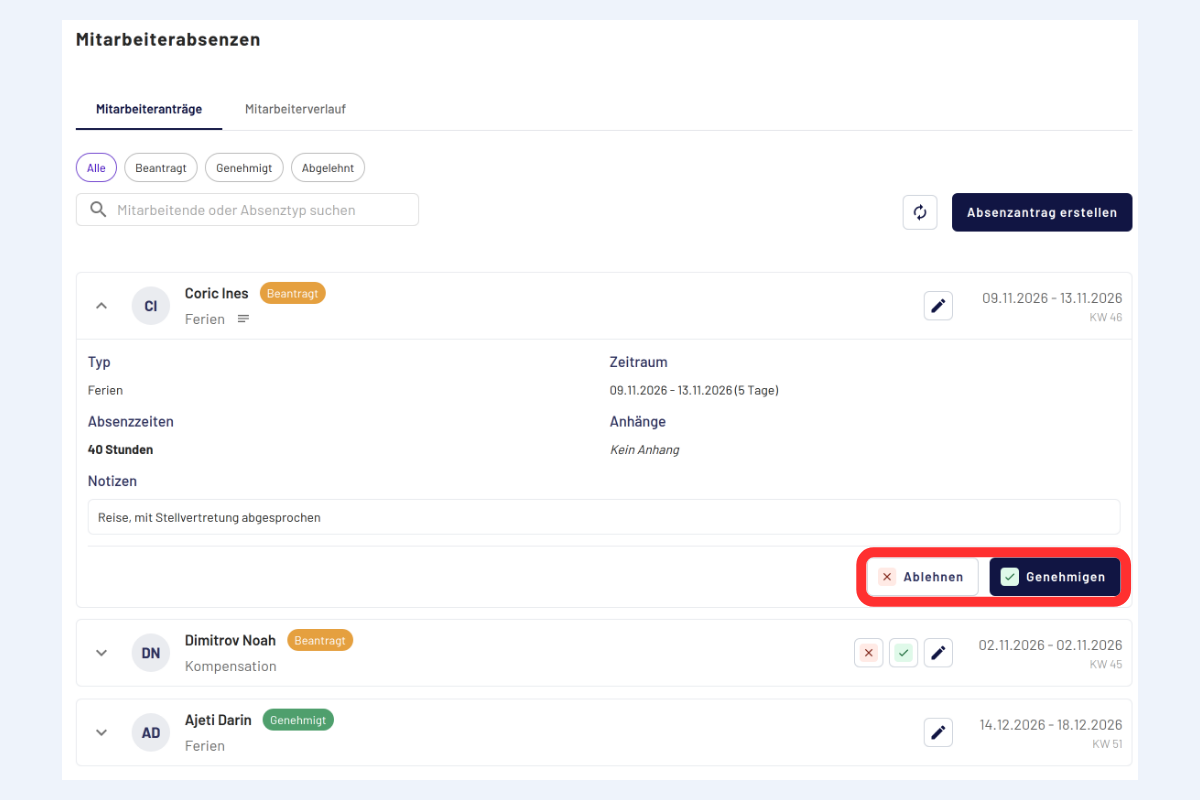
Collapsed requests can also be decided directly in the list, using the small buttons for approve and reject.
The employee receives a notification about the decision.
Several levels and deputies
- If two levels are set up in the approval structure, both must approve.
- The deputy rules also apply to absence requests.
- Masters and super users can approve requests even if they are not responsible. More under User roles and permissions.
What happens after approval
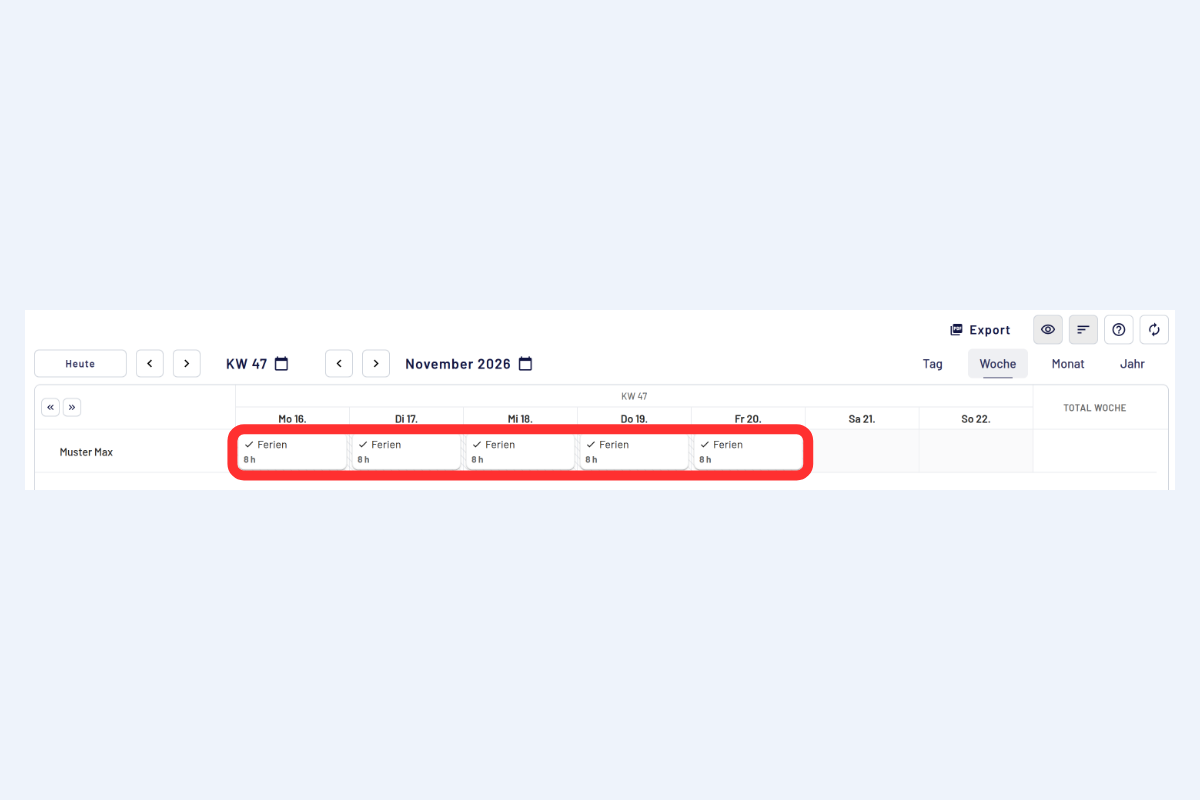
- The request becomes a report. In the calendar it is no longer hatched and shows a check mark in front of the absence name.
- The employee's balance goes down by the approved hours.
- The employee can still shorten or delete the absence in the calendar afterwards, without a new approval. What exactly is possible is described under Change an approved absence.
- When the week is completed, the report goes through the approval process like any other.
History
"Employee history" shows past decisions and changes to the requests of the assigned employees. The history can be searched, filtered and sorted, for example by person, absence type, date range or status.