Report check, approve or reject
Project managers and supervisors work in slightly different views. This chapter shows how reports are reviewed and approved or rejected in both roles.
Project managers
Project managers have two ways to perform the check. Which variant fits depends on whether the check is done per project or per person.
Project managers see the entire week of a person in context (including absences and entries outside their own projects). However, you can only approve or reject entries on your own projects.
Variant A: Project-based
Check all reports of a project. Suitable when the check is done per project.
In the project overview, accept or reject reports directly. The action applies to all employees who booked on this project on that day.
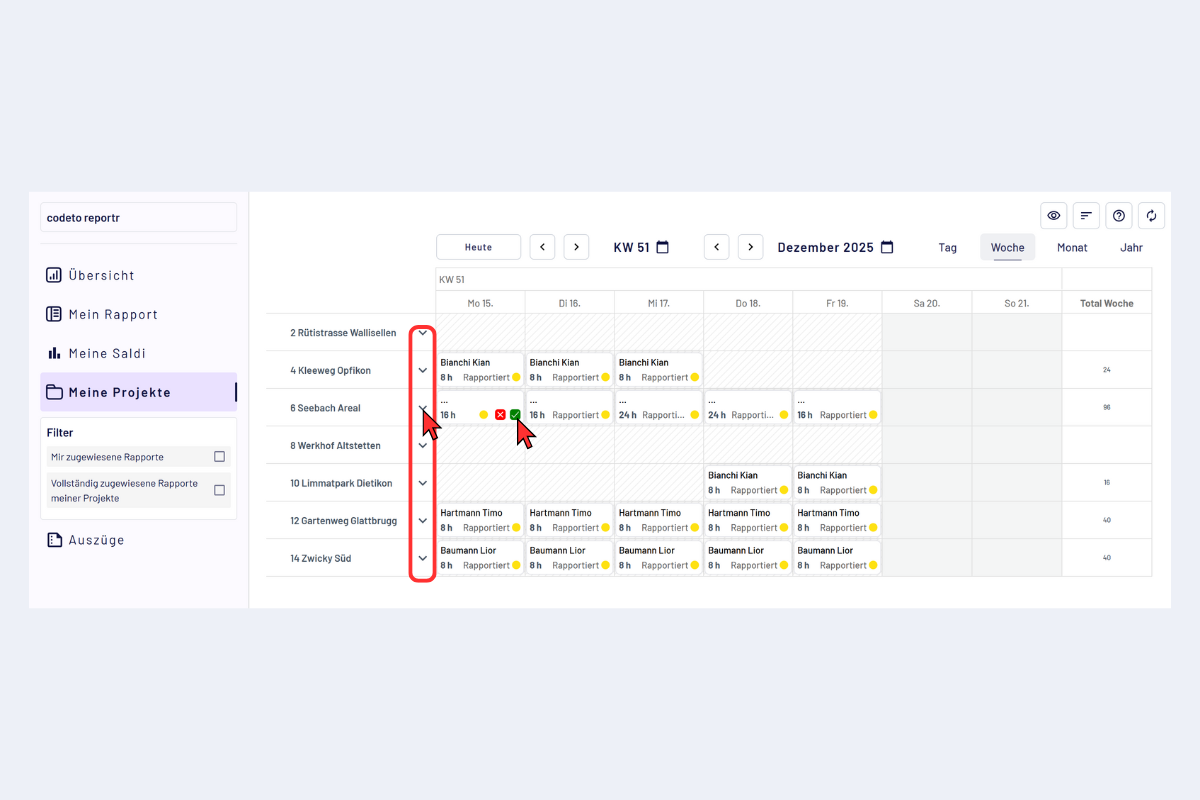
Project manager, project view
Recommendation: open the project in the detail view. Then it is visible who booked on which day. Approve or reject individual blocks, or use "Approve all" or "Reject all" at the bottom right.
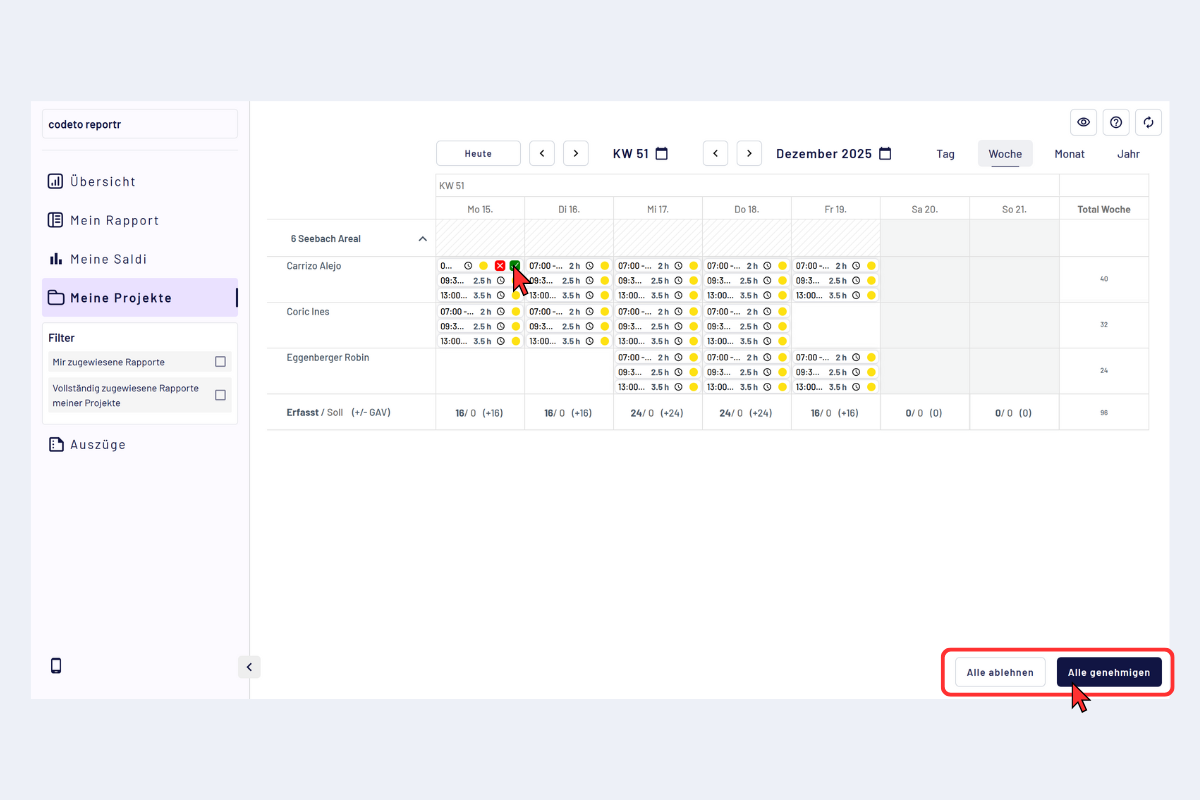
Project manager, project view with one project expanded
Variant B: Employee-based
Review the entire week of a person in context. Suitable when the week as a whole is to be assessed.
- On the overview page, expand "My employees, Reports to be approved".
- The employees with reports to be approved appear, grouped by week.
- Use "View week" to jump directly into the week.
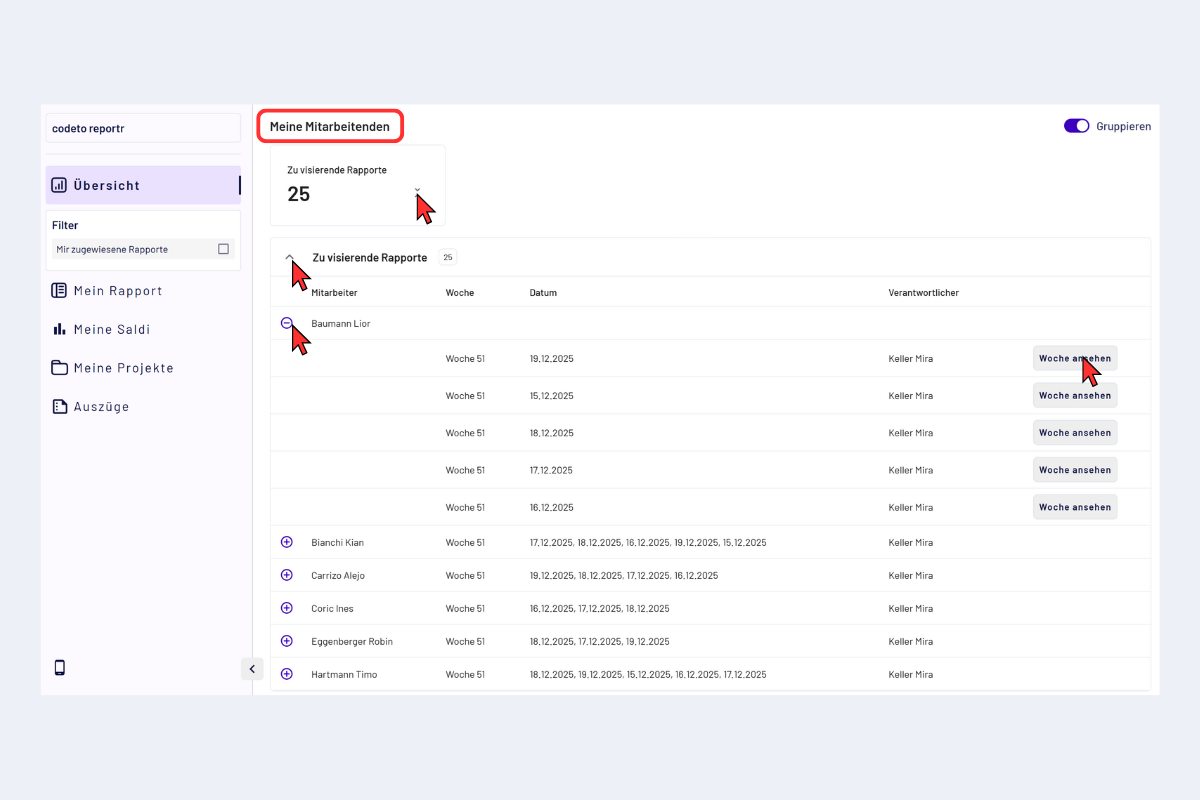
Project manager, employee overview "Reports to be approved"
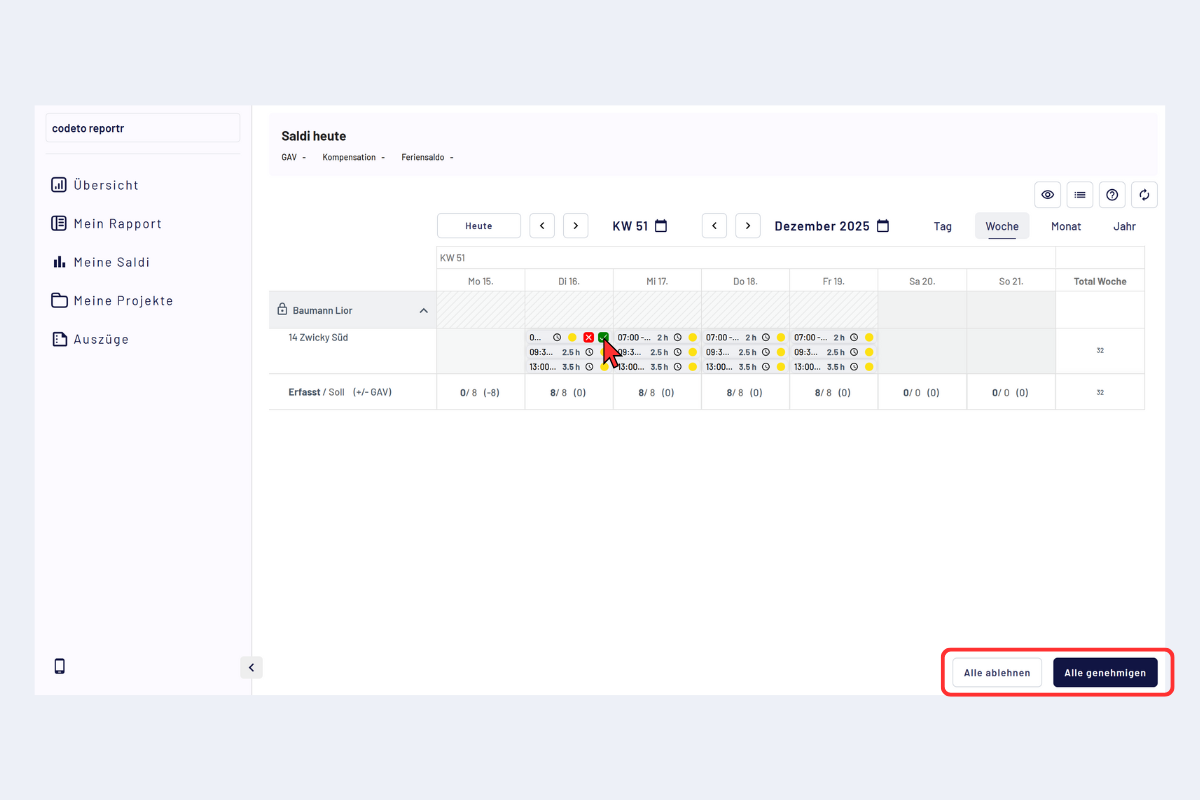
Project manager, week of an employee
Combine entries
In the report check, identical entries can be combined, so that not every block is shown individually but directly the total hours for the project on the respective day.
Only entries that match in all characteristics are combined: same day, same project, no additional notes, no different surcharges or additions. As soon as even a single detail differs, the entries remain visible as separate blocks.
Example: Three bookings on the same day on the same project, without note and without surcharge, are combined into one entry with the sum of the hours. If, on the other hand, two blocks are present, one from 07:00 to 09:00 with note A and one from 09:30 to 12:00 with note B, both remain shown separately.
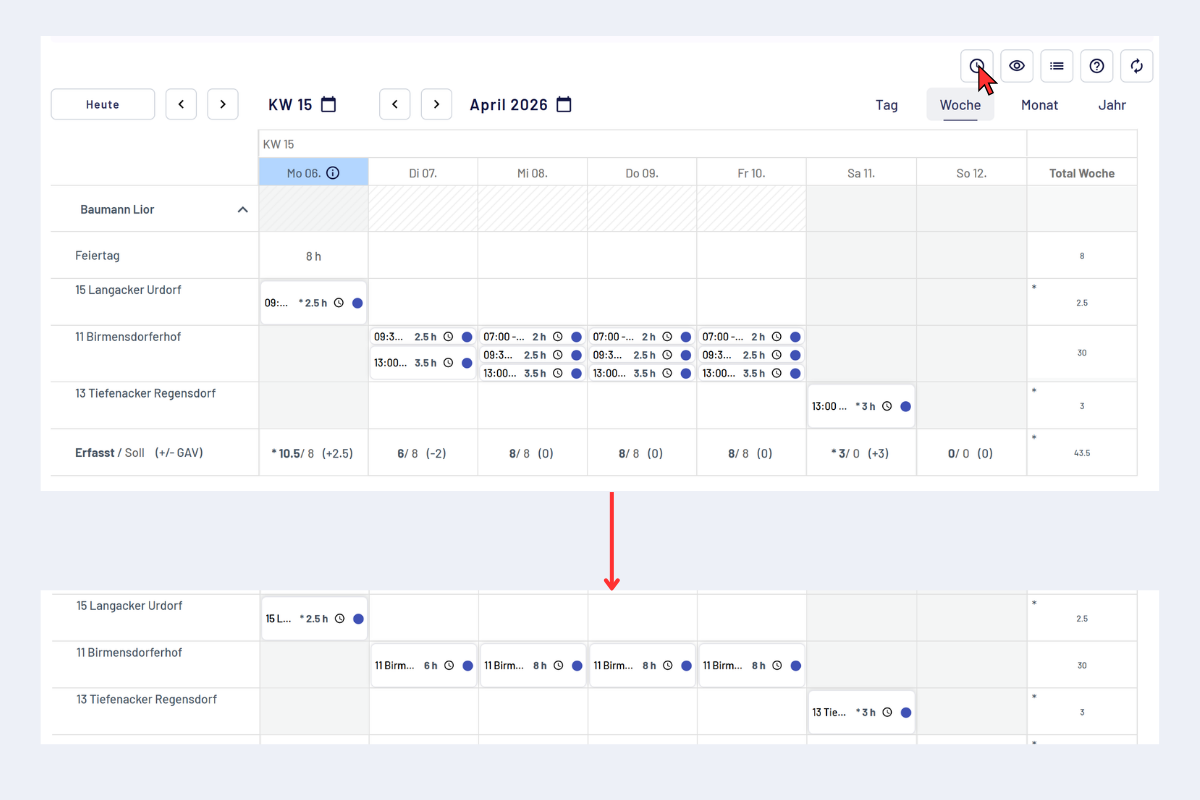
Report check, combined entries
Supervisor check (often back office) and supervisors
Supervisors work in the "My employees" tab. Anyone who is both project manager and supervisor has both views available.
Which employees appear? All persons who are placed below you in the approval structure. Changes to this list are only possible with admin permission.
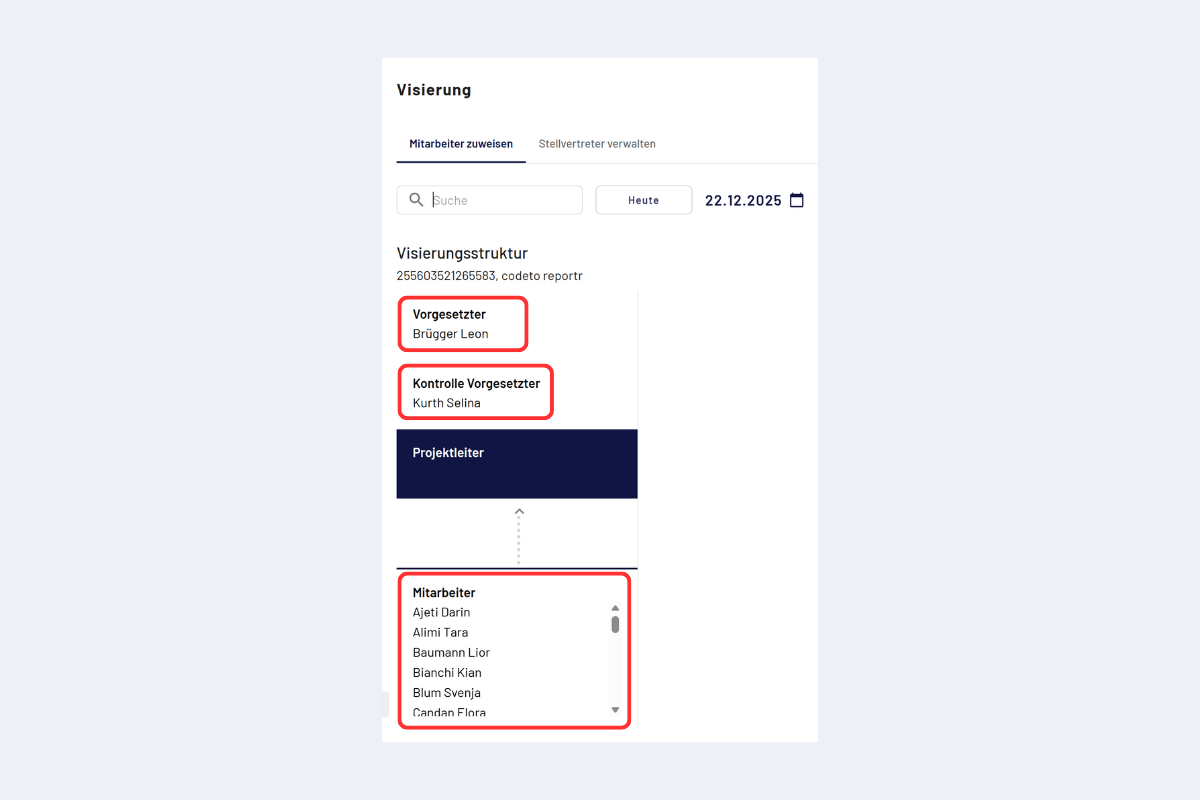
Supervisors, list of employees
Accept or reject reports directly, or open the detail view per employee to review the period (day, week, month or year) more precisely. In the detail view, all reports can be released or rejected at once, or alternatively individual blocks.
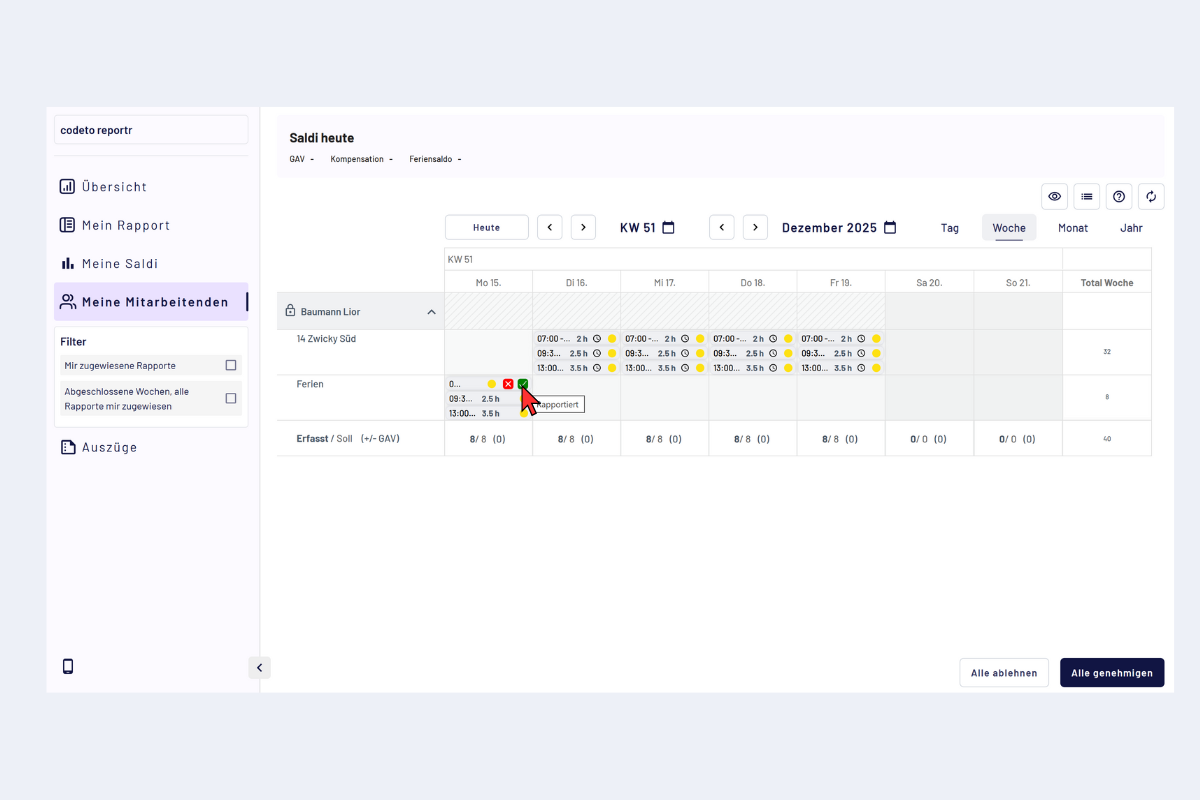
Supervisors, detail view per employee
Filters
The filters apply identically in "My employees" and "My projects".
- Reports assigned to me: all reports currently assigned to me, including individual forwarded days.
- Closed weeks, all reports assigned to me: only fully closed weeks. Here the approval of the entire week is pending.
Date quick filters for open reports
For open reports there are date quick filters: current month, last month, last three months, start of year. Useful for daily checks or for reviewing older periods.
Approve and reject
Two ways:
1) Per day via mouse action
Hover over a report; a green check mark (approve) and red cross (reject) appear. The action applies to the entire day, even if the day consists of several blocks.
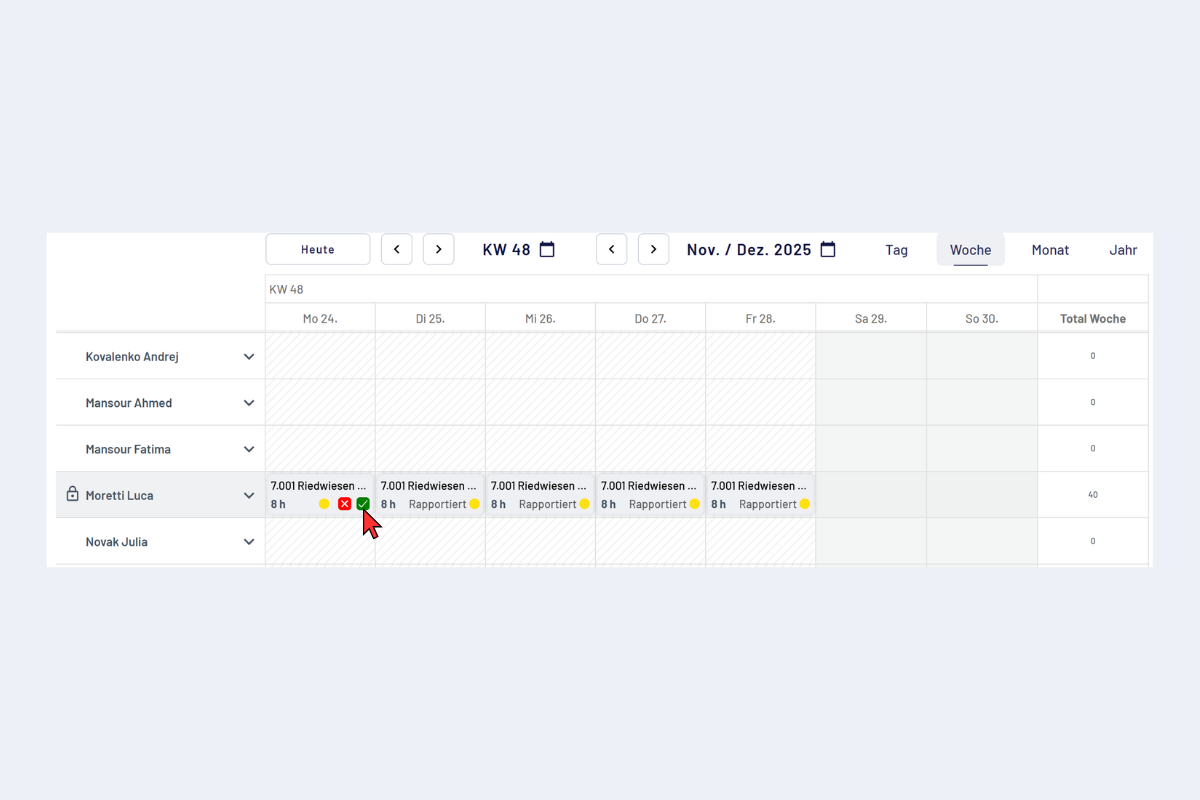
Approve and reject, per day
2) Expand for block precision (recommended)
Click the arrow next to the name to expand the person. Individual blocks become visible.
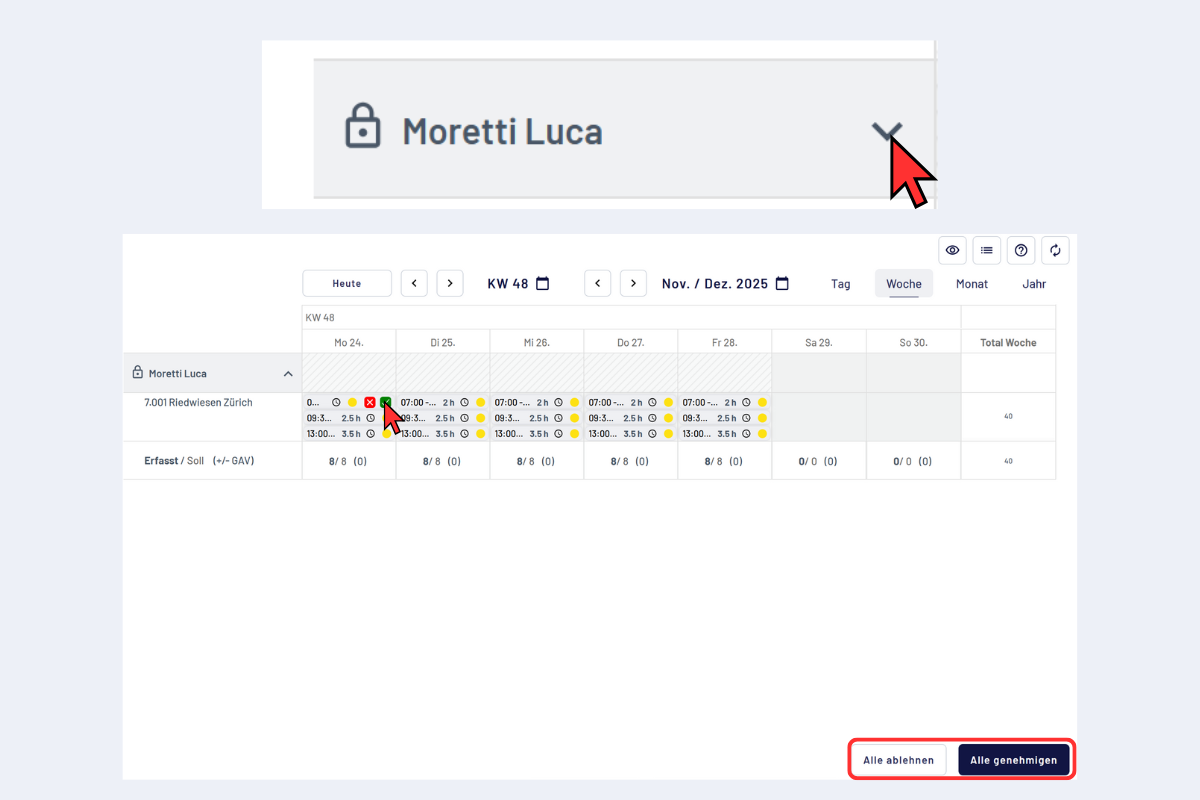
Approve and reject, expand
- Approve or reject individual blocks with check mark or cross.
- Click on a block opens a pop-up with details.
- At the bottom "Open week" to make your own adjustments.
- "Approve all" or "Reject all" are possible.
- Rejecting always requires a reason.
At the end of the approval, check the general additions of this week and add them if needed, see Check and add general additions.