Additions (project-related)
Project-related additions are recorded directly on a project report or added automatically according to defined rules.
The basics on the "Active additions" and "Templates" tabs as well as the transfer to other companies are described in the introduction.
Create an addition
The remaining procedure is identical in both tabs:
-
In "Templates", click "New template"; in "Active additions", click "New report addition".
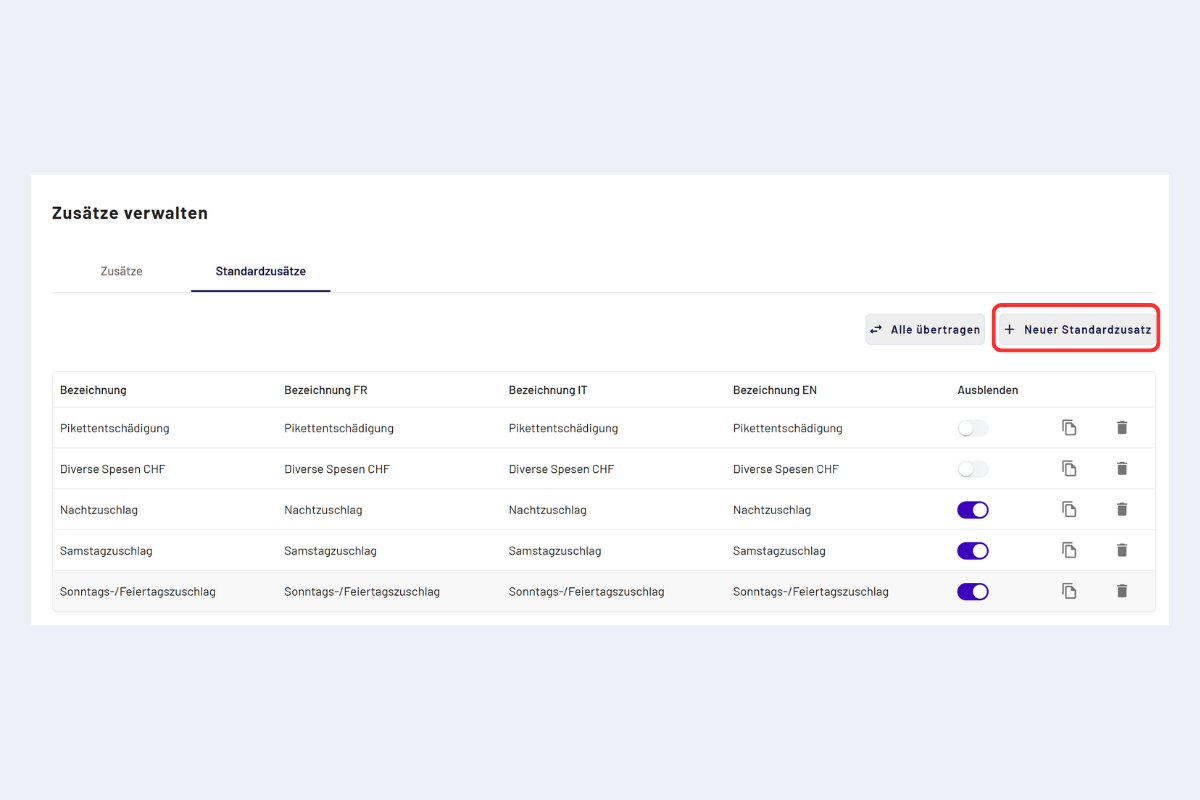
Create a template
-
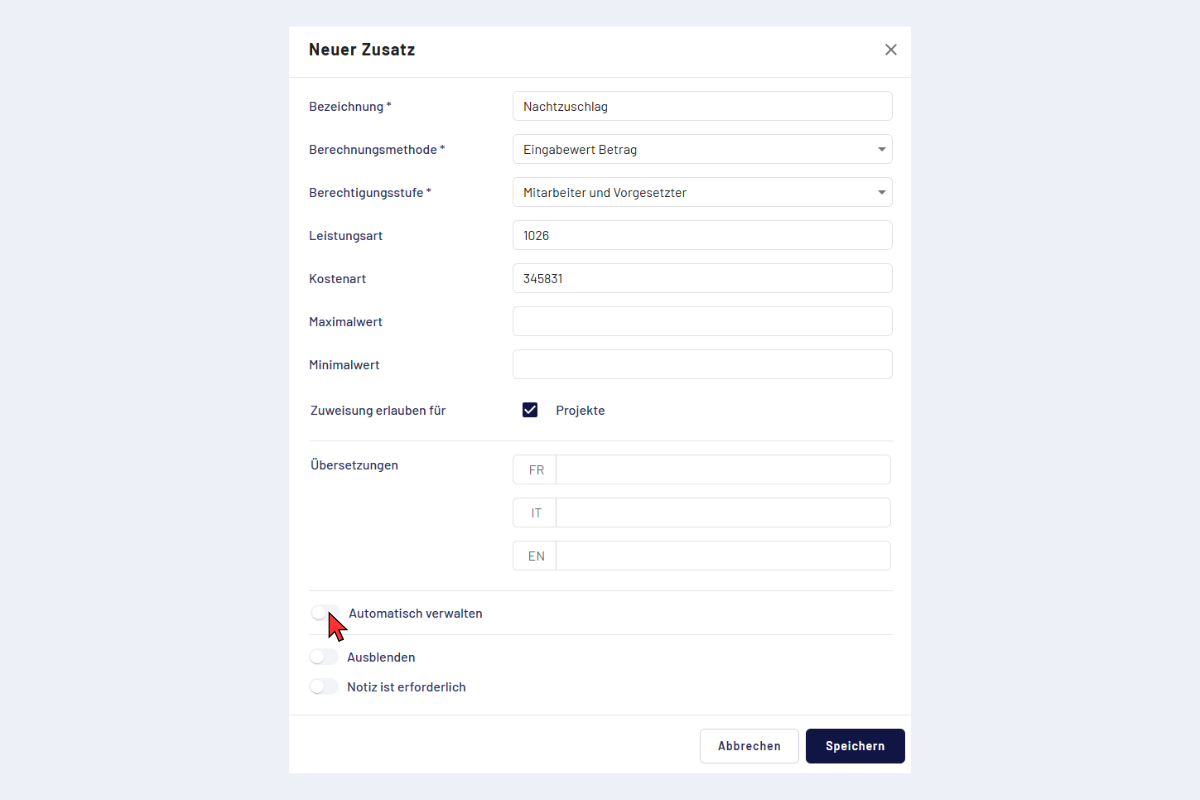
Fill in the input form and save.
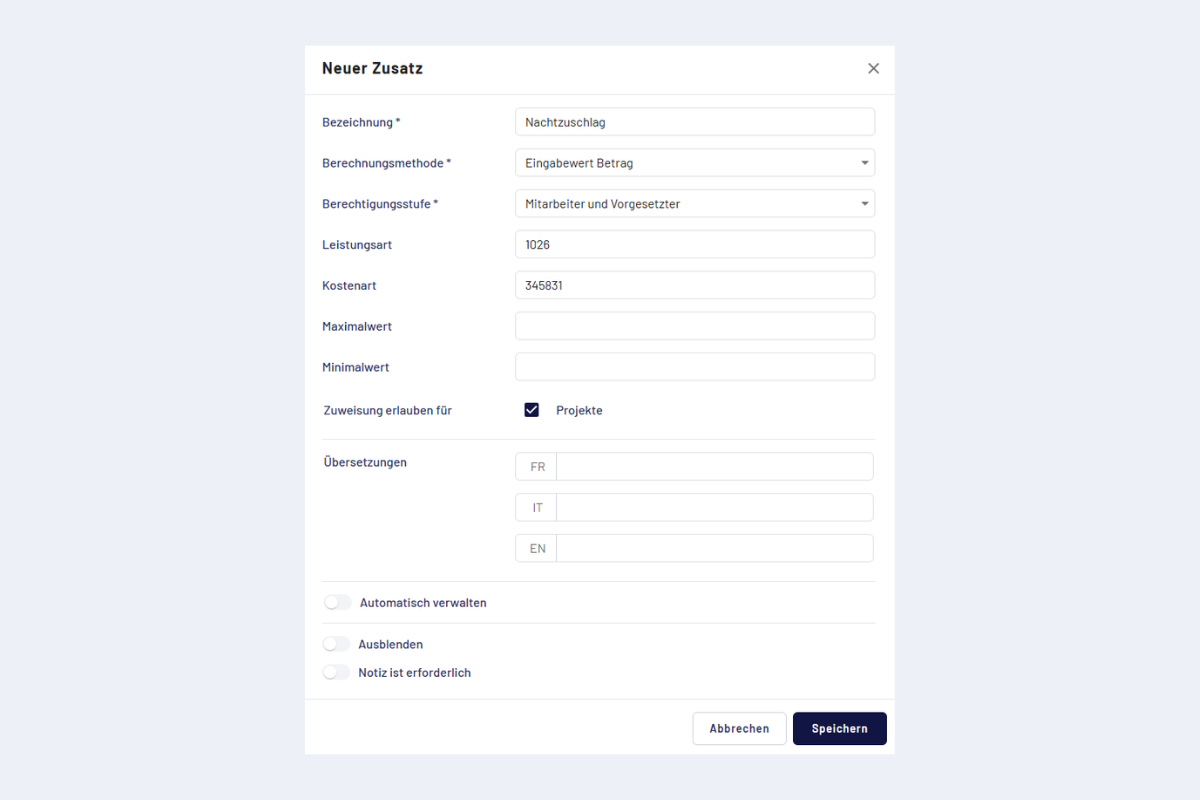
Template, input form
Fields in the input form
Mandatory fields:
- Label: title of the addition.
- Calculation method: determines how the value is entered when recording.
- Input value: quantity
- Input value: amount
- Input value: quantity × billing rate
- Input value: quantity × mileage rate
Both are only available if they are supplied via an interface. They cannot be configured within codeto report itself.
- Authorization level: defines who may record and edit the addition.
- Employee and supervisor: default case, all roles can use the addition.
- Supervisor (only editing of automatic additions): employees do not record manual entries, supervisors can subsequently edit additions added automatically.
- Master only: only masters see and edit the addition.
Optional fields:
- Service type: categorization for evaluations and export.
- Cost type: assignment to a cost type for controlling or export.
- Minimum value / Maximum value: limits for the input (e.g. minimum/maximum quantity).
- Allow assignment for:
- Projects: addition is selectable on project reports.
- Absences: addition is selectable on absence reports.
- Note is required: when activated, the addition can only be reported with a note. Without a note the report cannot be saved.
- Translations: maintain texts in FR/IT/EN.
- Apply automatically: see Apply report additions automatically.
- Hide: addition does not appear in the manual selection.
Apply report additions automatically
Here you define rules for when an addition is added automatically (e.g. depending on time, project or conditions).
Procedure:
- When creating or editing, activate the "Apply automatically" toggle.
- Click "Add addition conditions".
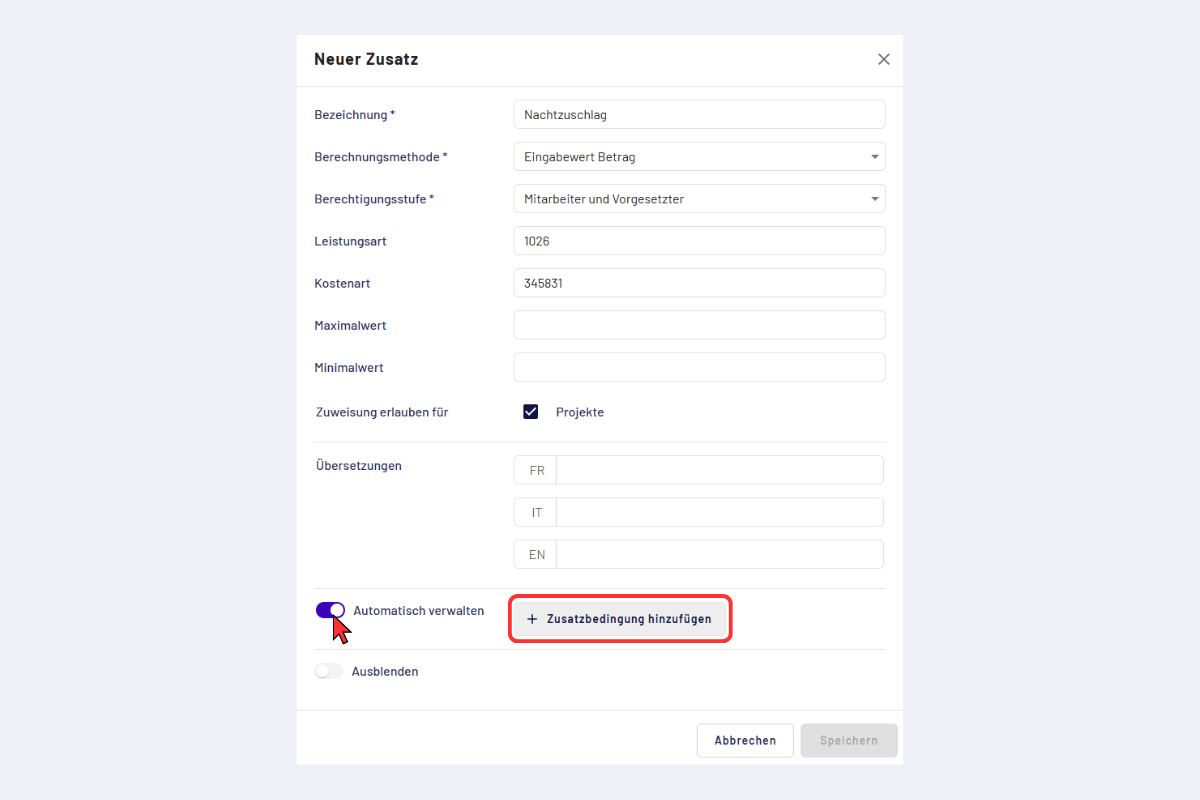
Apply addition automatically, add conditions
Record addition conditions
After clicking "Add addition conditions", the input form for the rules opens.
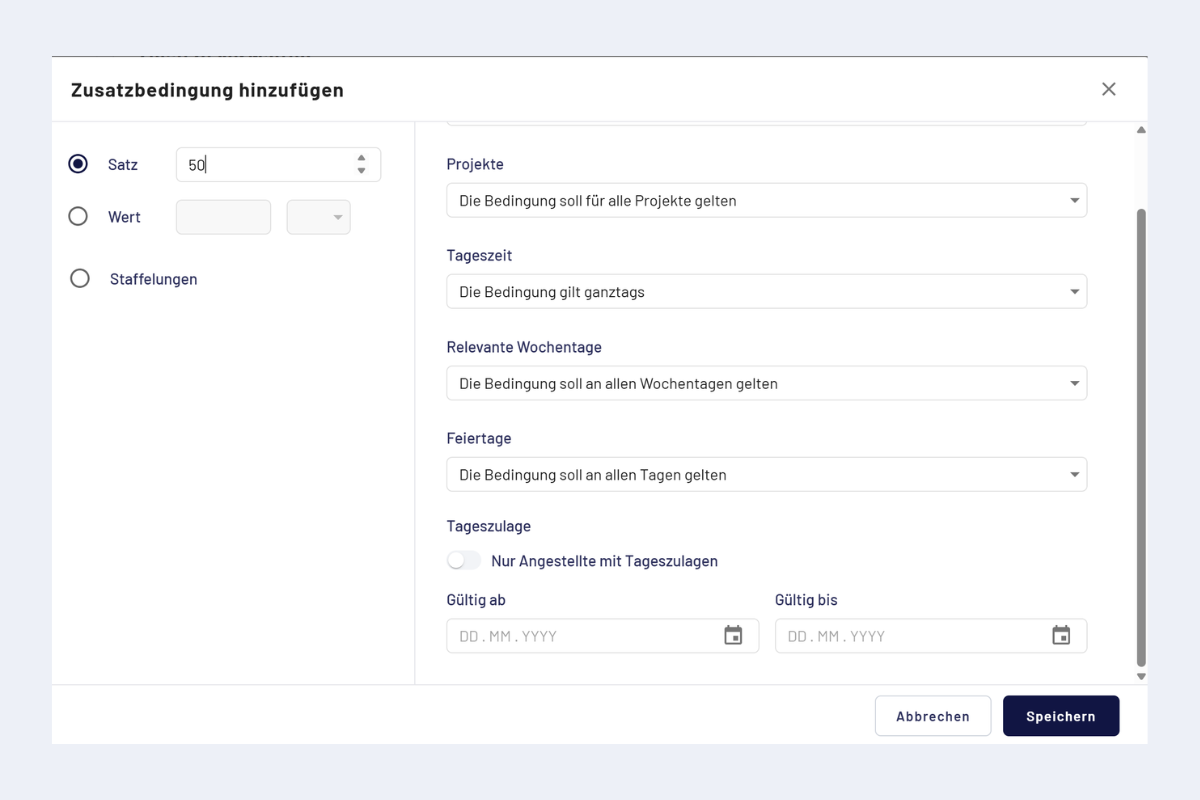
Addition conditions, input form
- Rate / Entry (choose on the left):
- Percent: e.g. 50% supplement.
- Fixed value: amount with unit (time/currency).
- Tiering: several time windows with different rates, e.g. 23:00 to 02:00 = 50%, 02:00 to 05:00 = 60%.
- Branches: optionally restrict to specific branches.
- Projects: optionally restrict to specific projects.
- Time of day: define a time window (e.g. for night supplements).
- Weekdays: choose the relevant days (e.g. Mon to Sat, without Sun).
- Public holidays: define whether the rule should also apply on public holidays.
- Daily allowance: only apply for employees who are entitled to daily allowances.
- Valid from / Valid until: period during which the condition applies. This applies only to the automatic booking of the addition; outside this period the addition is not added automatically.
A time window must not span across midnight. For 23:00 to 05:00 record two conditions: 23:00 to 00:00 and 00:00 to 05:00.
Saved conditions
After saving, the conditions are stored on the addition. For the night supplement described above, two conditions arise (23:00 to 00:00 and 00:00 to 05:00). Any number of conditions per addition is possible.
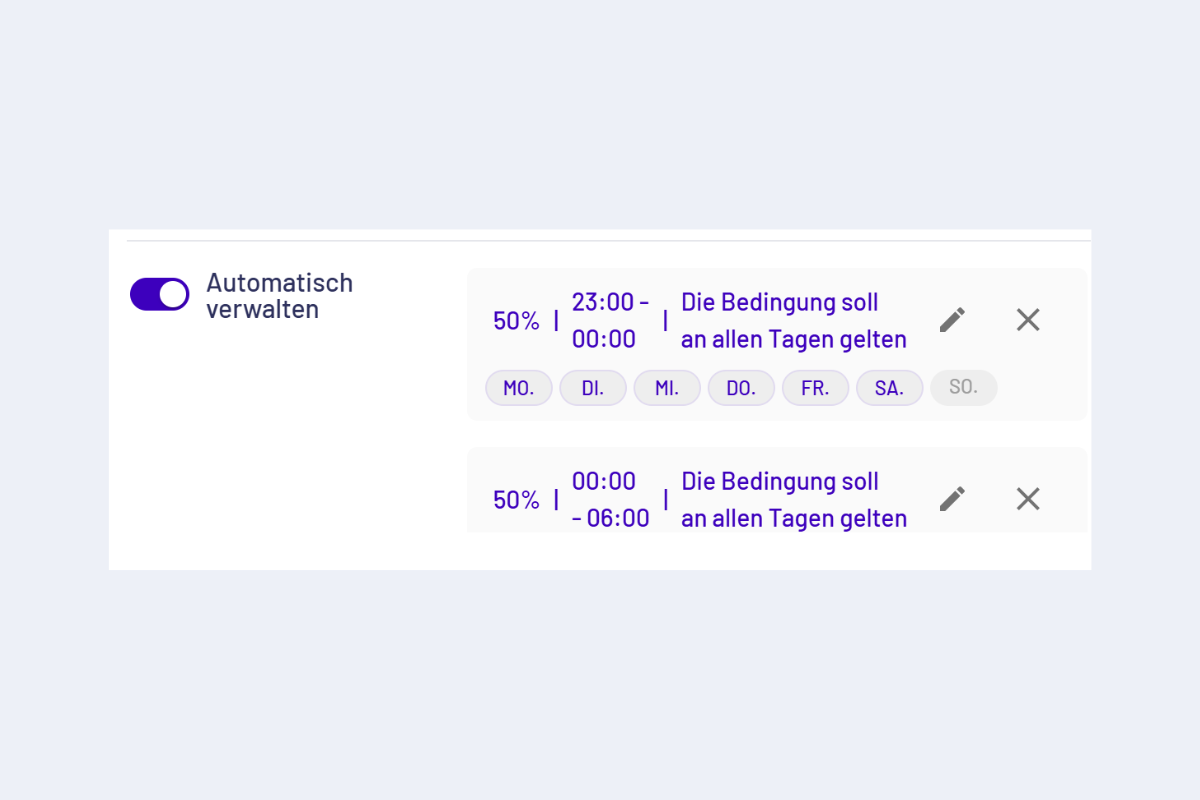
Addition, saved conditions (example: night supplement)
As soon as a person reports time on a weekday between Monday and Saturday after 23:00, the rule applies automatically and the 50% addition is added for the times recorded between 23:00 and 06:00.
Manual recording
If "Apply automatically" is not activated and the addition has not been hidden, it can be added manually when recording a project or absence report in the "Additions" step.
Depending on the configuration, quantity or amount is then entered. Minimum and maximum value restrict the permitted input according to the settings stored here.
Record an addition manually