Overview for Master/Admin
This overview shows the main areas for masters and administrators.
The display can vary slightly depending on permissions. Not everyone sees the switch between codeto plan and codeto report at the top left. Super users can switch between both tools and additionally see the icon for user management in the quick access. The balances can always be opened, but stay empty as long as the feature has not been enabled, see Balances.
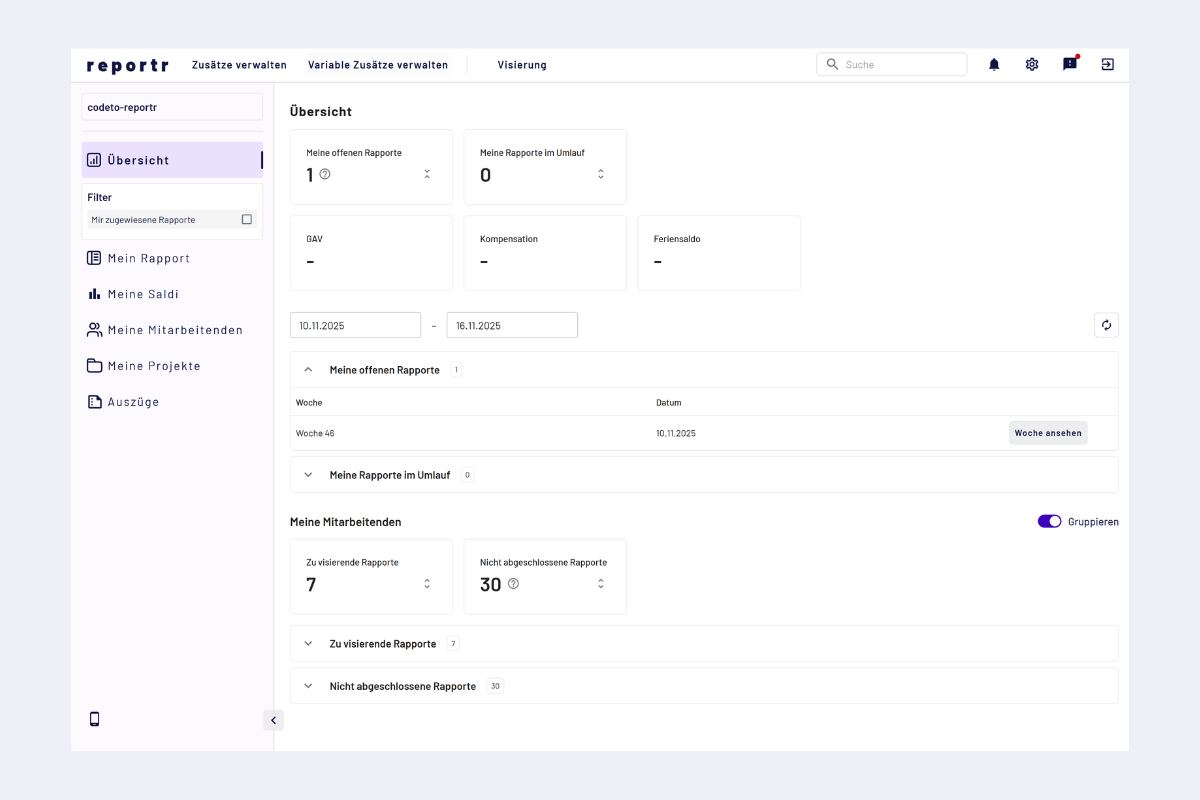
Overview master/admin
Sidebar menu items
- My report: own reports that still need to be filled in or are in circulation. See also Record reports: overview.
- My balances: holiday, overtime and prior-year hours, see My balances.
- My employees: for supervisors, overview of employees and their reports/approvals. See Approve/reject reports.
- My projects: for project managers, overview of project-related reports of employees. See Approve/reject reports.
- Extracts: generate extracts (employees, projects, reports) as well as overviews for missing/open reports. See Extracts (overviews and analyses) or directly: Employees, Projects, Reports.
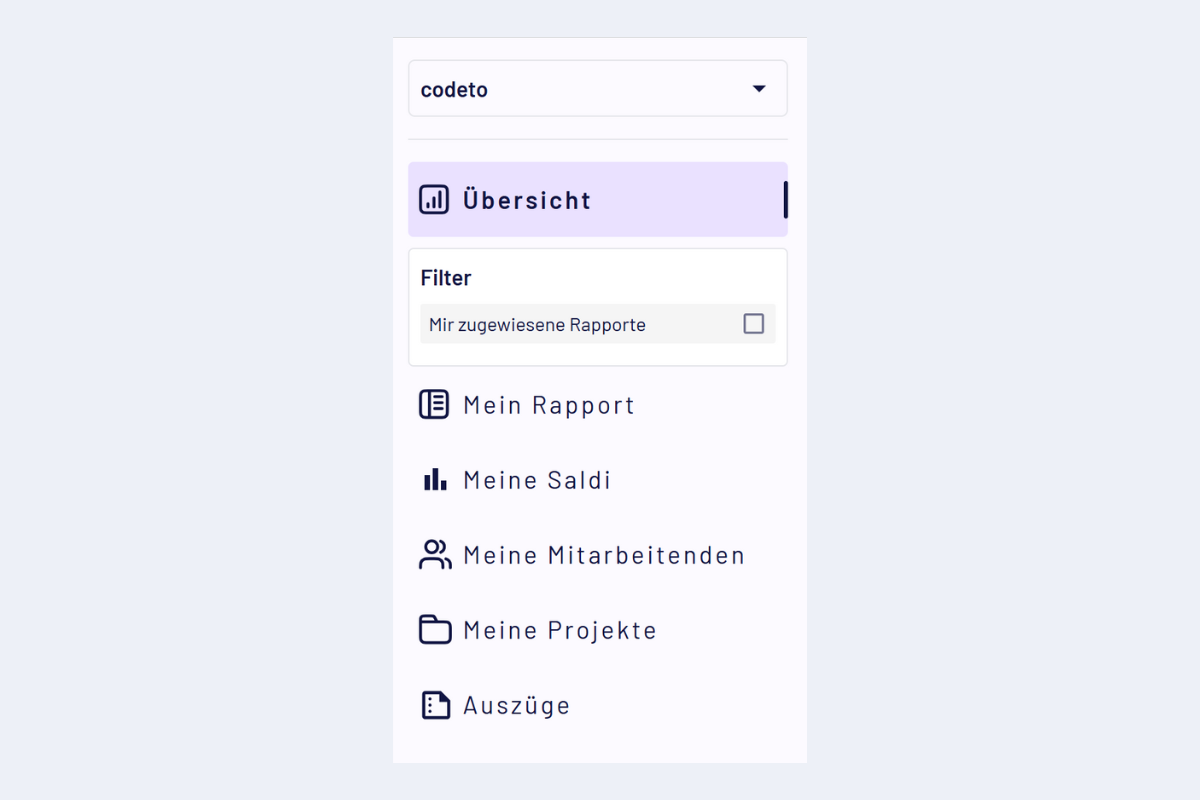
Sidebar master/admin
In the overview area, you see central tiles and quick access. The tile "My balances" also appears when the feature has not yet been enabled, but then stays without values, see Balances.
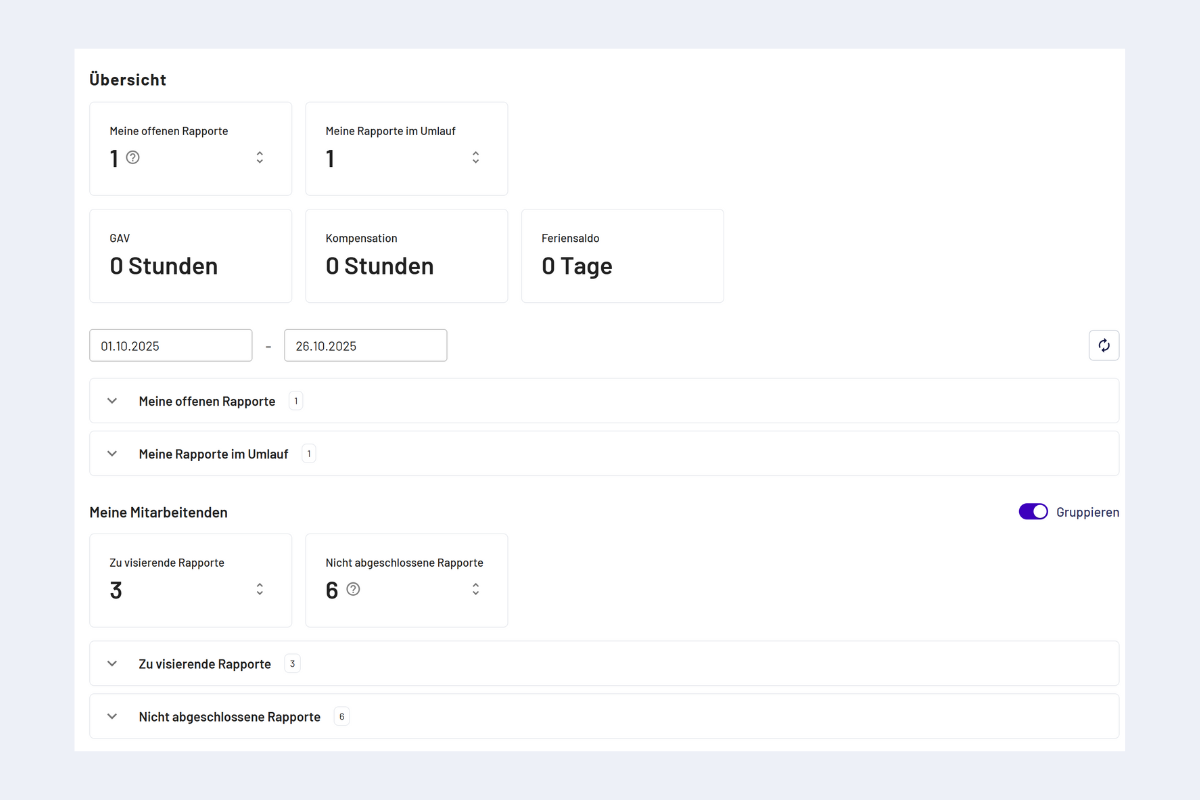
Overview area master/admin
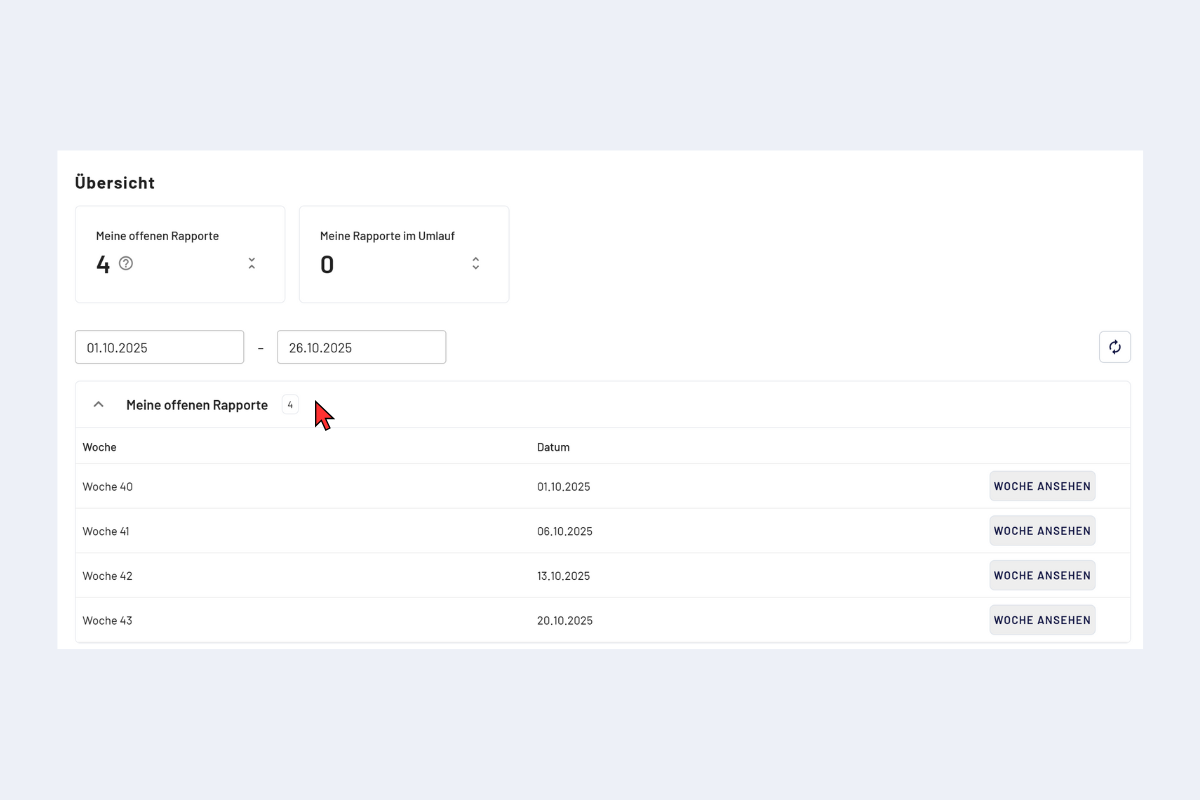
Overview area master/admin, expanded
With a click on "View week", you go directly to the corresponding week, the fastest way to continue entering data. This applies to all of the following tiles:
- My open reports: weekly reports that have not yet been closed and are therefore still being processed.
- My reports in circulation: weekly reports that have been closed and are currently in the approval process.
- Reports to be approved: weekly reports that need to be approved by me.
- Reports not yet completed: weekly reports of my employees that are not yet fully approved (one or more approvals are still outstanding).
Quick access, left
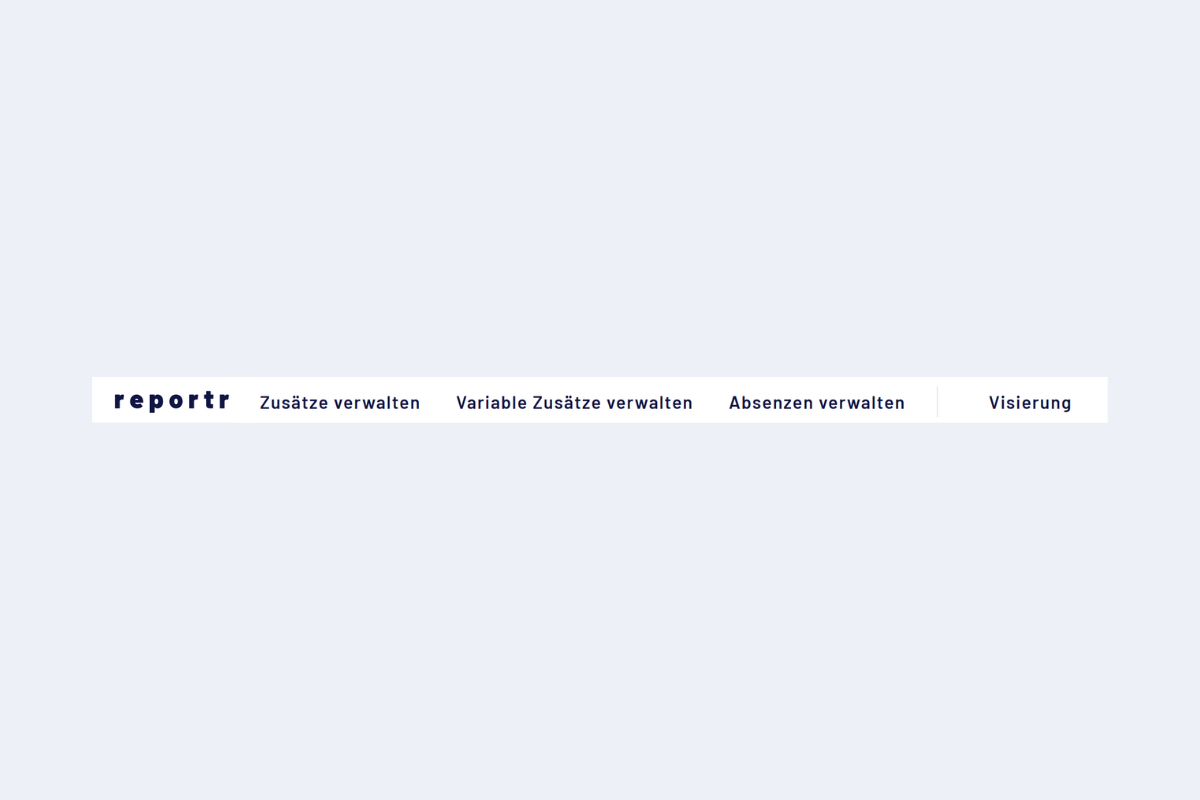
Quick access, master/admin (left)
In the upper left, depending on permissions, the switch between codeto plan and codeto report may be visible; in some cases only codeto report is available.
- Report additions: additions that are bound to a report. See Additions (project-related).
- General additions: additions that are bound to the employee contract (not to an individual report). See General additions (employee-related).
- Manage absences: management of absence types. See Absence management.
- Approval: approval structure, team assignments and substitutions. See Approval structure and Substitution rules.
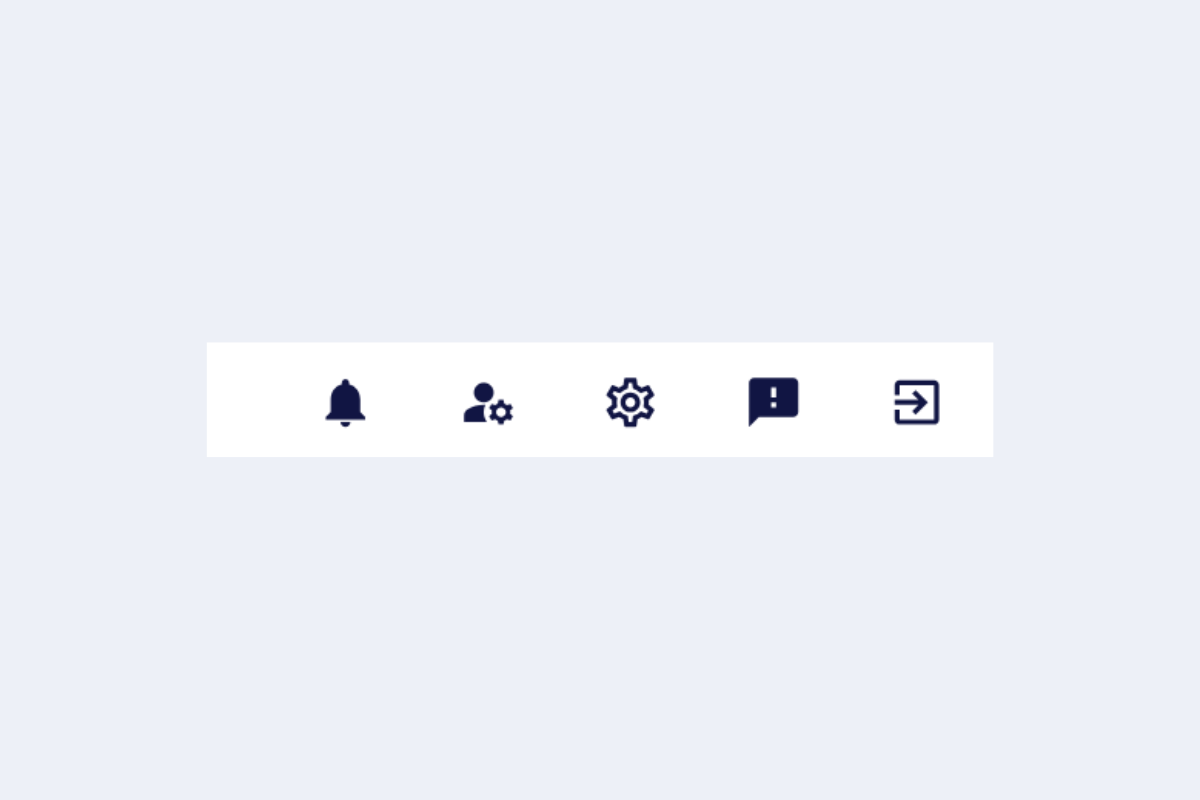
Quick access, right
Quick access, right
- Notifications: bell. Shows a dot when new messages are present.
- User accounts: take over the view of another person (visible only to super users). See User accounts.
- Settings: gear icon.
- News: speech bubble with exclamation mark (red dot for new items). Notes about software updates.
- Log out: logout icon on the far right.
User accounts
Super users can temporarily take over the view of another person and see the application exactly as that person does. This makes it possible to follow what someone is currently stuck on, without asking for screenshots or explanations.
When is this useful?
- Support: if someone reports that a function is not working, as a super user you see exactly the same as the affected person.
- Troubleshooting: if a report or an approval is stuck, the situation can be checked from the perspective of the affected person.
- Training and onboarding: follow which fields and options a particular role actually encounters.
Procedure
- In the quick access at the top right, click on the user management icon (little person icon).
- Select the person to be mirrored.
- Start. From now on, the application shows everything from the perspective of this person, including their permissions and data.
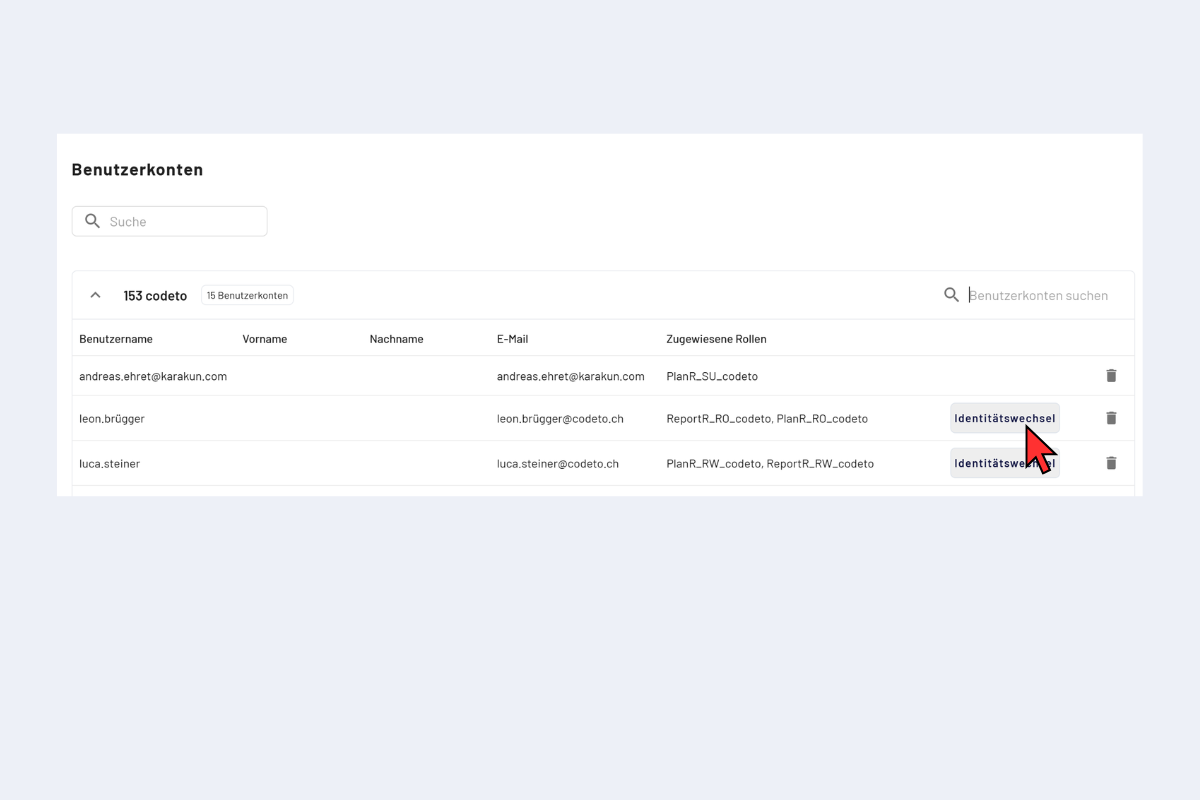
Start identity switch, select person
- To finish, click End at the top right to switch back to your own user.
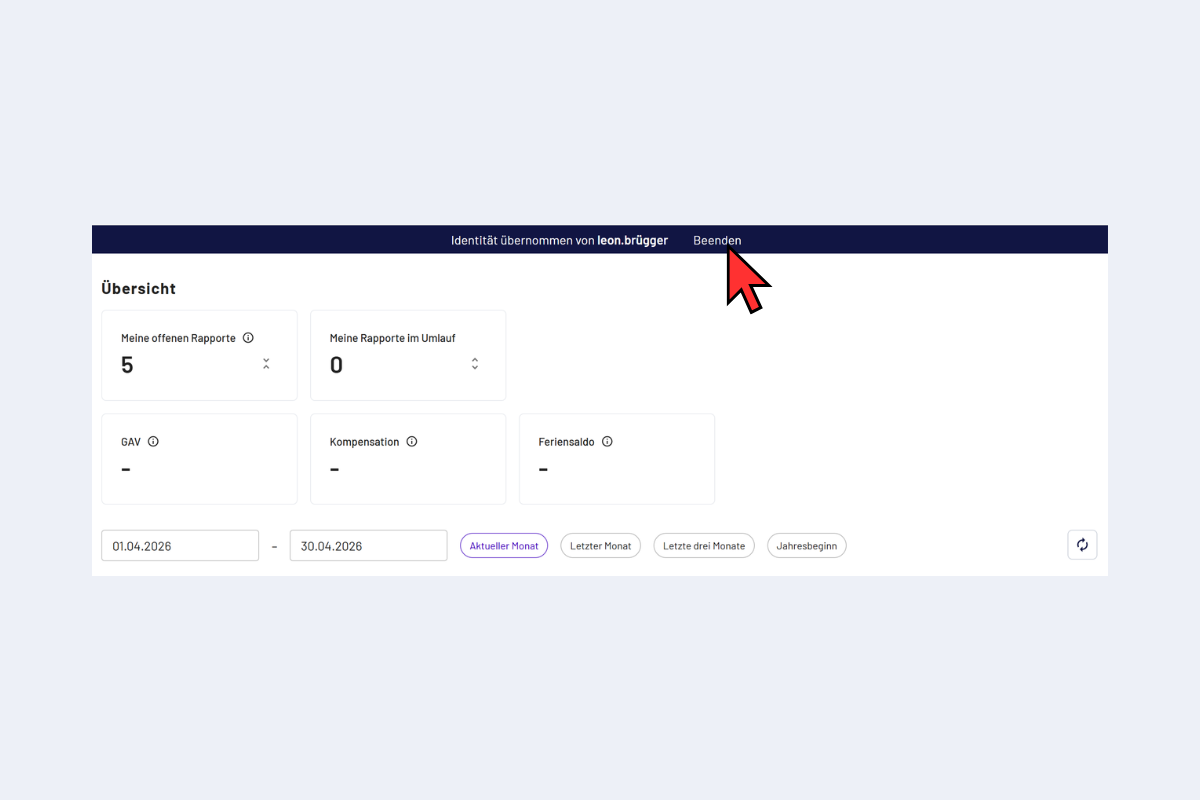
End identity switch, button at the top right
Actions during an identity switch are carried out in the name of the mirrored person. Do not record, approve or delete reports unless this has been agreed with the affected person.