Close the week
Close the week once all entries have been recorded in full.
- In the weekly view, switch to the current or open week.
- Check that all days have been recorded.
- Tap "Close week" at the top.
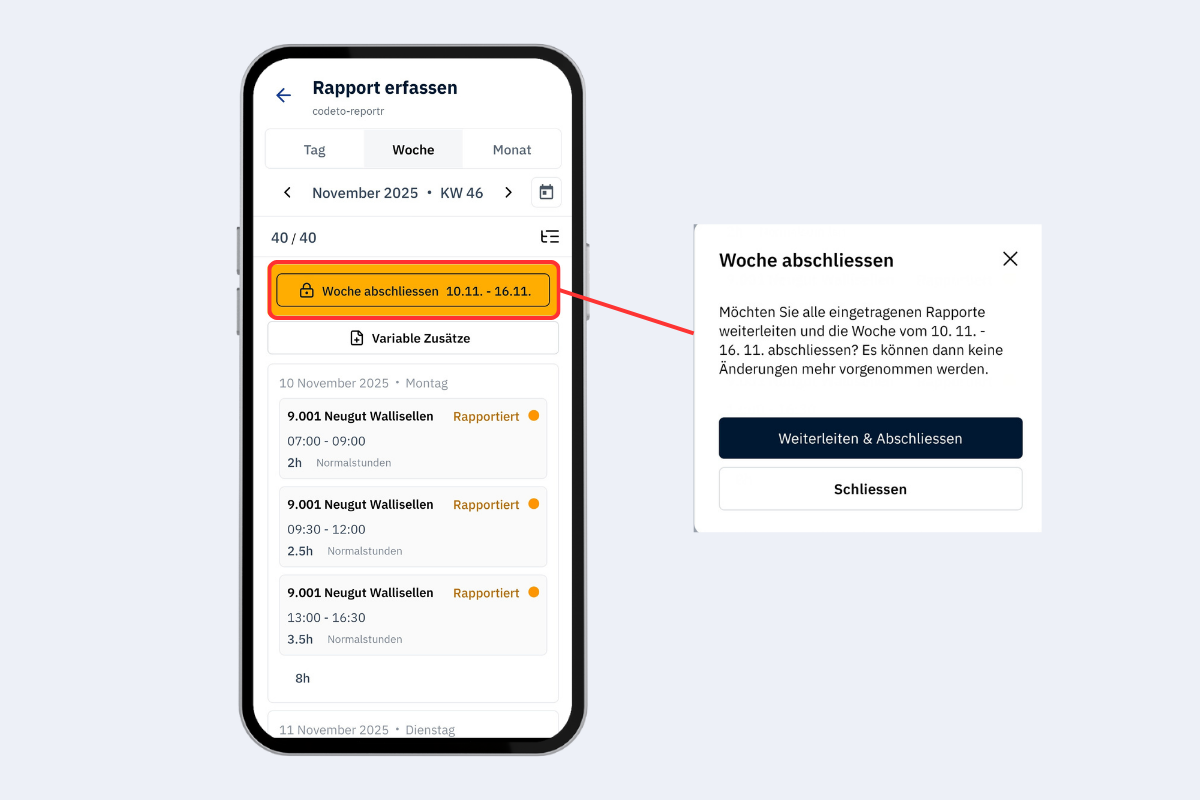
Mobile app, close week
Warnings
If not all rules are met or some days are empty, a warning appears. It can be deliberately confirmed in order to close the week anyway.
General additions in the weekly view
Below the "Close week" button, the General additions area can be opened. There, general additions for the week can also be edited or added in the mobile app, for example on-call expenses that are not assigned to a project.
The prerequisite is that the corresponding addition is configured so that employees may edit and add it themselves. More on the configuration under General additions (employee-related).
After closing
The week is highlighted in green and marked with a lock.
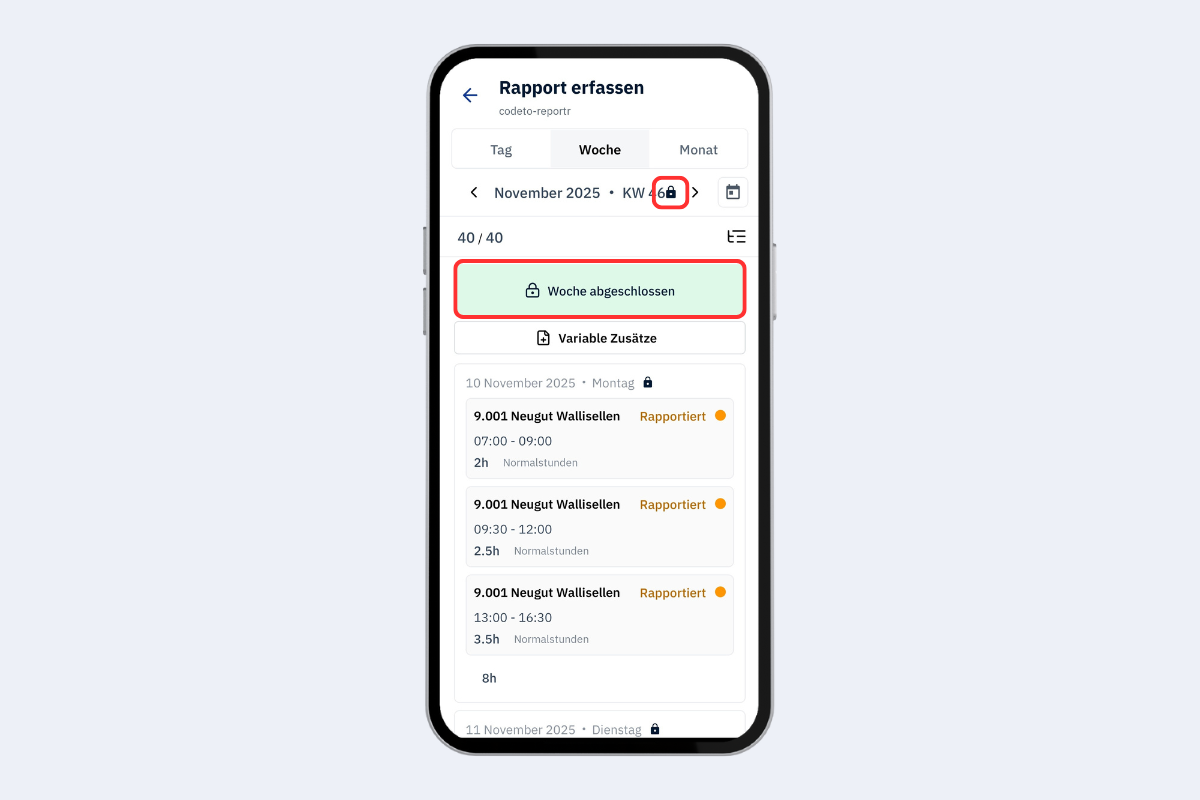
Mobile app, week closed
- The week is locked and handed over to the approval structure.
- Entries can no longer be edited until the week is reopened by an authorized person.
- General additions and rules are applied according to the configuration.