Record absence
Record a new absence
On the desired day, tap the plus icon.
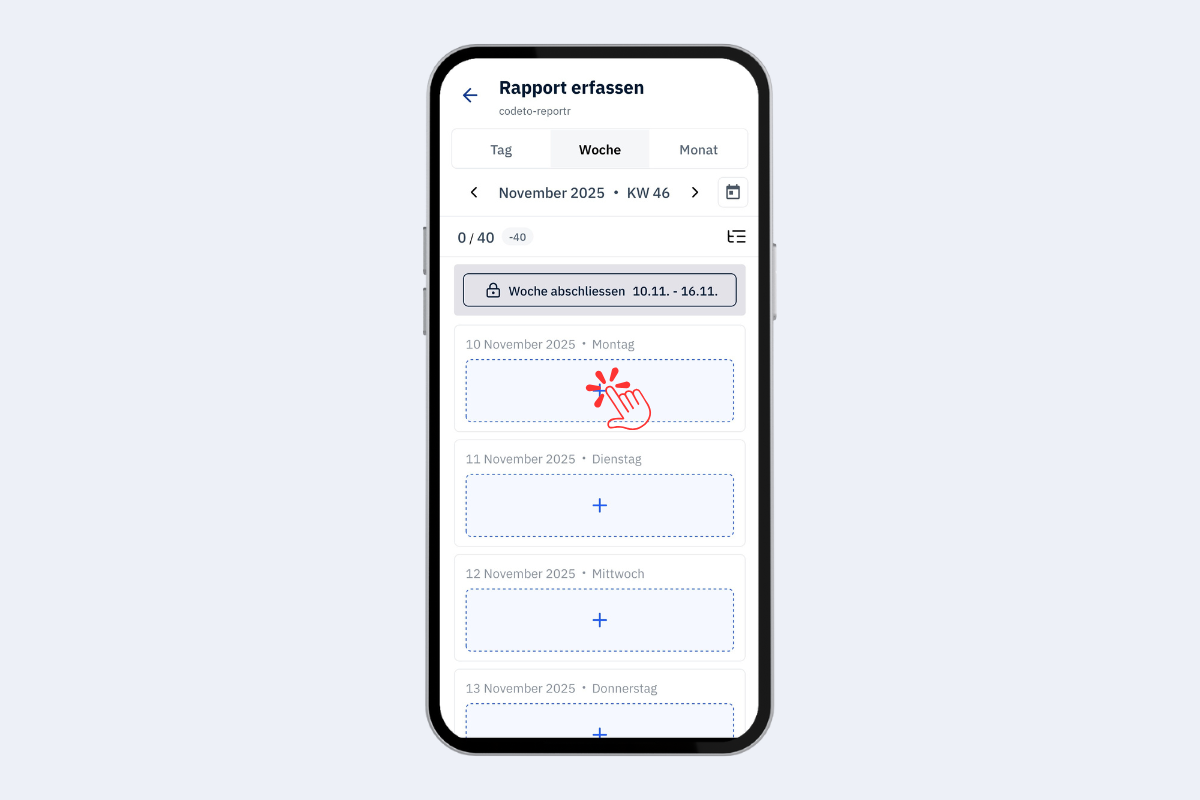
Mobile app, record new absence
- Tap «New entry» and switch to the «Absence» tab.
- Choose the desired absence type. Only the types released by the admin are available.
- Then proceed directly to time tracking.
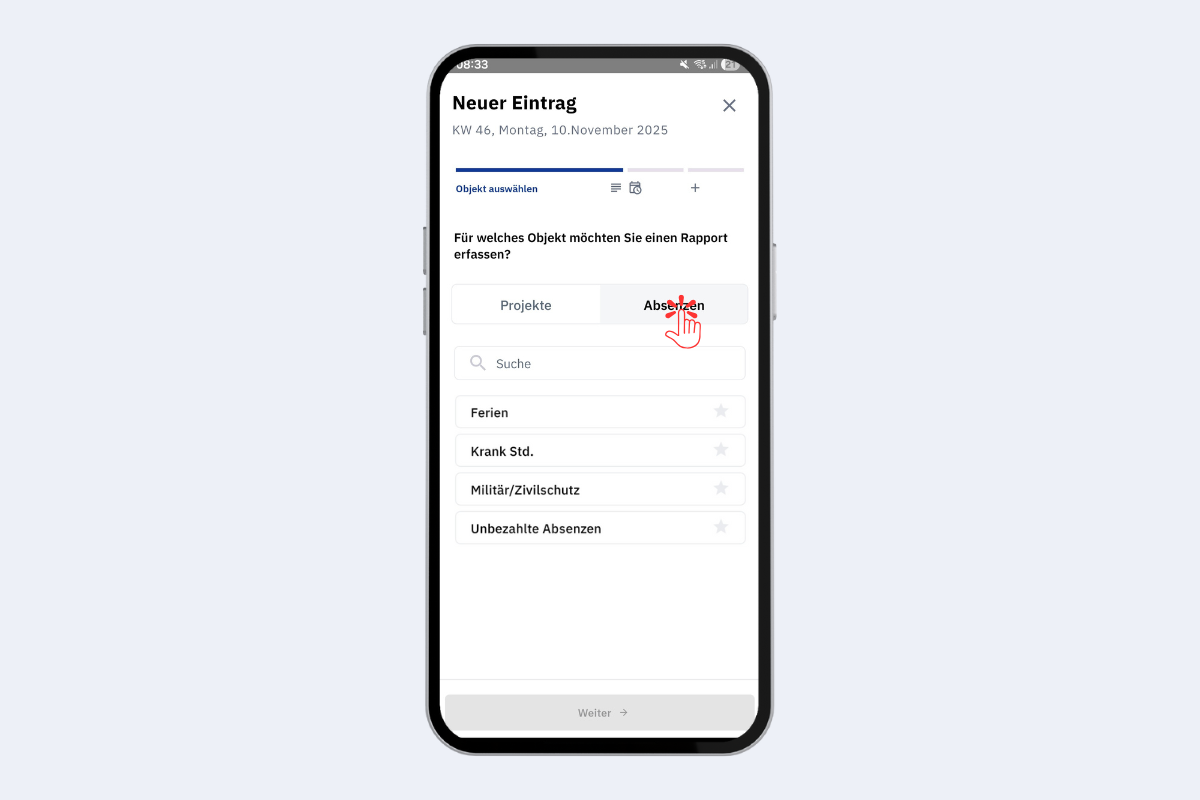
Mobile app, select absence
Favourites
Use the star to mark absences as favourites. Usually less relevant for absences, since there are often only a few types.
Enter times
- Repeat entry: select multiple days if the absence covers several days.
- Adjust time window: «+» adds time at the end, «–» removes time.
- Blocks: a day can consist of several blocks (kept consistent with reports, but rarely needed for absences).
- Block times: tap directly on the time to adjust start and end.
- Notes: optional per block.
- Additional blocks: add with «Add row» or remove with «X».
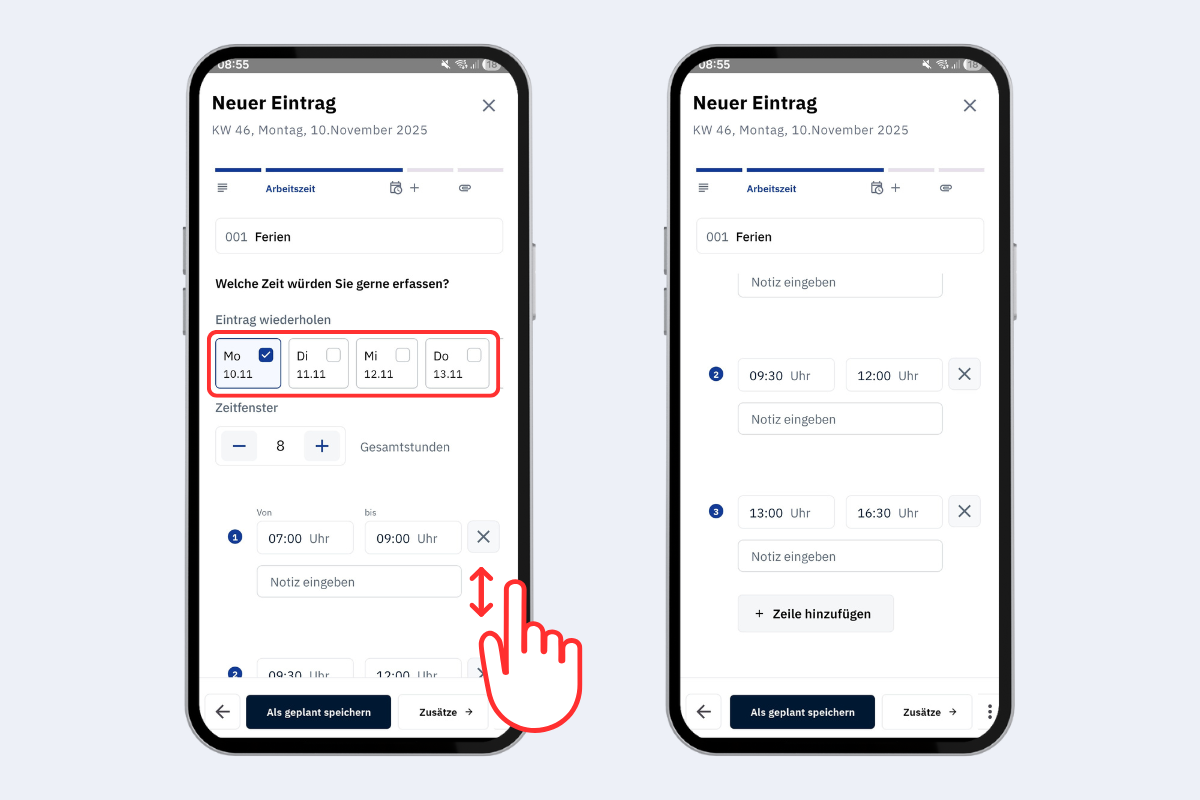
Mobile app, record absence: working time
Actions at the bottom
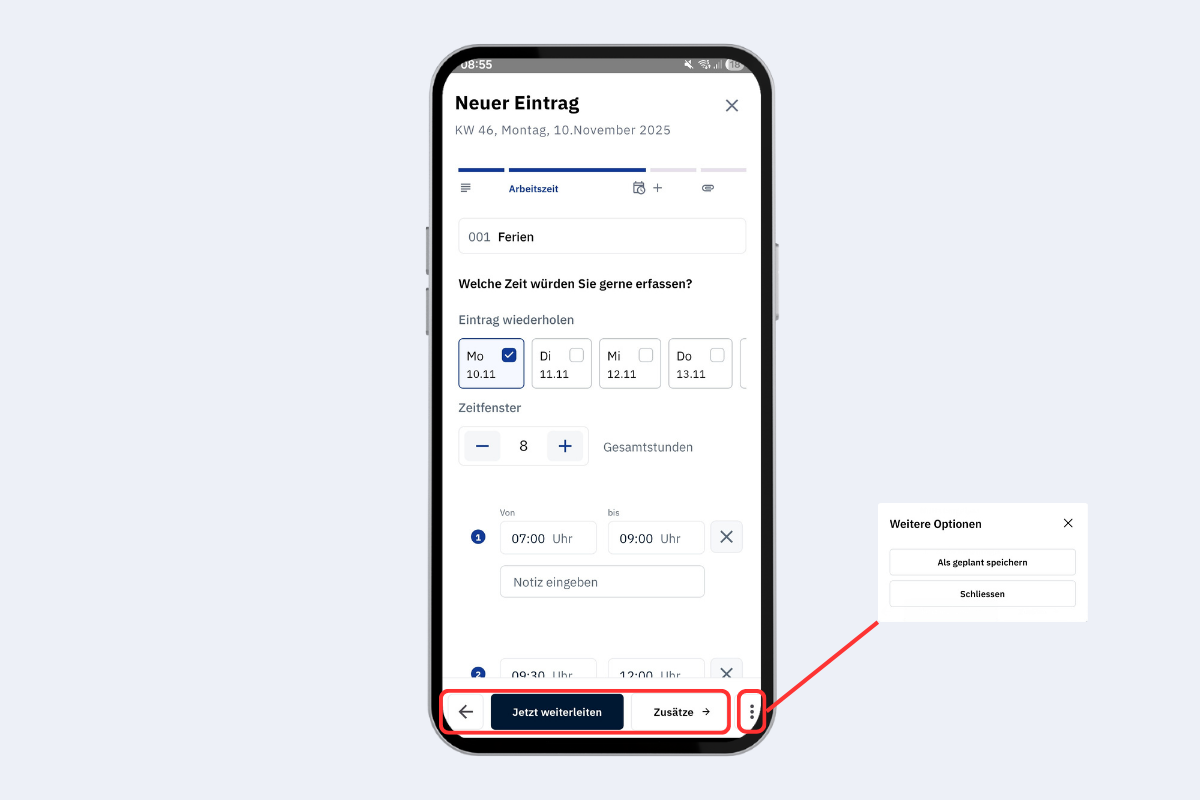
Mobile app, record absence: bottom options
- Left arrow: one step back to the selection.
- Save as planned: the entry remains editable until it is forwarded or the week is closed.
- Attachment: optionally attach images or documents.
- Three dots: forward the absence; afterwards it is locked and handed over to the next stage.
Attachment
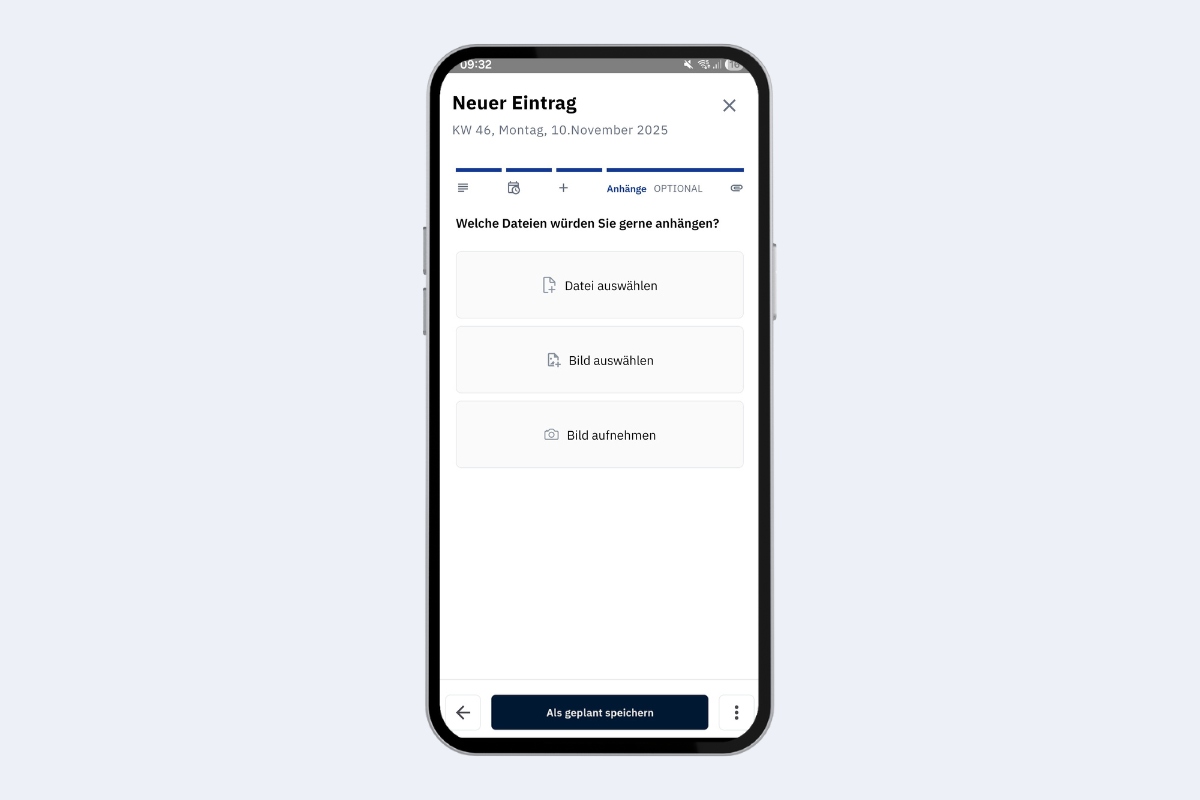
Mobile app, record absence: add attachment
Add a photo or PDF. JPEG, PNG and GIF are allowed. Then save the entry or forward it directly.